

Connecting with Providers
A connection is the link between your shipper organization and a forwarder or courier that runs shipments for you. You can only assign orders to providers you’re connected with. This page shows you how to create connections — both during sign-up and from inside the app — and how to manage them.
Before you start
Creating a shipper organization is free, and connecting with a provider does not incur charges on its own. You only pay for the shipments you place.
If you already have a chrt shipper account, sign in first and then open the provider’s profile link.
Option A: Sign up from a provider profile (fastest)
If your provider has shared a link like https://chrt.com/@provider-handle,
the fastest path is to sign up from that page so your new shipper org lands
already connected to them.
-
Open your provider’s public profile page.
The URL usually looks like
https://chrt.com/@provider-handle. -
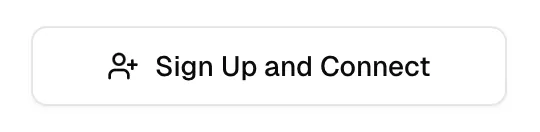
Click Sign Up and Connect. chrt will run you through sign-up and bring you back to the connection flow.
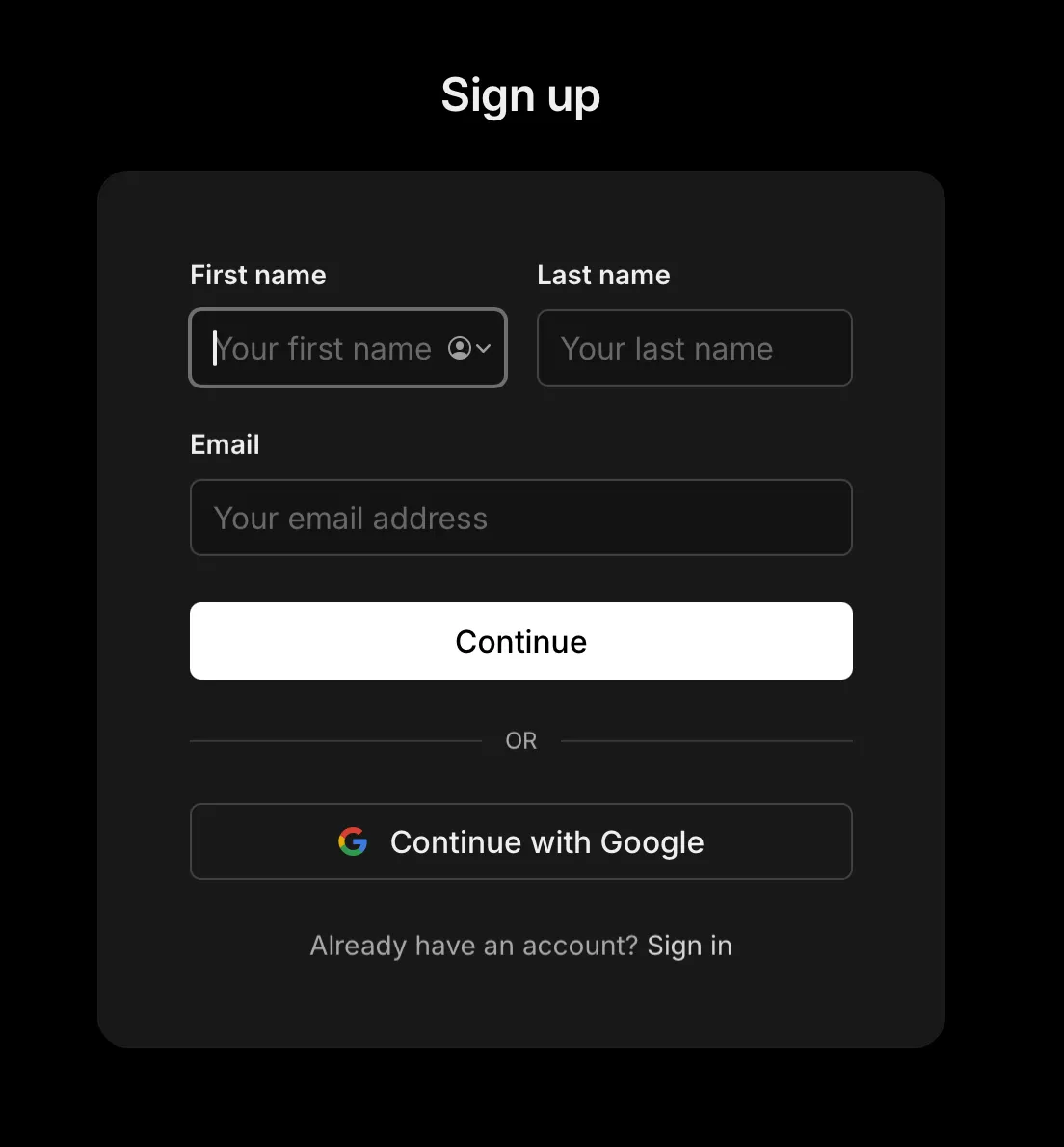
- Enter your name and email address. On the sign-up screen, fill in your first name, last name, and email, then click Continue. You can also use Continue with Google if your organization signs in with Google.
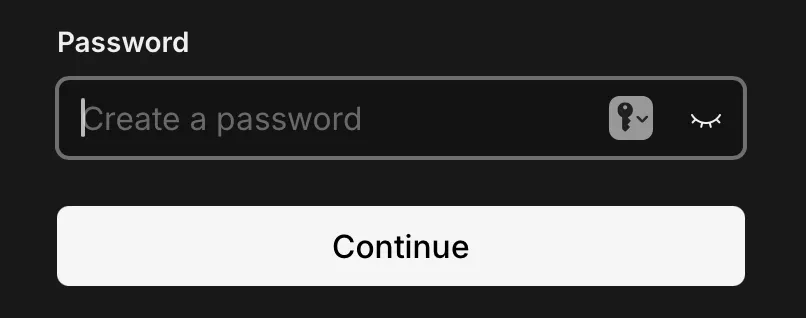
- Create a password and click Continue.
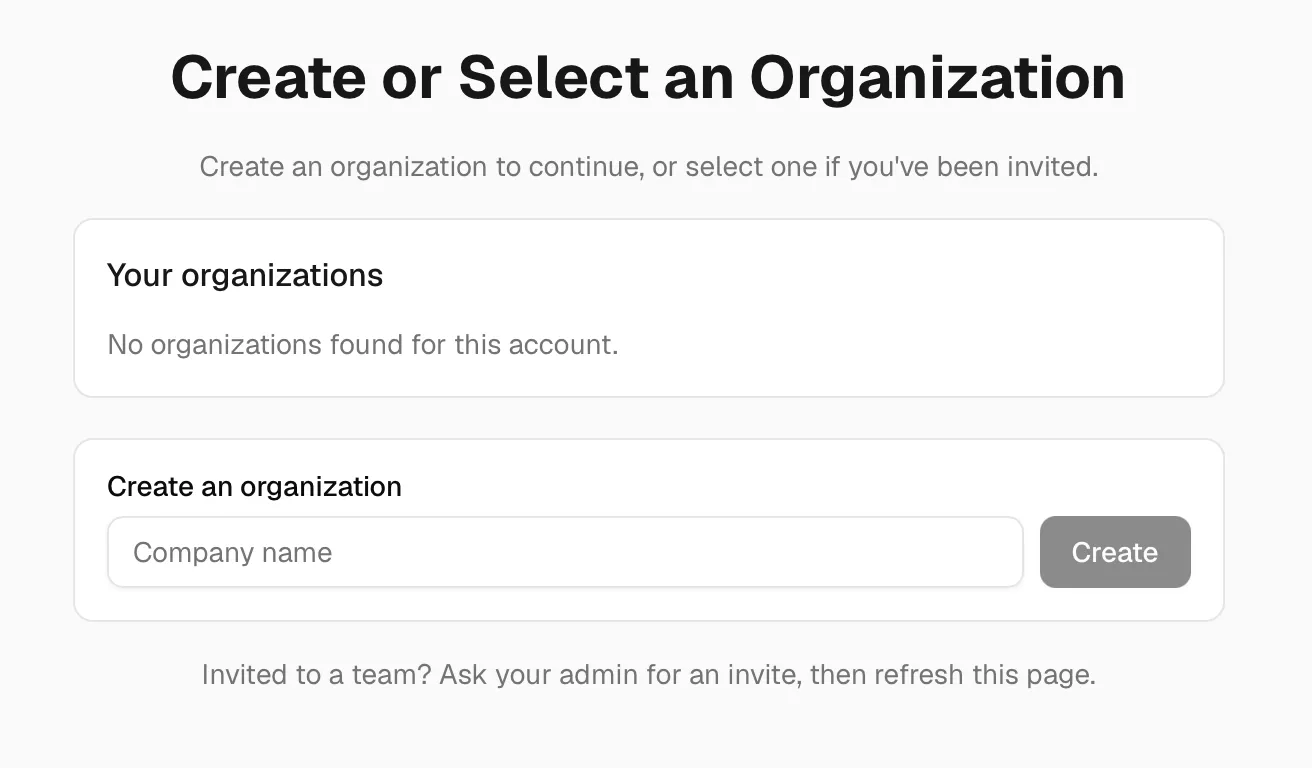
- Create or select your organization. If you’re new to chrt, enter your company name and a public handle. If you’ve been invited to an existing chrt organization, select it from Your organizations instead.
- Choose Shipper when chrt asks how your organization uses the platform. A shipper organization is for teams that place shipments and work with logistics providers.
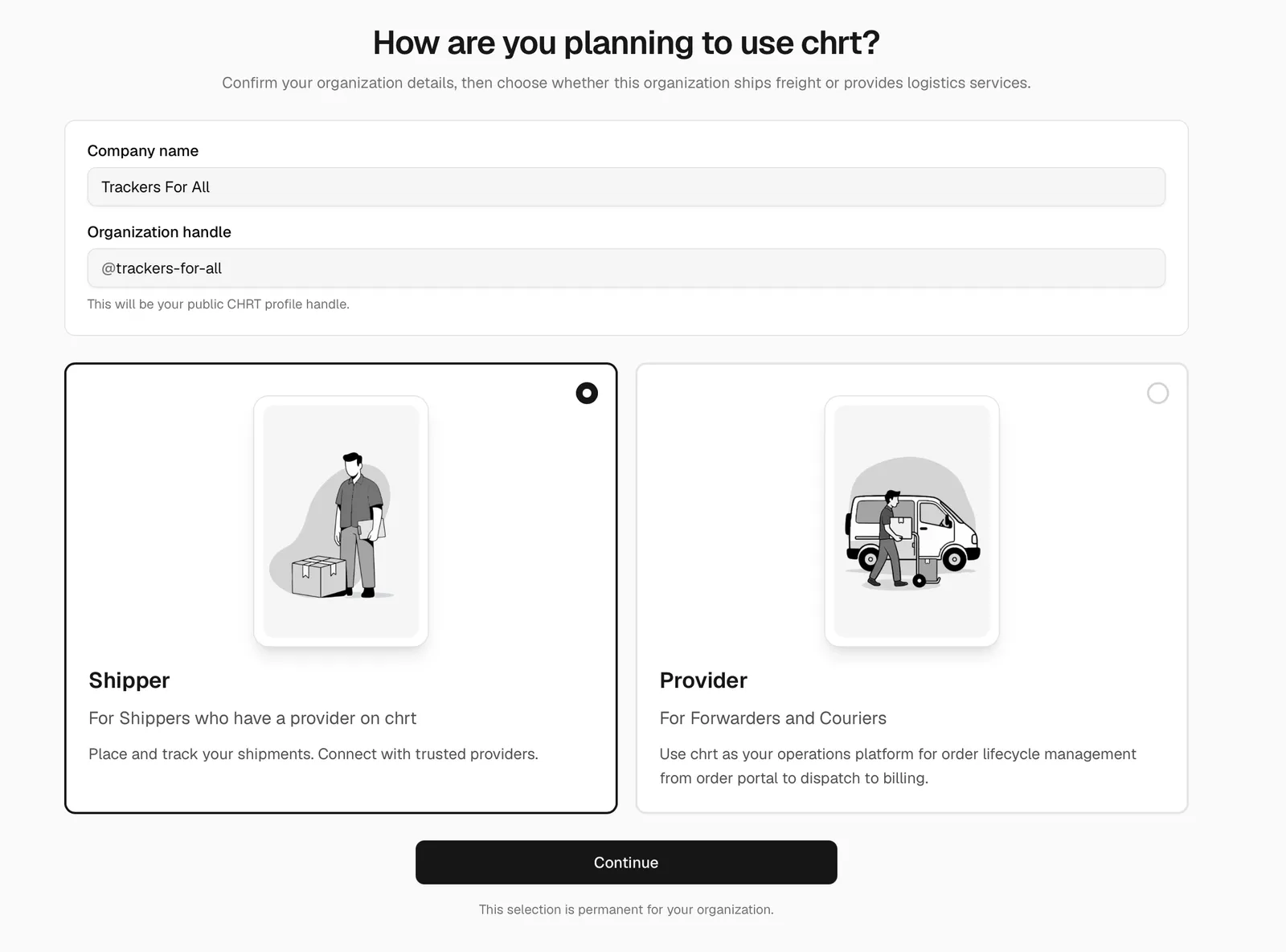
- Click Continue. chrt creates your shipper profile and connects you to the provider from the profile link.

Option B: Connect from inside chrt
If you’re already signed in and don’t have a provider profile link, search the directory and connect from there.
- Open chrt.com/connections.
- Click Find New if the search panel isn’t already open.
- Search for the provider’s handle.
- Review the provider result, then click Connect.
The provider receives the connection request immediately. Once they accept (or if the connection is auto-accepted), the provider appears in your connections list and is available in the Order setup tab of the draft builder.
Option C: Record an off-platform provider
If a provider isn’t on chrt yet, you can record them as an off-platform provider so you can still build orders that reference them. Off-platform providers don’t have a chrt account, so they can’t see the order in the app — you’ll handle dispatch and updates through your existing channels.
How to know it worked
- The provider profile shows Connected (or chrt returns you to the profile after creating the connection).
- The provider appears in your Connections list.
- The provider is selectable as the forwarder or courier on the Order setup tab of the draft builder.
Managing a connection
Open chrt.com/connections and click a connection to see the connection detail page. From there you can:
- See the provider’s profile, contact info, and saved addresses.
- See shared orders, statements, and tracking sessions.
- Pause or end the connection (the provider can still see historical orders).
If something looks different
- If you see Connect instead of Sign Up and Connect, you’re already signed in — click Connect to connect the currently-active organization.
- If you’re asked to choose between Shipper and Provider, choose Shipper unless your company performs logistics work for customers.
- If the profile already shows Connected, your organization is already connected to the provider.
- If you accidentally create the wrong type of organization, contact hi@chrt.com before placing orders or inviting teammates.
Related guides
- Off-platform providers — record providers that aren’t on chrt.
- Creating shipments — assign a connected provider to an order.
- Add an organization member — invite the rest of your team to your shipper org.