

FAQ
Common questions, grouped by topic. If you don’t see your question, contact hi@chrt.com.
A draft order shows its name with a Draft badge 1, the shipper selector 2 and the Cargo 3, Timeline and Tasks 4 and Bookings 5 tabs.
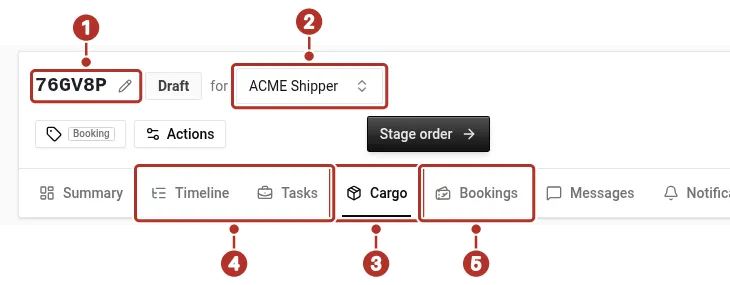
Order workspace header and tab row of a draft order. 1 Order name with its pencil and the Draft badge, 2 Shipper selector (CHRT (shipper) here), 3 Cargo tab, 4 Timeline and Tasks tabs, 5 Bookings tab.
Orders and shipments
What's the difference between a draft, an order, and a task group?
An order organizes cargo and configured work. A draft is being prepared; staging is a separate readiness action. Task groups contain related tasks. A reference or preview does not prove assignment or execution. See Orders.
How do I create my first shipment?
Open Orders and click Create Order, review ownership, Cargo, Timeline and, where shown, Tasks, then click Stage order when ready. Reopen the saved result. See Create your first shipment.
How do multi-leg and next-flight-out shipments work?
Configure the required ground, flight-linked or hand-carry work and review cargo and executor associations. Flight information, bookings and actual cargo milestones are separate evidence. See Multi-leg orders.
What's an off-platform provider?
An external partner record maintained by your organization. Creating it does not invite that partner, grant app access or prove updates will arrive. See Connections.
Tracking
Where do I see a shipment's live location?
Open the order and inspect its Timeline and available map. Check the source and timestamp. Driver sharing, device telemetry and planned routes are different. See Tracking.
How are ETAs calculated?
ETAs are estimates based on the available schedule, route and reporting data. Check freshness and time windows; do not treat an estimate as a guaranteed arrival. See Tracking.
Can I revoke a public tracking link?
Order sharing and standalone-session publication have different controls. Confirm the recipient outcome for the link type. Stopping collection, changing sharing and deletion are separate; do not assume any removes all historical data. See Tracking.
Billing and payouts
Why are there no line items on my statement?
The task group ran without a matching rate sheet. Confirm the connection has a default rate sheet, or attach one directly to the task group. See Rate sheets and Billing primitives.
How do I adjust a line item I think is wrong?
Open the statement detail page, find the line item, and use the Adjust dialog to enter the delta and a short comment. Adjustments leave an audit trail. You can only adjust before the statement is paid — paid statements are immutable. See Billing.
What's a ledger?
A ledger groups statements over a defined billing period for one connection — useful for weekly or monthly rolling invoicing instead of settling one statement at a time. Open the period to roll outstanding statements into a consolidated invoice. See Billing.
Do I need Stripe Connect?
You need a Stripe Connect account to receive payments through chrt’s payment processor. Shippers paying providers don’t need Stripe Connect to pay — chrt uses Stripe Checkout for that. Forwarders and couriers typically need it on both sides. See Billing for forwarders.
What are SPP, PPD, and PPP rate sheets?
Three rate sheet kinds: Standard per-piece, Per-piece per-distance, and Per-piece per-pickup. The kind you pick depends on how you price work. See Rate sheets for field-by-field breakdowns.
Plans and pricing
Is it free to sign up?
Creating a shipper organization and connecting with a provider is free. Provider organizations (couriers and forwarders) go through subscription checkout during onboarding. See Getting started as a shipper.
Where can I see what chrt costs?
Pricing details for provider subscriptions and trackers are at chrt.com. Contact hi@chrt.com if you need a custom plan.
API and SDKs
Where's the API reference?
The full reference lives under the API tab. Browse endpoints by domain — orders, tracking, billing, connections, devices — each with request and response schemas and code samples.
Which SDKs do you ship?
Review the SDK guide for TypeScript, Swift and Java guidance. Confirm the published version, environment, credentials and endpoints needed for your integration; do not assume complete parity from a shared version number.
How do I receive events in my own system?
Review Notifications and the API contract for the event types and setup available to your account. Confirm authorized access and delivery separately; do not infer secret or portal permissions from a menu.
The chrt app
What's the chrt driver app for?
Eligible drivers use the mobile app for assignments, tasks, proof and location sharing. iPhone and Android support the driver feature set; OS controls and hardware prerequisites vary.
How do I invite a driver?
Use the member invitation flow under the correct organization. Member is the default role for assigned driver work, but a linked driver profile and eligible organization are separate prerequisites. See Add an organization member.
Does the driver app work offline?
Supported work can use cached data and pending sync changes on both platforms. Check Account > Sync Status and the saved result after reconnecting. Do not assume every operation is offline-capable or that a cleared banner proves delivery. See Driver proof.
Trackers
What's the difference between standalone and on-order trackers?
Standalone trackers run their own tracking sessions, independent of any chrt order — good for one-off shipments or cargo on orders that live outside chrt. On-order trackers attach to cargo on a chrt order and show up alongside driver location on the order map. See Trackers overview.
How long do tracking sessions run?
By default a session ends after 7 days. You can pick a specific termination date, or choose No auto termination to keep recording until you stop it manually. Longer or open-ended sessions may incur additional charges. See Standalone trackers.
How long until I see the first ping after starting a session?
Check the supported device setup, session and source timestamp. A registration or start message does not prove receipt of data. Ask tracker support when expected reporting is absent.
How do I get trackers?
chrt does not sell trackers self-serve. Email trackers@chrt.com to request devices, ask about pricing, or check whether a specific model fits your operation.
Account and security
How do I invite a teammate and what do the roles mean?
Invite under the intended organization with owner/admin access. Choose the lowest role for the actual work; driver profiles and resource permissions are separate. See Add a member and Roles.
How does chrt handle my data?
The Privacy Policy explains data collection, use, retention, and privacy requests. For current security controls and compliance status, see the Trust Center and Security and privacy.
Branding
How do I pronounce chrt?
We usually say “chart”, but “c-h-r-t” works too.
Where does the name chrt come from?
We ship bits and atoms, and the name has half its origin in each. In the
world of atoms, “chrt” is short for “chart”, which originally meant “map
for the use of navigators” in the 1500s. In the world of bits, chrt is
the Linux command for manipulating the real-time scheduling attributes
of a process.