Adding Org Members
Organization members can be invited directly from the org settings panel. Each member is assigned a role that controls what they can see and do within chrt.
Inviting members
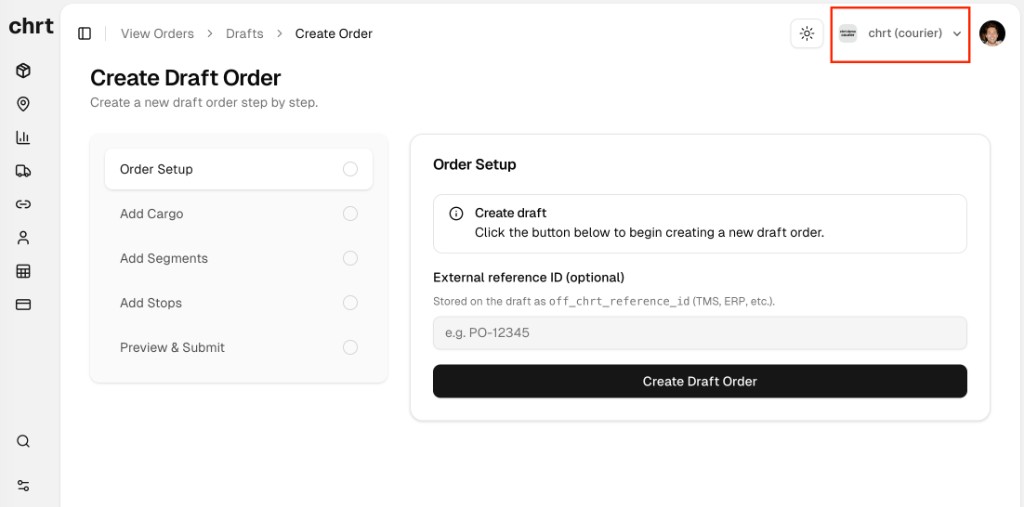
1. Open the org menu
Click the org selector in the top-right corner of the navigation bar. This button shows your organization’s name — do not click your avatar.
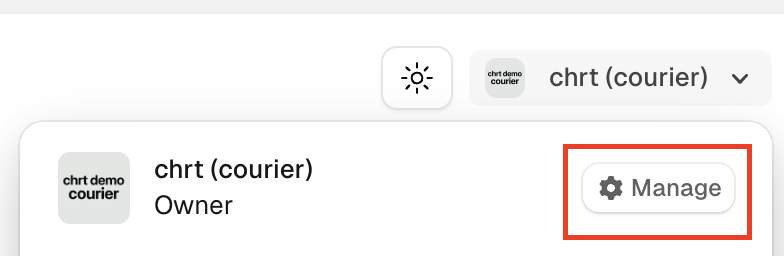
2. Click Manage
A dropdown will appear showing your organization name and your current role. Click Manage to open the Organization settings.
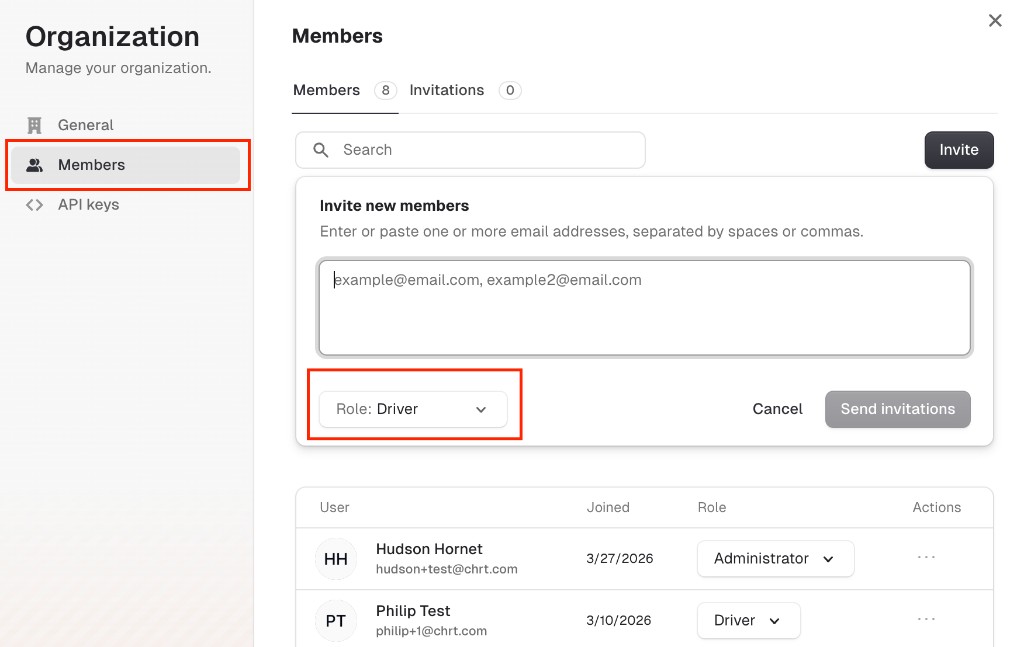
3. Go to the Members tab and send invitations
Select the Members tab, then click Invite in the top-right corner. An invitation form will appear — enter one or more email addresses (separated by spaces or commas), choose a role from the dropdown, and click Send invitations.
Roles
Owners and Administrators can manage API keys and org settings. Assign the Owner role with care — it grants full control over the organization.