

Notifications
1. Notification groups
Open Organization Notifications 1. A user with permission to manage groups can create a group 2, name it 3, add members 4, and configure event/channel choices. Select from the event rows 5 actually offered, such as Order Placed, Order Completed, Driver Assigned, and Task Artifact Completed. Available channels include Email, SMS, and Push.
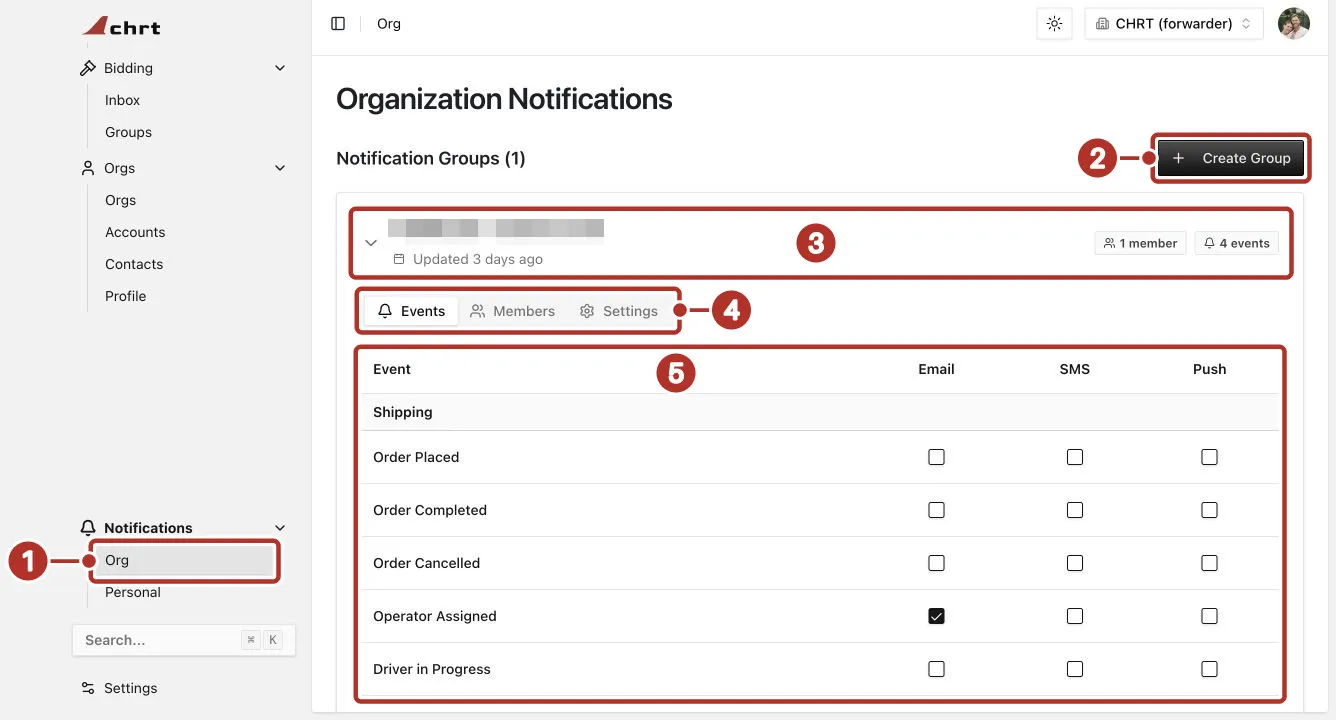
Notifications > Org, Organization Notifications. 1 Notifications > Org in the sidebar, 2 Create Group, 3 the group header, with the group name and its member and event counts, 4 the Events, Members and Settings tabs, 5 event rows with Email, SMS and Push checkboxes. More event rows continue below.
Personal preferences
Open Personal Notifications to review your own groups, notification preferences, and SMS phone information. Group configuration and a person’s own preferences both matter when checking a missing alert. Check the saved preferences before repeating an event.
2. Ad-hoc notifications on a specific order
Review the contact and notification controls available in the order’s stop details. Use recipients intended for that shipment and check their email information. Do not assume an order notification was delivered because an address was added; verify the actual message with a test recipient.
3. Webhooks
Open Webhook settings. If the page shows Enable Webhooks, enable them only when your team is ready to configure its integration. Once the management portal is available, configure the receiving endpoint and the event subscriptions it needs. Verify the endpoint receives a permitted test event and processes it successfully. Ask an administrator if the page is unavailable.
Troubleshoot a missing update
Check the active organization, selected event, recipient membership, personal preferences, channel details, and any visible error. For webhooks, compare the portal delivery result with the receiver’s logs. A saved checkbox, a queued message, and a delivered update are separate outcomes.
Billing events
Webhooks
Webhooks let you receive dispatch and billing events directly into your TMS, ERP, or other systems.
- statement.opened — pre-stage AP entries for incoming bills.
- statement.paid — close out AR on the earnings side.
Related guides
- Getting Started
- Creating Orders
- Drivers
- Dispatching
- Marketplace
- Billing — the billing events you’ll route here.