

Marketplace
Use Bidding to send work to connected providers or eligible drivers, review their responses and choose who will execute the segment. See Bidding and assignment requests for the complete listing, response and assignment flow.
Open your listings
Open Bidding in your provider organization. Inbox 1 contains offers you received, with a From column you can filter by sender organization. Sent 2 contains listings your team manages and is available to operators, administrators and owners; filter it by Created by, Order or Audience.
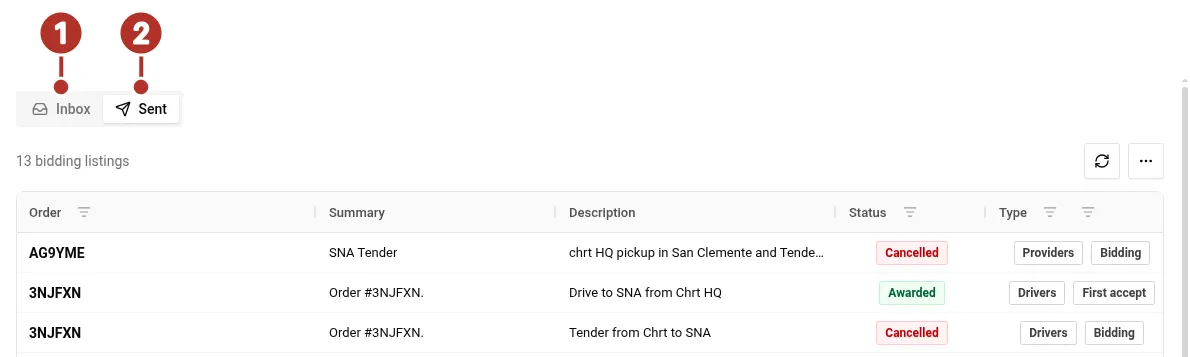
The Bidding page with the Sent tab selected. 1 Inbox tab, 2 Sent tab.
Open a listing to read its description, segment summary, recipients, response mode and history. Confirm the organization and order reference before responding.
Send work to a provider or driver
For provider work, open the intended segment’s Assign provider menu and choose Bid to providers when available. Your organization must coordinate that segment. For driver work, use Bid to drivers when available for a segment your organization executes.
Immediate Assign or Reassign works when the assignee has agreed to direct assignment: a W2 driver with auto-assignment enabled, or a partner courier whose connection has Auto-assign turned on by that organization’s admin (see Auto-assign for partner couriers). Otherwise send the work as a listing: Bid asks for a response, and Dispatch directly asks a driver to accept or deny. For a driver, confirm the saved driver classification and availability before dispatching. The roster’s Bid action offers a response request for a driver with auto-assignment off. Do not treat a visible assignment button as proof of eligibility.
Select the Audience 1 and a response mode 2, then enter Listing description 3 and Bidder summary 4.
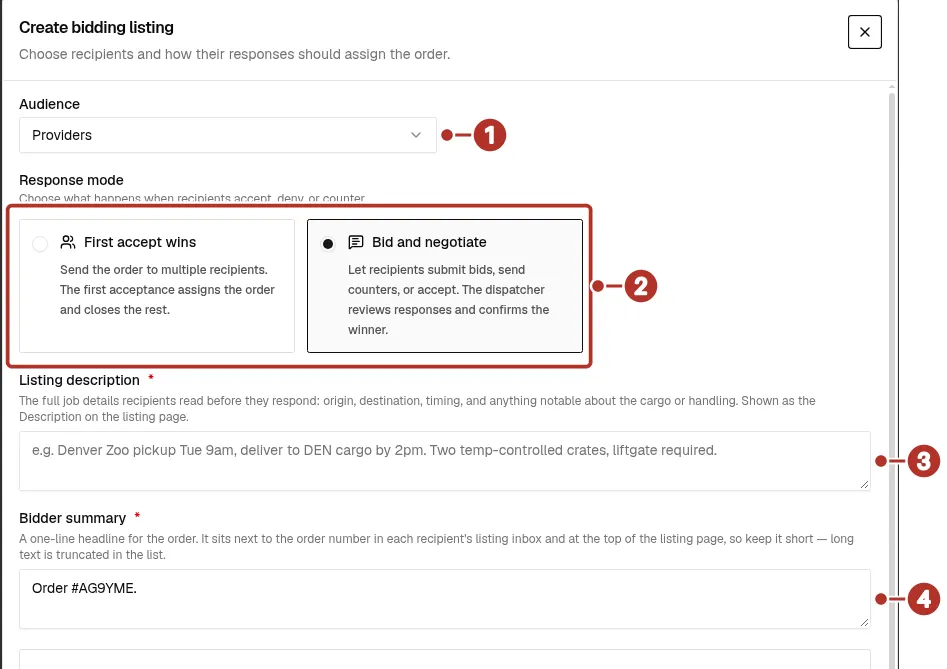
The top of the Create bidding listing form. 1 Audience menu, 2 response mode cards, 3 Listing description field, 4 Bidder summary field.
Choose direct recipients 1 or a non-empty bidding group 2. Review the resolved recipients 3 before sending. With no recipient selected, the form shows its own prompt 4 to select a participant or a non-empty group. To send an opening amount, choose a Pricing source: Ad-hoc pricing lets you enter your own Pro-forma pricing rows, with a Currency picker beside Add line and optional Tax and AWB fields on each line, and Use rate sheet previews rows from a rate sheet you select. Reusable groups let you choose a saved provider or driver group.
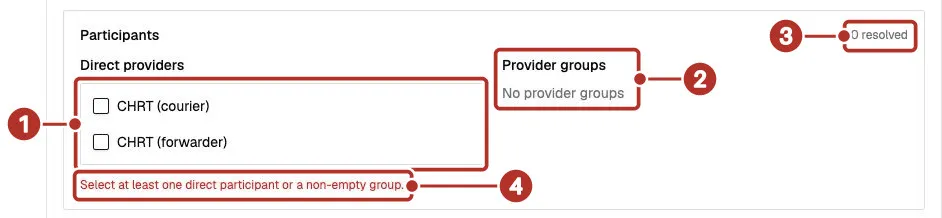
The lower part of the Create bidding listing form, with no recipient selected. 1 Direct providers list (both unchecked), 2 Provider groups column (No provider groups), 3 resolved count (0 resolved), 4 the form’s own prompt to select a participant or a non-empty group.
Choose how recipients respond
The listing concerns its selected segment. An offer response does not assign every segment of a multi-leg order. After sending, reopen the saved listing and check its audience, recipients and response mode.
Review responses and assign the work
In Sent, open a listing and click the participant’s name in the Driver / Provider 1 column to open their reply and history. Review the latest amount 2 and comment. The responses grid pages and sorts, and filters by Status, Status changed and Created. Use Send counter to propose a revision or Deny to reject that response when those actions are available.
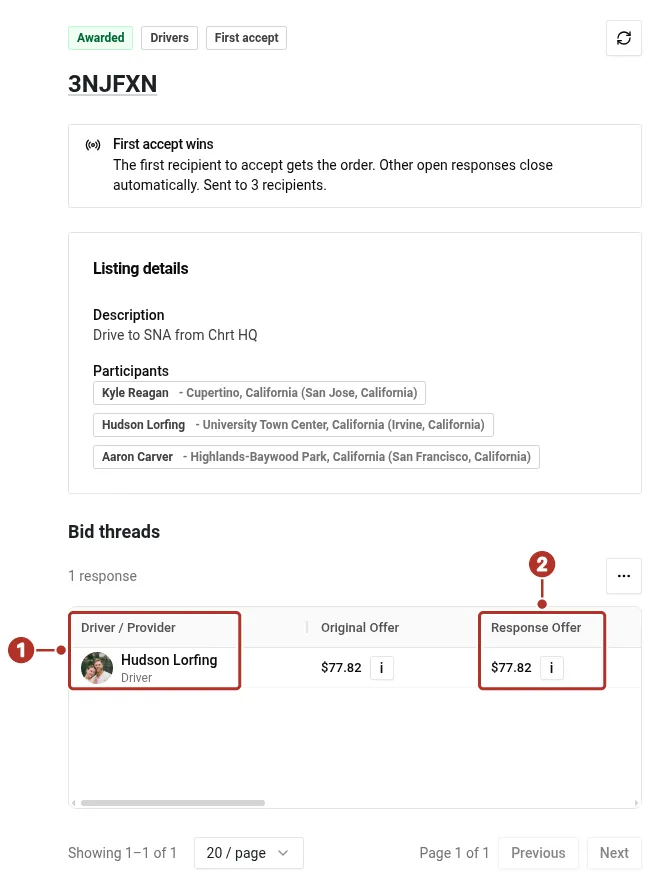
A listing detail page for an awarded listing, with the Bid threads table below the listing details. 1 Driver / Provider column, 2 Response Offer column.
A recipient’s negotiated acceptance can show Accepted, needs confirmation. Use Assign accepted bidder when you choose that recipient. If the latest response is a recipient’s bid or counter, Accept and assign accepts that response and assigns the work immediately; it does not require a second award step.
Refresh the listing and reopen the order. Confirm the awarded response and the saved executor 1 or driver on the correct segment 2 before dispatching the next leg.
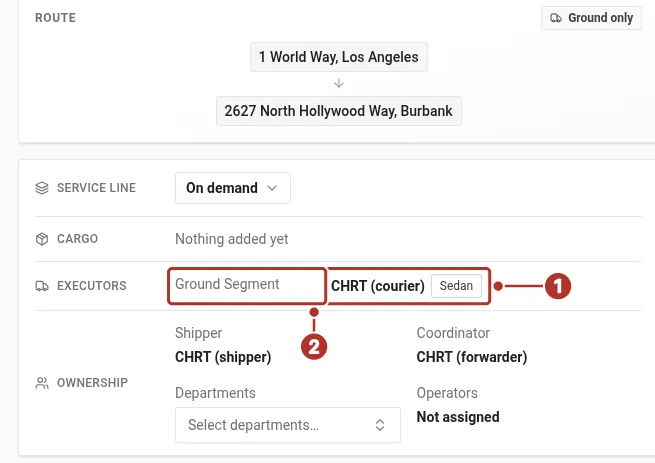
The order’s Summary tab, with CHRT (courier) and Sedan listed under Executors for the Ground Segment. 1 CHRT (courier) as the saved executor, 2 Ground Segment under Executors.
Edit or cancel an open listing
Use Edit listing to review the description, response mode, participants, offer rows and internal notes. The audience remains fixed. Save, refresh and check the changes.
Cancel listing stops recipients acting on that listing. Read the confirmation before proceeding. Cancelling a listing is different from denying one response or a recipient choosing Withdraw bid. Do not use listing cancellation as a way to undo a saved assignment or completed work.
Review the offer amount
On the web, Share itemization off hides dispatcher-authored offer and counter pricing from recipient thread history, including totals and rows. The label and comment can remain visible, along with the recipient’s own earlier bid. The listing sidebar total reflects the opening listing pricing, not the latest counter.
Recipients should confirm the latest readable terms before accepting. If the current amount is missing, ask dispatch to resolve it and refresh before proceeding. See Check the latest terms and Submit a bid or counter.
For billing workflows and rate configuration, see Billing.