

The chrt Driver App
The chrt driver app lets eligible drivers receive work, follow tasks, capture proof and share location with dispatch. It is available for iPhone and Android. Dispatch and order planning happen in the web app.
Before you start
Use the account your organization invited and select the correct organization. Driver work requires a driver profile linked to that active organization and an organization enabled for driver workflows. Membership or a particular role name alone does not establish driver access. Ask your dispatcher to confirm your setup if the Orders tab is missing.
Find your work
The tabs available to you depend on your access:
An account without driver access can still open Settings. Trackers access is separate from driver access. An empty Offers list does not by itself mean sign-in failed.
In Orders, the Filter orders button 1 switches the list; with nothing assigned the screen reads No offers 2. The Orders, Trackers and Settings tabs 3 are at the bottom.
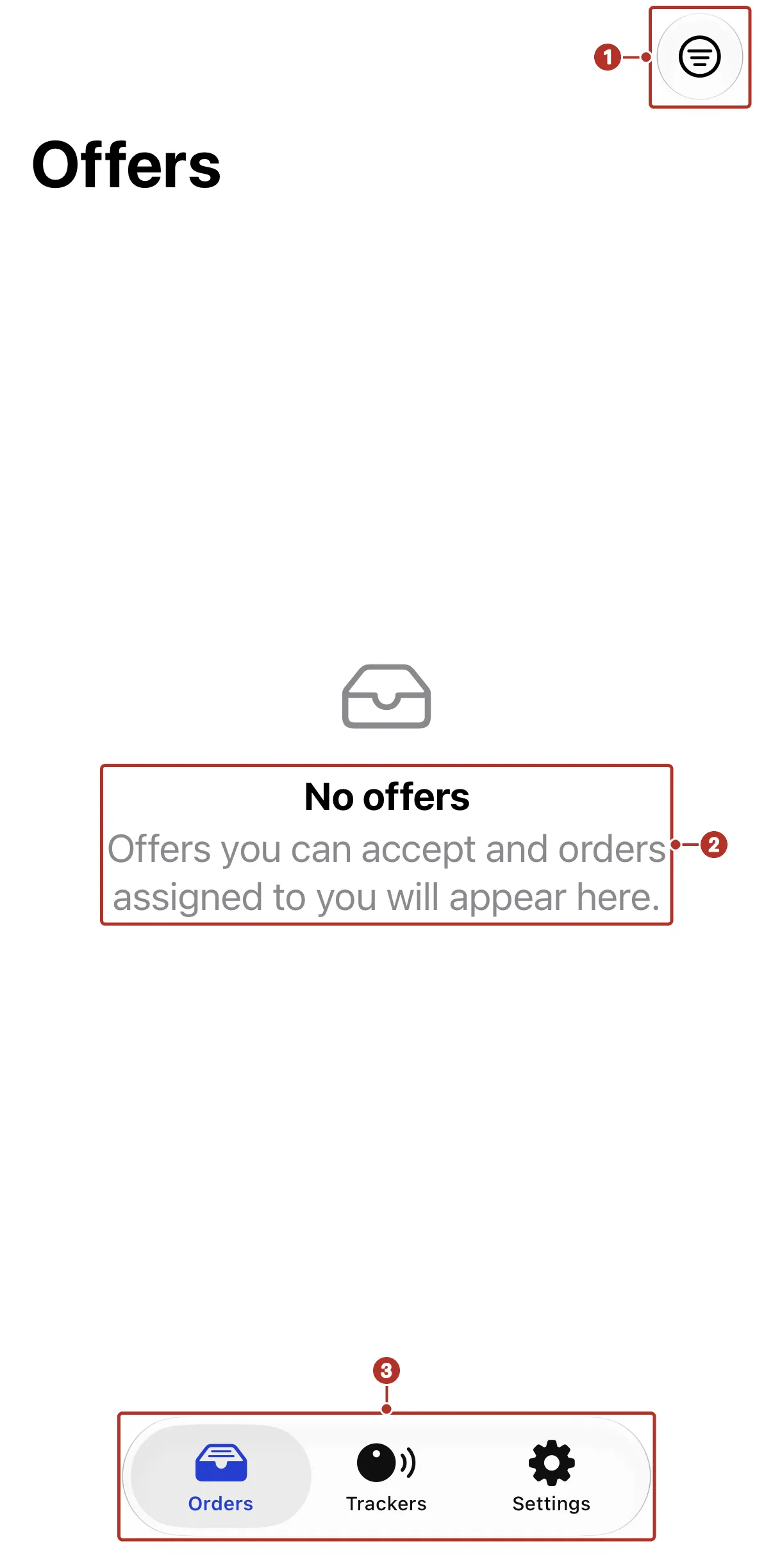
The Orders tab with no offers. 1 Filter orders button, 2 No offers message, 3 Orders, Trackers and Settings tabs.
iPhone and Android
Both platforms support the driver feature set. Phone permission screens and some controls differ. These guides use current iPhone labels and identify platform-specific steps where needed.
Offline work is a sync workflow, not confirmation that dispatch has received a change. Previously loaded data may be marked Cached. Supported changes can show Waiting, Syncing, Blocked or Failed. Check Settings > Sync status and confirm important changes with dispatch after reconnecting. Do not assume every action is available offline or that an offline banner proves a particular action was saved.