

Trackers in the Driver App
The Trackers tab provides registration views for supported physical tracking devices in the active organization. Registration, attaching a device to cargo and receiving telemetry are separate steps.
Before you start
- Confirm the active organization in Settings and that your role permits tracker registration. Driver access alone does not imply Trackers access.
- Have a supported physical device or label and the correct identifier. Check Supported devices.
- Use a compatible physical phone for NFC labels. Simulator screenshots cannot prove NFC registration. If the phone cannot read NFC tags, NFC Label shows NFC tag reading is unavailable on this device.
- Grant camera permission for camera-based scans. Confirm connectivity before registration.
Choose the registration method
The Trackers tab opens on NFC Label; use the NFC Label and QR / MAC switch 1 to scan a code or type an identifier. In QR / MAC, Add Trackers has Single, Batch and Manual modes 2, and Single mode has the Scan Tracker button 3. Trackers to Register 4 stays empty until you add an identifier. Choose the method for the actual device; a MAC address is not a universal identifier for every tracker family.
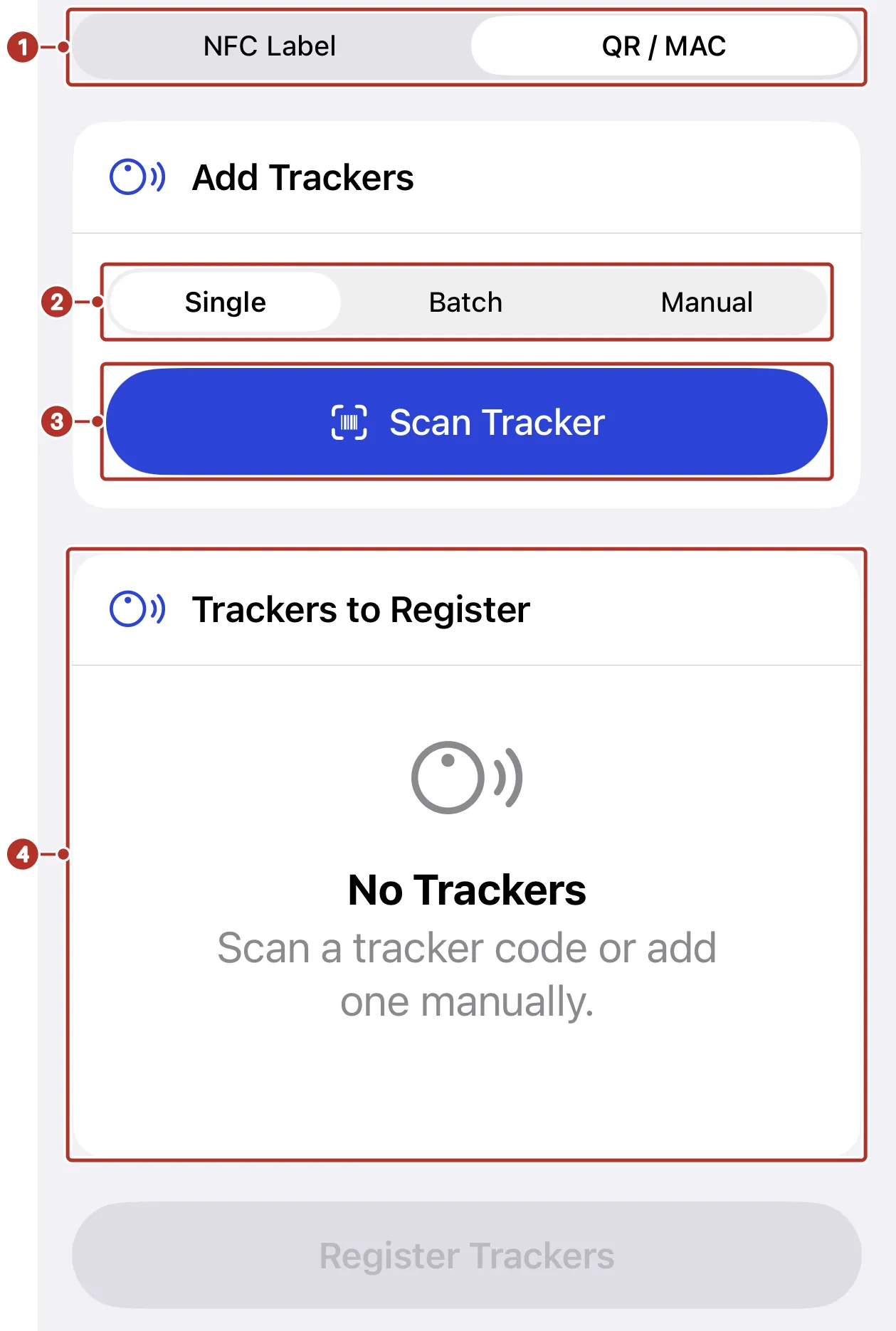
The Trackers tab with QR / MAC selected. 1 NFC Label and QR / MAC switch, 2 Single, Batch and Manual modes, 3 Scan Tracker button, 4 Trackers to Register list.
NFC Label
The NFC Label view is intended for supported Reelables labels and distinguishes single and batch registration. It requires compatible physical hardware: the NFC Label tab 1 offers Scan NFC Label 2, and a phone that cannot read NFC tags shows NFC tag reading is unavailable on this device. 3 Ask your device program owner for the supported label and setup before attempting registration.
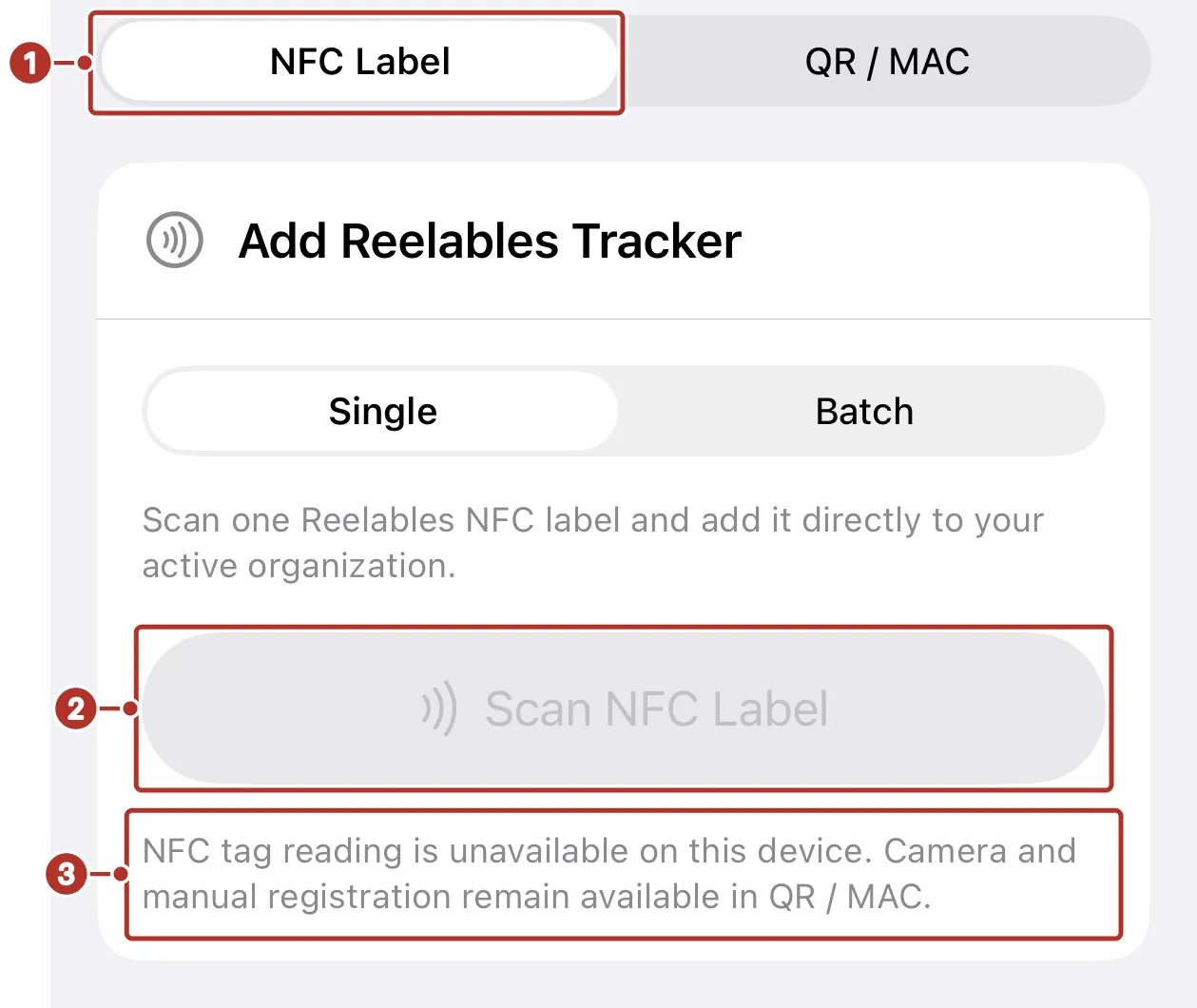
The Trackers tab with NFC Label selected on a device without NFC. 1 NFC Label tab, 2 Scan NFC Label button, 3 the NFC unavailable message.
QR / MAC
The QR / MAC view offers Single, Batch and Manual modes for supported identifiers. Review the device type and organization before using a mode. Ask your device program owner which identifier and setup applies to your tracker.
To enter an identifier by hand, choose Manual, type the MAC address into the MAC address field 1 and tap + 2. If the app reformats what you typed, Will save as 3 shows the value it will store.
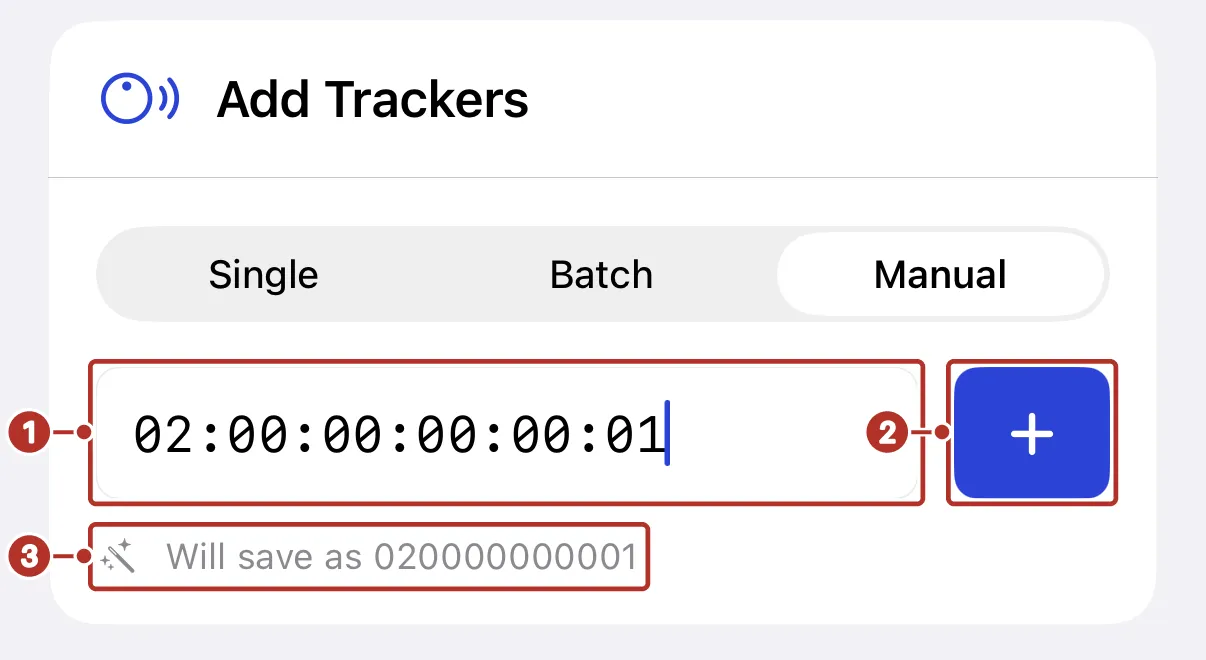
The Add Trackers card in Manual mode. 1 MAC address field, 2 + button, 3 Will save as line.
Each identifier then appears under Trackers to Register as a row 1 with Optional details and a status line; Ready to register means the value is valid. Remove a row with × 2. Then tap the register button at the bottom of the screen, which shows the count, for example Register 3 Trackers 3.
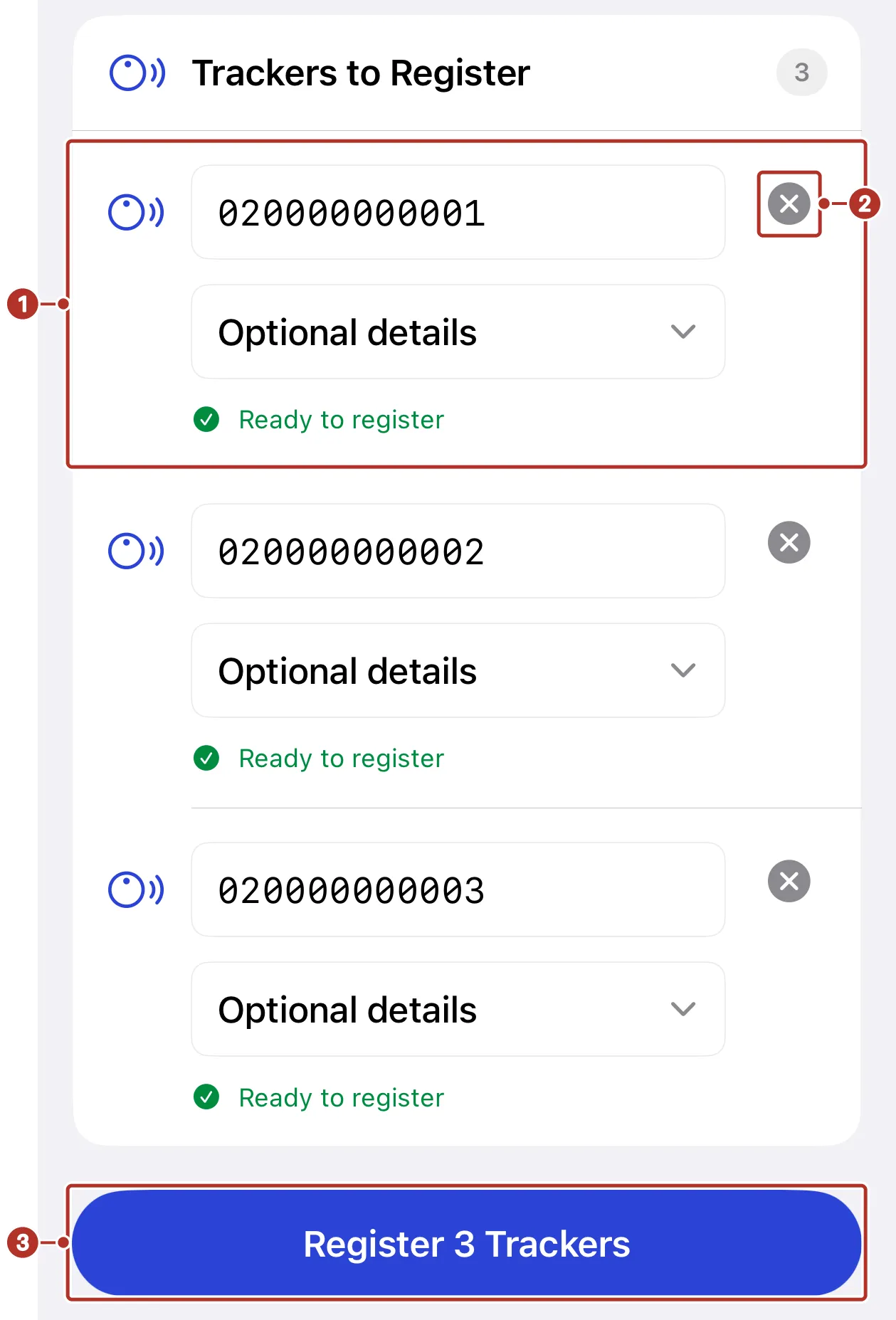
Trackers to Register with three identifiers queued, each with Optional details and Ready to register. 1 queued tracker row, 2 × button, 3 Register 3 Trackers button.
This guide covers the available registration views. Device-specific activation and registration procedures need validation with the supported hardware.
Confirm the outcome
Check that the identifier was registered under the intended organization in the web app. Ask dispatch to attach the device to the correct cargo/order when needed. Confirm the cargo link separately.
A successful registration does not prove the device is transmitting, the cargo is linked or telemetry has arrived. Check device timestamps and the order view before relying on tracking. Device activation, connectivity and reporting behavior depend on its type and setup.
Offline and device limits
Both phone platforms support the tracker feature set, but NFC, camera and OS controls depend on hardware. Do not treat a scan or local list as an offline registration guarantee. If registration fails without connectivity, reconnect and check the saved device before retrying. Hardware and offline replay outcomes need device-specific verification.
Need help
For missing camera/NFC access, review device permission and capability. For a rejected identifier or an existing registration, provide the device type, identifier and error to dispatch or support. Avoid repeatedly registering the same device until its current state is checked.
See Trackers overview, Trackers on orders and Settings.