

Settings
Open Settings to check your profile, active organization, notifications and sync status. The rows shown depend on your access and the build you are using. Each row opens its own page. The profile row 1 at the top opens Profile.
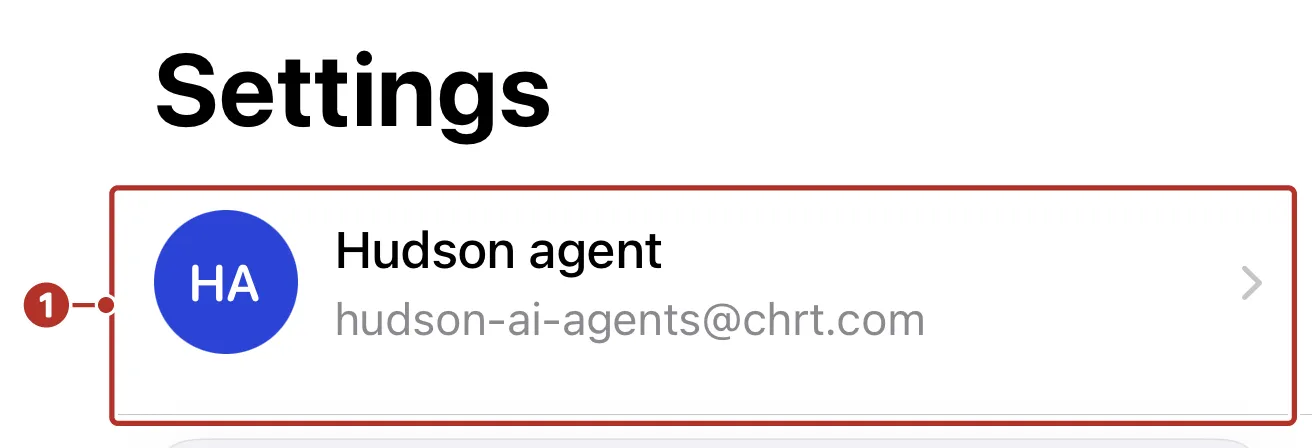
The top of Settings. 1 profile row.
Account sections
Below the profile row, an account without a driver profile sees Create driver profile 1, then Notifications 2, Sync status 3 and Privacy 4. The footer shows the app version and build 5, with links to Privacy and Terms.
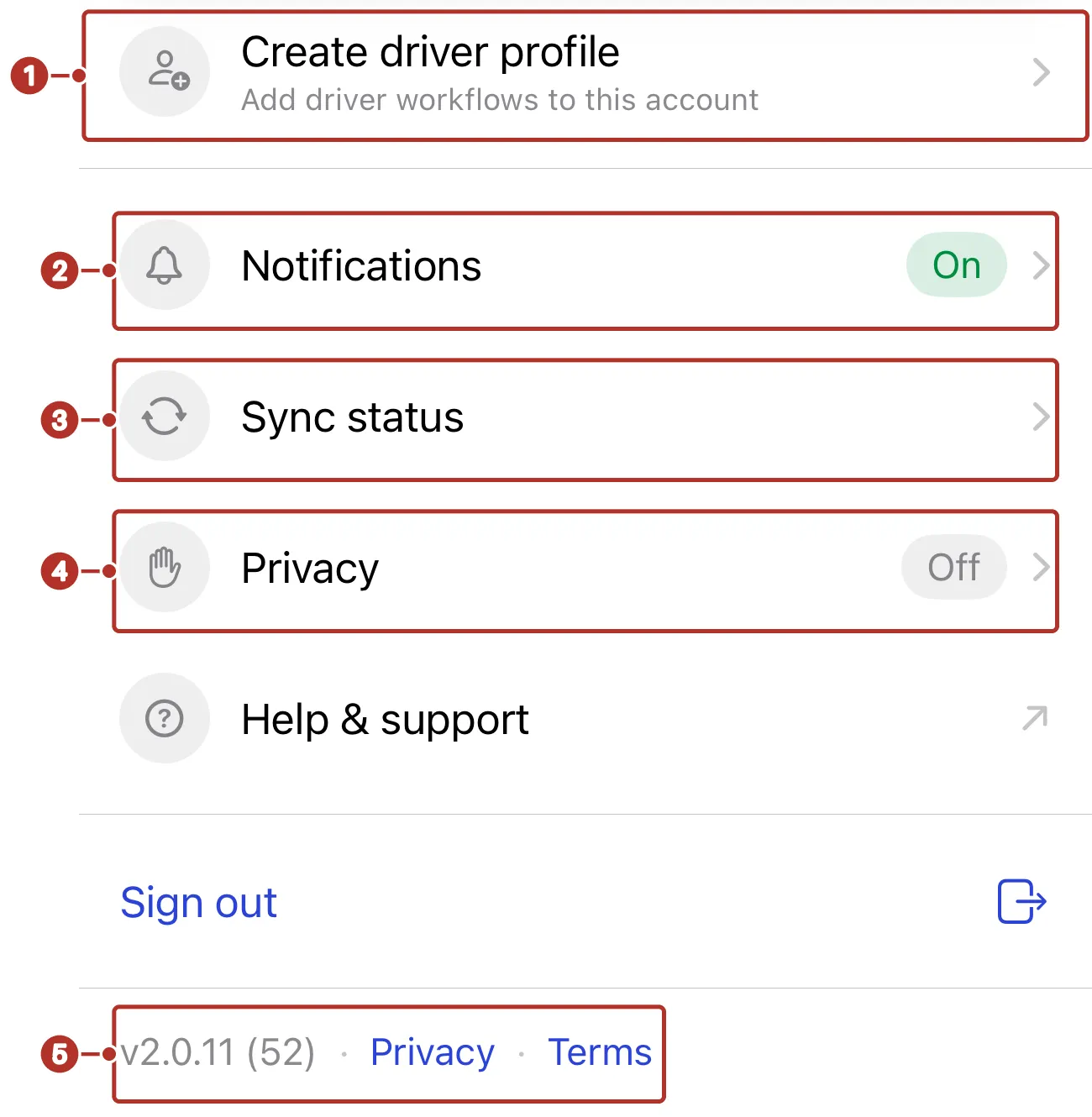
The Settings rows for an account without a driver profile. 1 Create driver profile row, 2 Notifications row, 3 Sync status row, 4 Privacy row, 5 version and build footer.
An account with a driver profile also sees Availability 1, Location sharing 2 and Driver reports 3 above the notification rows; the On or Off pill shows the current state.
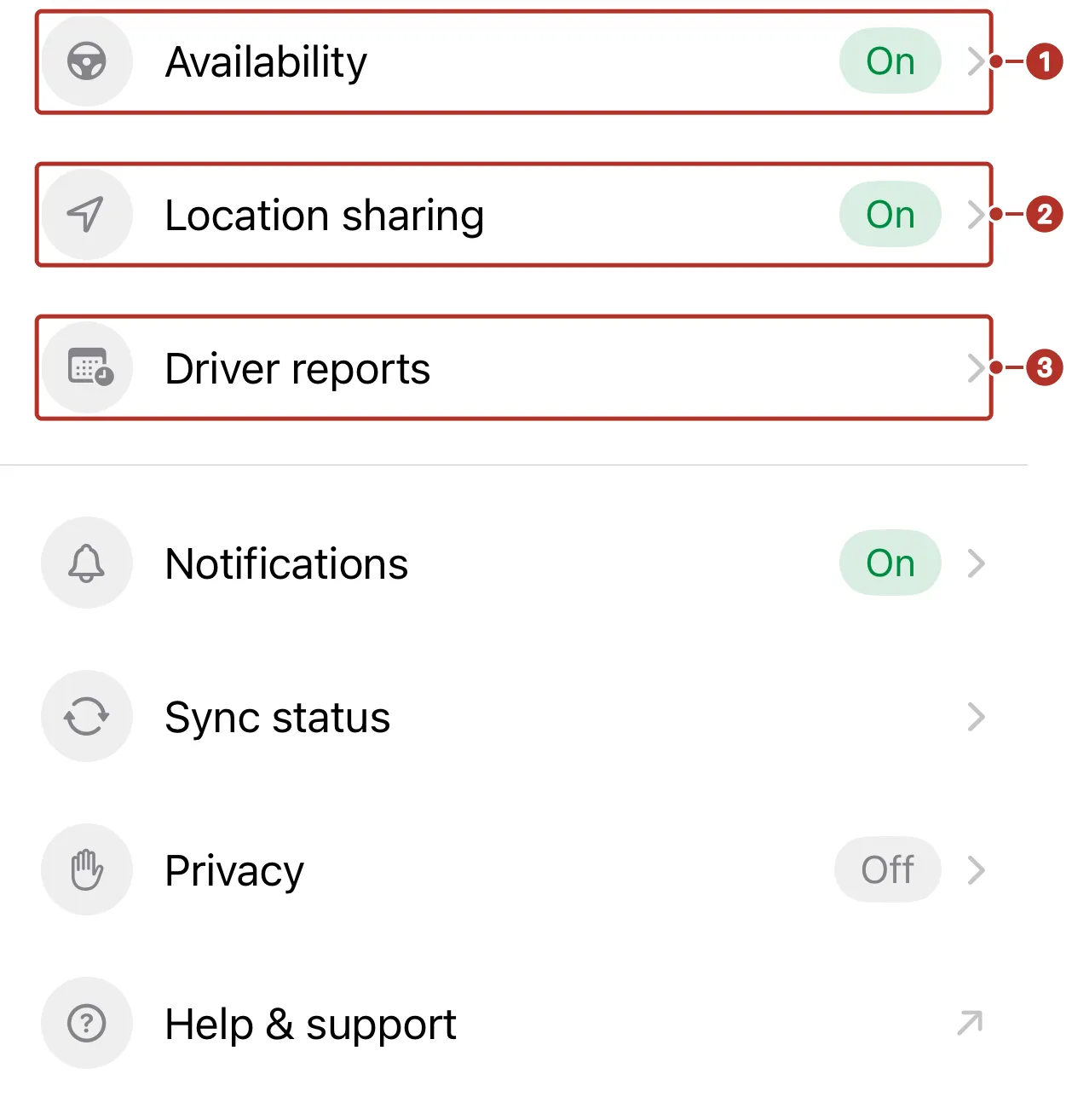
The driver rows of Settings. 1 Availability row, 2 Location sharing row, 3 Driver reports row.
The Profile page holds the Organization switcher, Driver Details (drivers only) and Delete Account.
Switch organizations
Open Profile from the profile row and review Organization 1 before working an order.
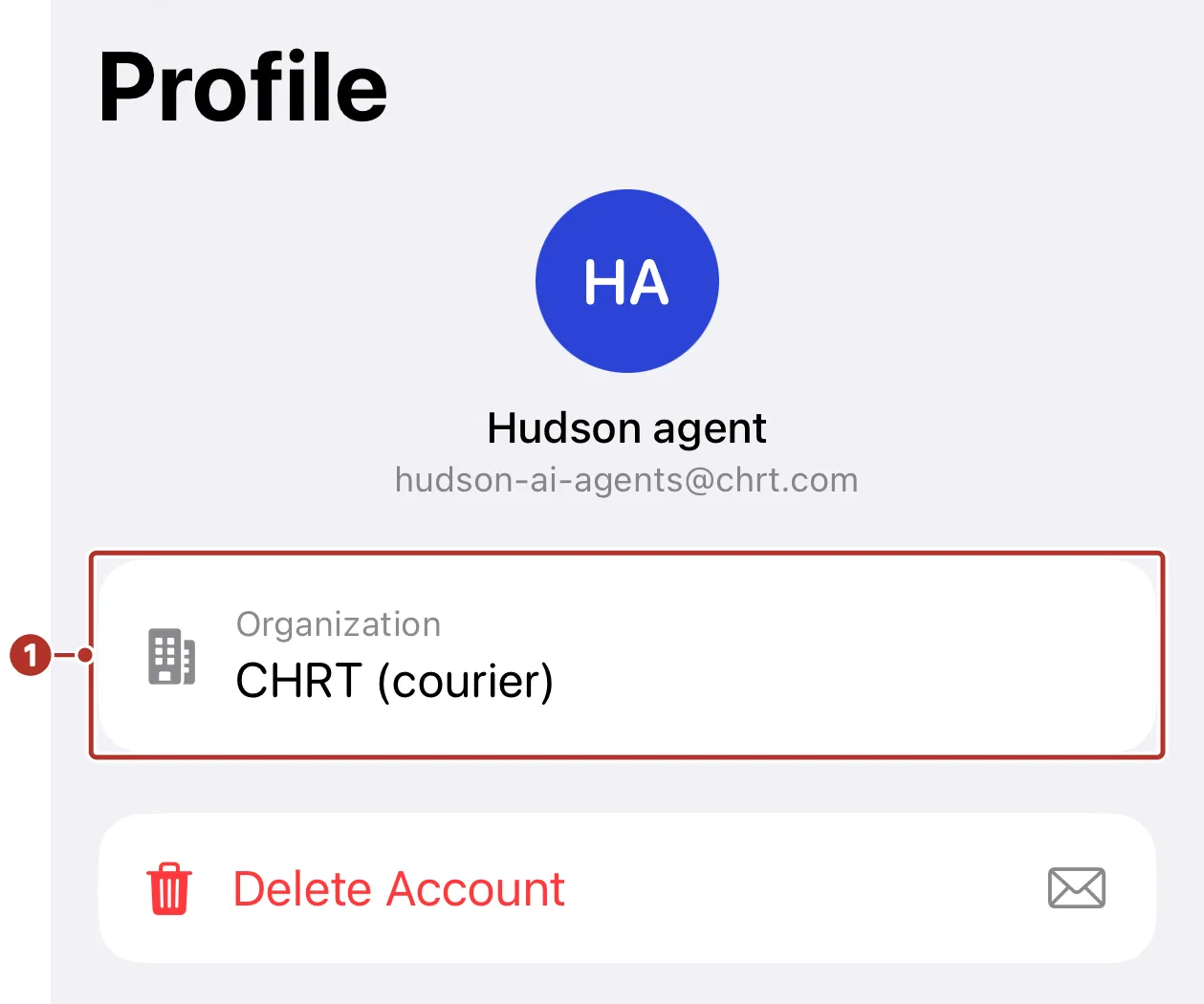
The Profile page. 1 Organization card. Switch only after resolving pending work in the current organization. The destination’s driver profile and permissions determine which tabs and controls become available. An account can belong to several organizations without having driver access in each.
Unsynced work is scoped to your account and organization. Switching organizations can clear outgoing offline data. Check Sync status and verify important changes with dispatch before switching.
Manage location sharing
Eligible drivers open Location sharing, use Share Location with Dispatch and review the displayed permission and accuracy guidance. Turn sharing off when you intend to stop. Do not assume finishing an order automatically stops sharing. See Live location.
Manage notification permissions
Open Notifications and check the phone permission and the available notification preferences. Phone permission and account preferences are separate controls. Follow the phone’s settings instructions if permission is denied. Also check the active organization when expected alerts are missing.
Driver profile and availability
Use Availability and, on the Profile page, Driver Details. If the app shows Create driver profile, or Retry driver profile when it could not check your driver access, complete the requested setup or ask dispatch for help.
The Create Driver Profile form takes your Name 1, Contact details 2 and Vehicle Types 3; Create 4 saves it. Phone numbers use international format, for example +12025550142.
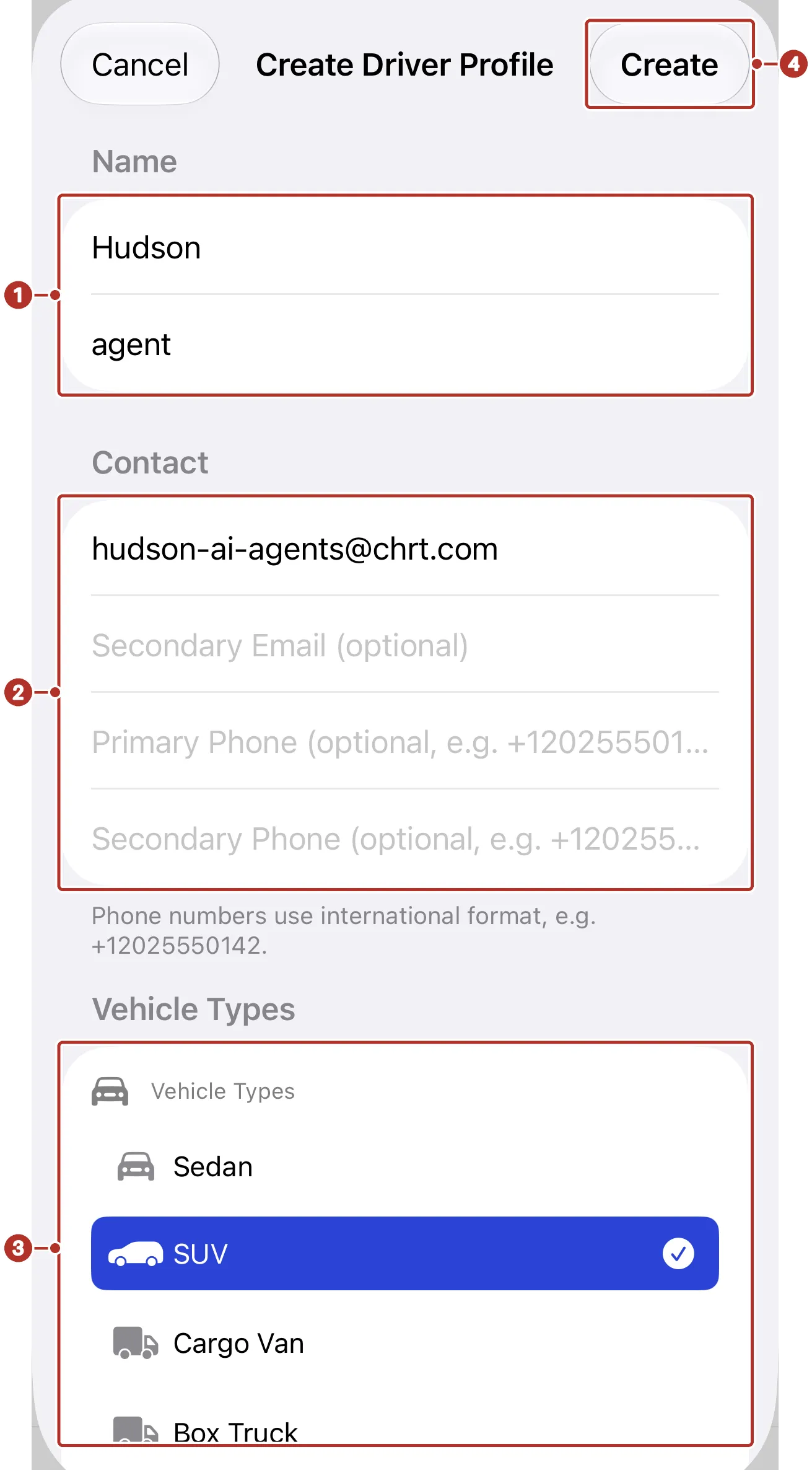
The Create Driver Profile form. 1 Name fields, 2 Contact fields, 3 Vehicle Types list, 4 Create button.
Once you have a driver profile, Driver Details on the Profile page lists your name, primary email, vehicle types and status. It has an Edit button 1, your Vehicle Types 2 and a Status row 3, which showed Unassigned with no order running and In Progress while an order was started.
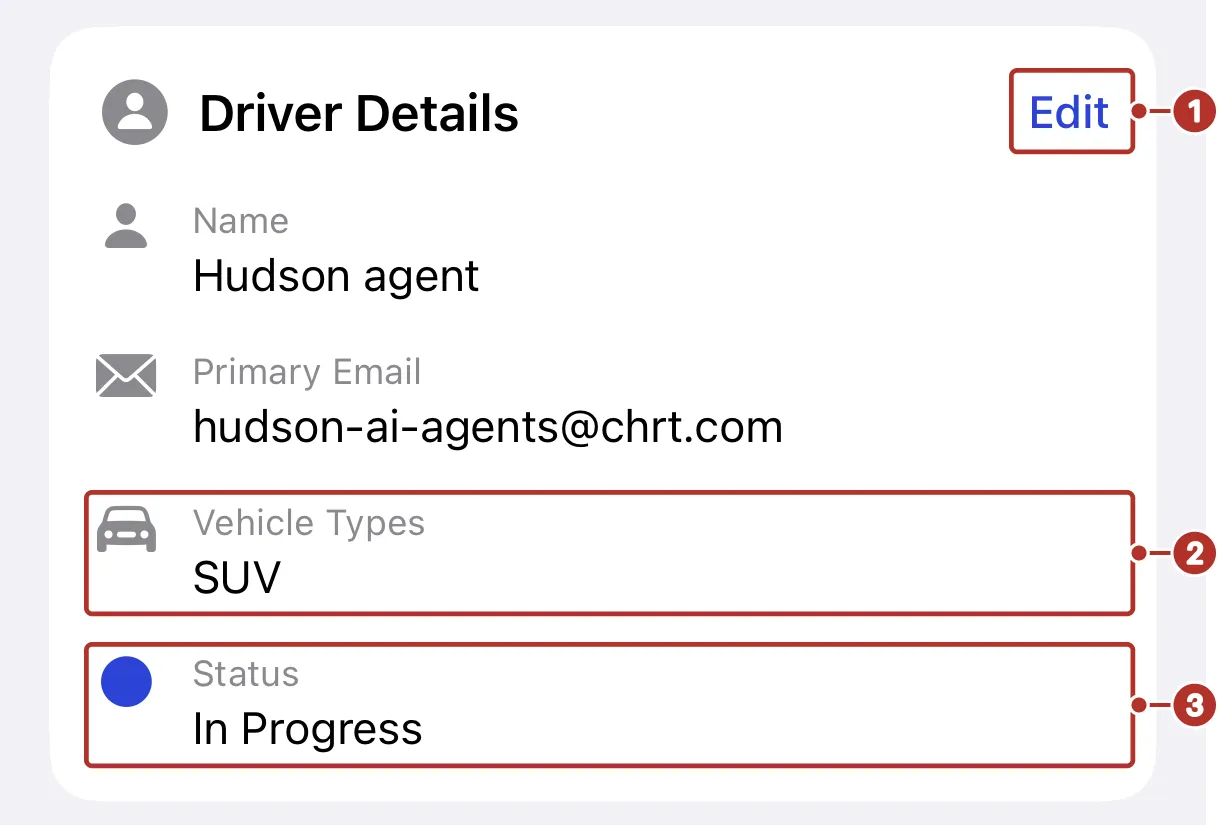
The Driver Details card on the Profile page. 1 Edit button, 2 Vehicle Types row, 3 Status row.
After changing information, check for errors and confirm the saved result; availability is not a guarantee of automatic assignment.
Sync status
Sync status shows changes waiting to sync and a Needs attention section when applicable. Retry asks the app to retry pending work. Nothing waiting to sync is useful queue feedback; confirm important proof and task status with dispatch as well.
Discard All abandons pending work. Do not use it as a routine way to fix a stalled upload. Resolve the error with dispatch or support first.
Camera and privacy
For camera problems, review chrt’s camera permission in your phone’s settings. Android’s app information screen and iPhone’s app settings use different controls. Review the published Privacy Policy, Support and Terms of Service from Settings.
Build information
Include the app version and build from the footer at the bottom of Settings, your phone/OS and the relevant reference when contacting support.
Sign out and delete account
Sign out asks for confirmation and ends the current session. Check Sync status first. Signing out can clear unsynced local work; a vanished banner is not proof of delivery.
On iPhone, Delete Account, on the Profile page, opens a confirmation with Send Request. It prepares an email request, or copies the support address when email cannot open. Sending that request is not confirmation that deletion has completed. Follow support’s response for the outcome.
See Install, Live location and Troubleshooting.