

Install the Driver App
Install chrt, sign in and check your active organization before accepting work.
Before you start
- Ask your organization to invite the account you will use.
- For driving, ask dispatch to confirm your driver profile is linked to the active organization and that the organization supports driver workflows. An invitation alone does not guarantee driving access.
- Use the store version supported by your organization, or its approved test build. Store availability and device compatibility are shown by the store listing.
iOS
Open the App Store, find chrt and install it. Open the installed app. Use your organization’s approved distribution link if you are testing a prerelease build.
Android
Open Google Play, find chrt and install it. Follow your organization’s approved distribution instructions for a test build.
Sign in
On the signed-out screen shown below, tap Sign In 1 and complete the hosted sign-in flow. Use the identity your organization invited; the available sign-in method depends on its configuration. You can later check or change the active organization from Settings: open the profile row at the top, then Organization.
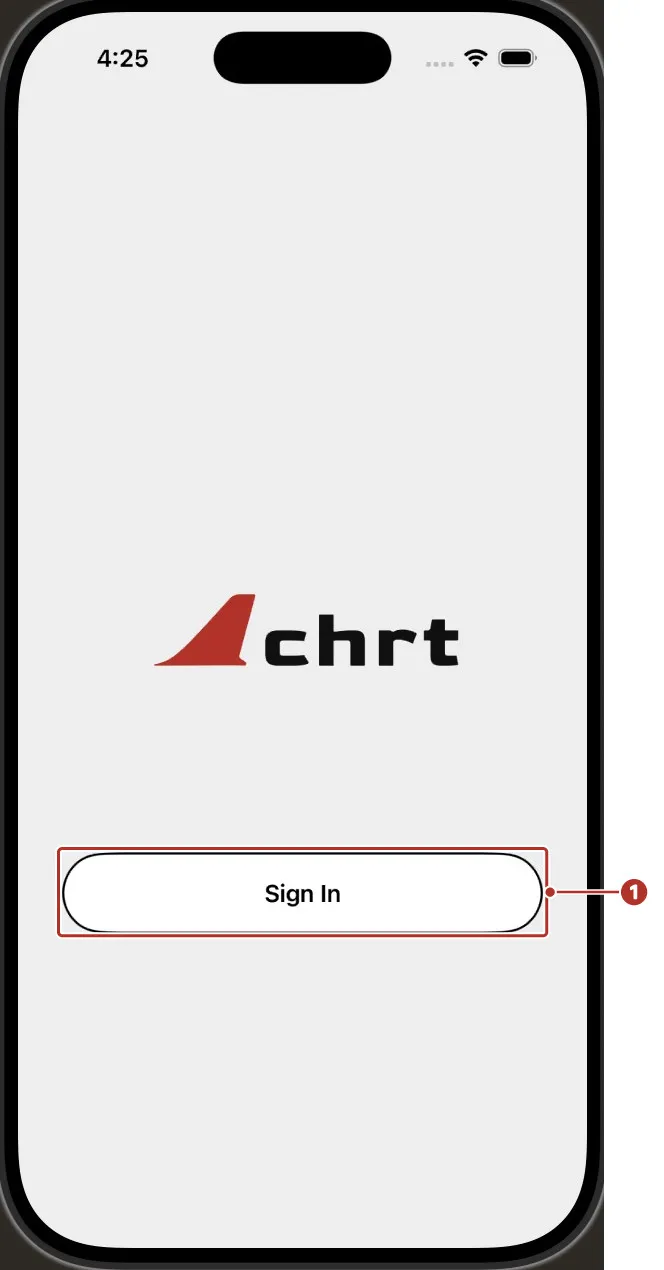
The signed-out screen on iPhone, shown before an account is authenticated. 1 Sign In button.
Permission prompts appear separately when needed.
Permissions
Grant permissions when prompted for the feature you are using. You can review them in your phone’s settings:
On iPhone, location permissions include While Using the App and Always; use precise location for sharing. On Android, review the app’s location permission and background access in system settings. The wording and sequence depend on the OS version. Follow the displayed instructions rather than expecting all prompts at first launch.
See Live location for the sharing toggle and background prerequisites.
Check access after sign-in
Eligible drivers see Orders; its filter menu (top right) switches between Offers, In Progress, Completed and Cancelled. Other accounts may land on Settings or Trackers. In Settings, the profile row at the top shows the active organization. If Create driver profile is offered, complete it; if profile loading fails, use Retry driver profile and contact dispatch if the issue persists.
An empty Offers list can be normal when nothing has been offered or assigned. Ask dispatch to confirm the assignment under the organization you selected.
If sign-in fails
Check connectivity and retry. If the app reports missing sign-in configuration, contact your organization’s test-build owner or support; installing another build is useful only when it is the approved replacement. Do not assume a configuration message identifies your role or driver eligibility.
See Settings and Troubleshooting.