

Live Location
Use Share Location with Dispatch to control location sharing with dispatch. A separate per-order control, covered below, sets whether an order’s public tracking link shows your location. Sharing depends on your driver access, phone permissions, accuracy setting and connectivity.
Before you enable sharing
Open Settings > Location sharing in the active organization. Eligible drivers have a location permission/status card 1 and the Share Location with Dispatch toggle 2. Review both before enabling it.
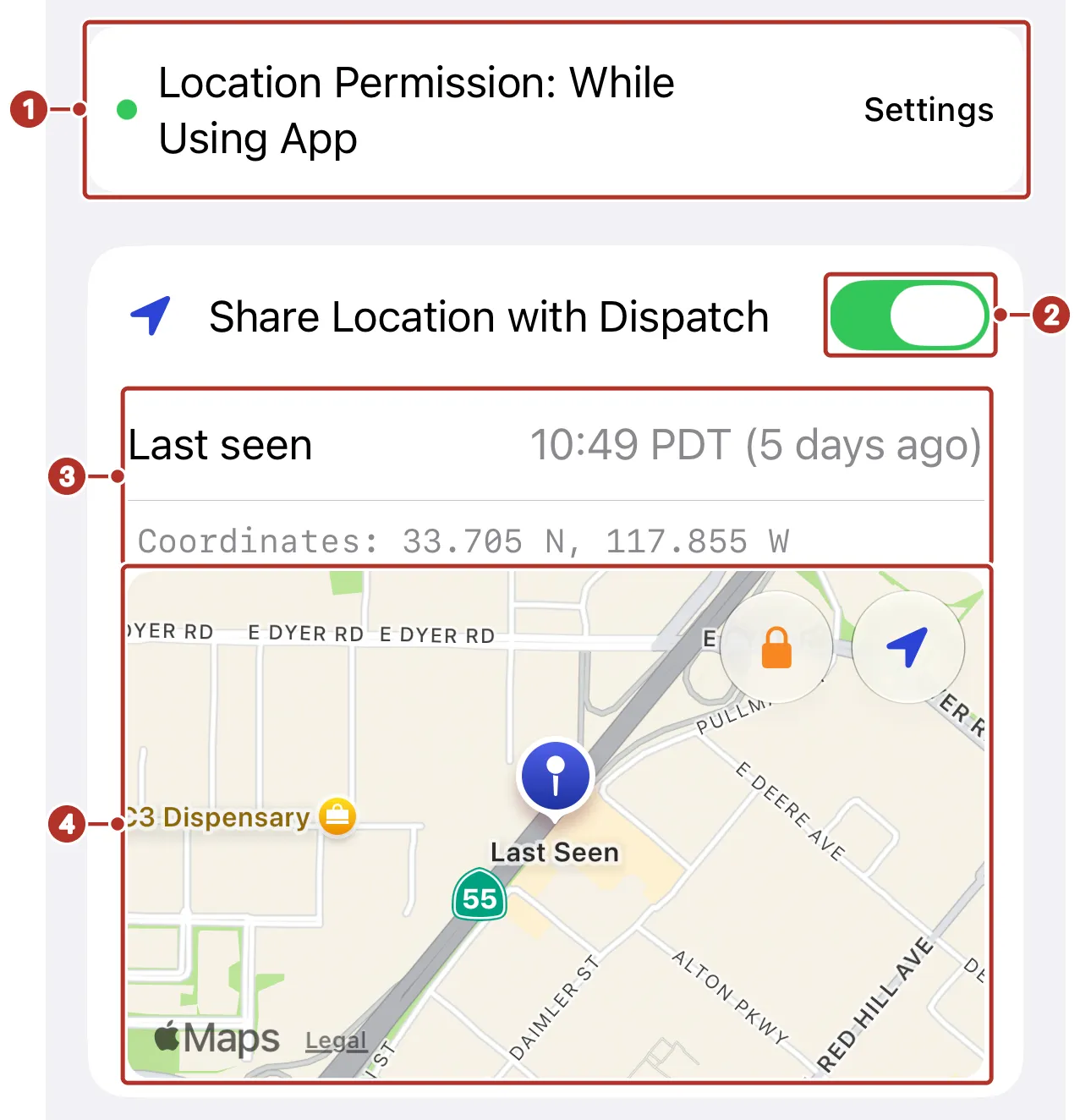
The Location sharing page in Settings on iPhone. 1 Location Permission row with its Settings link, 2 Share Location with Dispatch toggle, 3 Last seen and Coordinates, 4 map. The location shown is simulated.
Do not assume location sharing stops automatically when a task finishes or you are off shift. Turn the sharing toggle off when you intend to stop sharing. Stopping new sharing does not erase location already received or establish who can still view historical tracking.
1. Review phone permission
On iPhone, foreground access uses While Using the App. Background sharing needs Always, set from the Location Permission row 1, and sharing requires precise location. The app can request permission or direct you to the phone’s settings; iOS controls the grant and timing of its prompts.
On Android, review the app’s location permission, background access and precise-location setting in system settings. The wording and steps vary by OS. Follow the current phone prompts rather than expecting a particular sequence.
2. Enable sharing
In Settings > Location sharing, turn on Share Location with Dispatch 2. Follow the displayed permission or accuracy guidance if it cannot enable. When a location is available, the card shows Last seen 3, coordinates and a map 4.
A recent Last seen value is useful feedback, but ask dispatch to confirm reception before relying on location for operational decisions. An order or public tracking view depends on its assignment and sharing configuration; enabling your toggle does not itself create a public link. Public sharing for one order is a separate control, described next.
Share one order’s location publicly
When you are the assigned driver, the top of the order’s Stops tab shows Live location shared publicly or Location not shared publicly, with a Share live location publicly switch. The card explains who can see your location: with sharing on, anyone with the order’s tracking link; with it off, only people working on the order. Changing the switch asks you to confirm with Share Publicly or Stop Sharing. Turning it off lets the coordinator see that you did so. Offers and bidding previews do not show this card. It is separate from Share Location with Dispatch, which controls what dispatch receives.
3. Background use
Dispatch can check the assigned order’s Summary map in Progress, with See all pings enabled, to inspect recorded driver locations and timestamps. Live shows the latest reported position (see What dispatch sees). A sharing toggle or a planned route line is not proof that a particular location reached dispatch.
Background permission is necessary for updates while switching apps or locking your phone. OS restrictions, battery settings, connectivity and app lifecycle can affect timing. Keep the app available during work and reopen it if updates stop. Do not promise continuous updates from a locked or force-closed phone.
4. Stop sharing
Turn Share Location with Dispatch 2 off. The app clears its displayed last-seen details 3 4 while stopping sharing. Confirm the stopped state and contact support if new locations continue to arrive unexpectedly. Previously received history is a separate question.
What dispatch sees
On the order’s Summary map, the Progress button 1 and the Live button 2 switch the view. On an order in progress, a marker 3 shows the driver’s position along the route and numbered pins 4 show the stops.
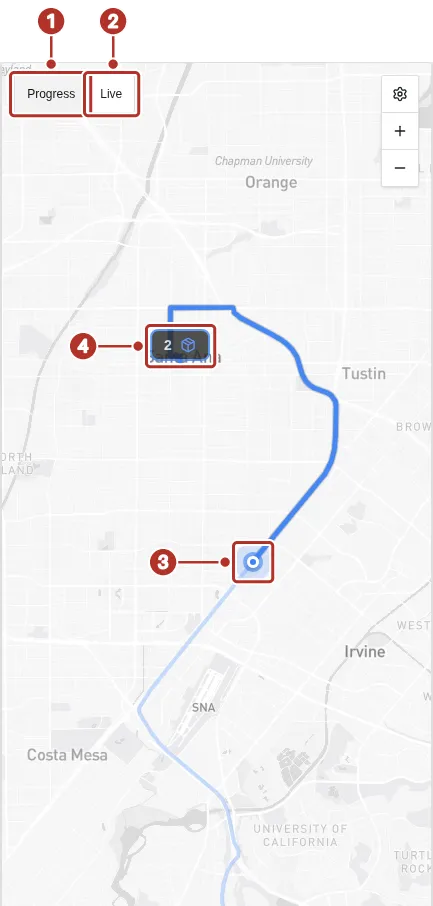
The Summary map of an order in progress, Progress view. 1 Progress button, 2 Live button, 3 driver position marker, 4 stop 2 pin.
Weak signal and battery
Location sampling and delivery of updates are different. During a network outage, dispatch may see stale positions. Do not assume every missing location sample will later be recovered. Check timestamps after reconnecting.
GPS and an active screen consume battery. Charge during long trips, review battery restrictions if background updates stop and turn sharing off when you intend to stop. An offline banner does not prove location samples were buffered or delivered.
If dispatch cannot see you
- Confirm the organization and your driver profile.
- Check the sharing toggle, phone permission and precise location.
- Check connectivity and the Last seen timestamp.
- Ask dispatch to verify the driver and order they are viewing.
- Contact support with the version/build, device and timestamps if the mismatch persists.
See Settings and Troubleshooting.