

On-Board Courier Workflows
An on-board courier accompanies cargo across one or more flights. In chrt, work the tasks assigned to you and use the flight information available on that task group to coordinate with the forwarder.
Before you start
Ask the forwarder to confirm your assignment, cargo, travel documents, flight legs and handoff instructions. The task group reflects the configured work; it is not a substitute for the airline’s boarding instructions or your confirmed travel arrangements.
Open the task group
Find assigned work under Orders and open its details. On an order assigned to you, a card above the flight card shows Live location shared publicly or Location not shared publicly; its Share live location publicly switch applies to this order only (see Live location). Review the pickup, airport, handling/customs and delivery tasks that were actually configured. Task names and proof requirements depend on the order. Do not assume every OBC trip has the same pickup, security, boarding, deboarding, customs and delivery tasks.
Read flight times
Flight information distinguishes available scheduled, estimated or actual times. Each airport endpoint uses its own local timezone and shows a zone label. Departure and arrival can therefore show different zones or calendar dates. Daylight saving follows the flight date. For an airport without a recognized timezone, the card explicitly uses UTC.
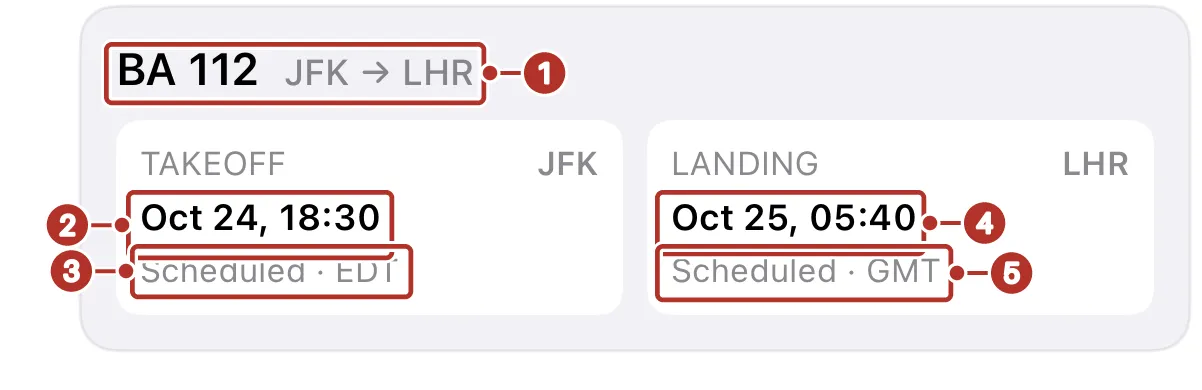
Flight card on the Stops tab of an assigned order. 1 Flight header, BA 112 JFK to LHR, 2 Takeoff date and time, 3 Takeoff time type and timezone, 4 Landing date and time, 5 Landing time type and timezone.
Read the date, time type and timezone together. Mark 1 is the flight header. The Takeoff panel shows the date and time 2, then the time type and timezone 3; the Landing panel shows the date and time 4, then the time type and timezone 5. A flight’s status does not establish that your cargo was loaded, handed over or cleared through customs. Confirm those events using the configured tasks and proof.
Work each handoff
-
Follow the current task instructions for pickup or the airport handoff.
-
Confirm the cargo and the custody party.
-
Open the task’s proof row (for example Proof of Courier Deboarding) and capture the required proof.
-
When the event has occurred, complete the task with the confirmation at the bottom of the screen (for example Confirm Deboarding) or Complete Stop 1 on the task card, which also lists the task’s proof row 2. The ellipsis menus beside Complete Stop 3 and beside the docked action hold task actions such as View Proof, Directions, Attempt Task and Skip Task; the items shown depend on the task.
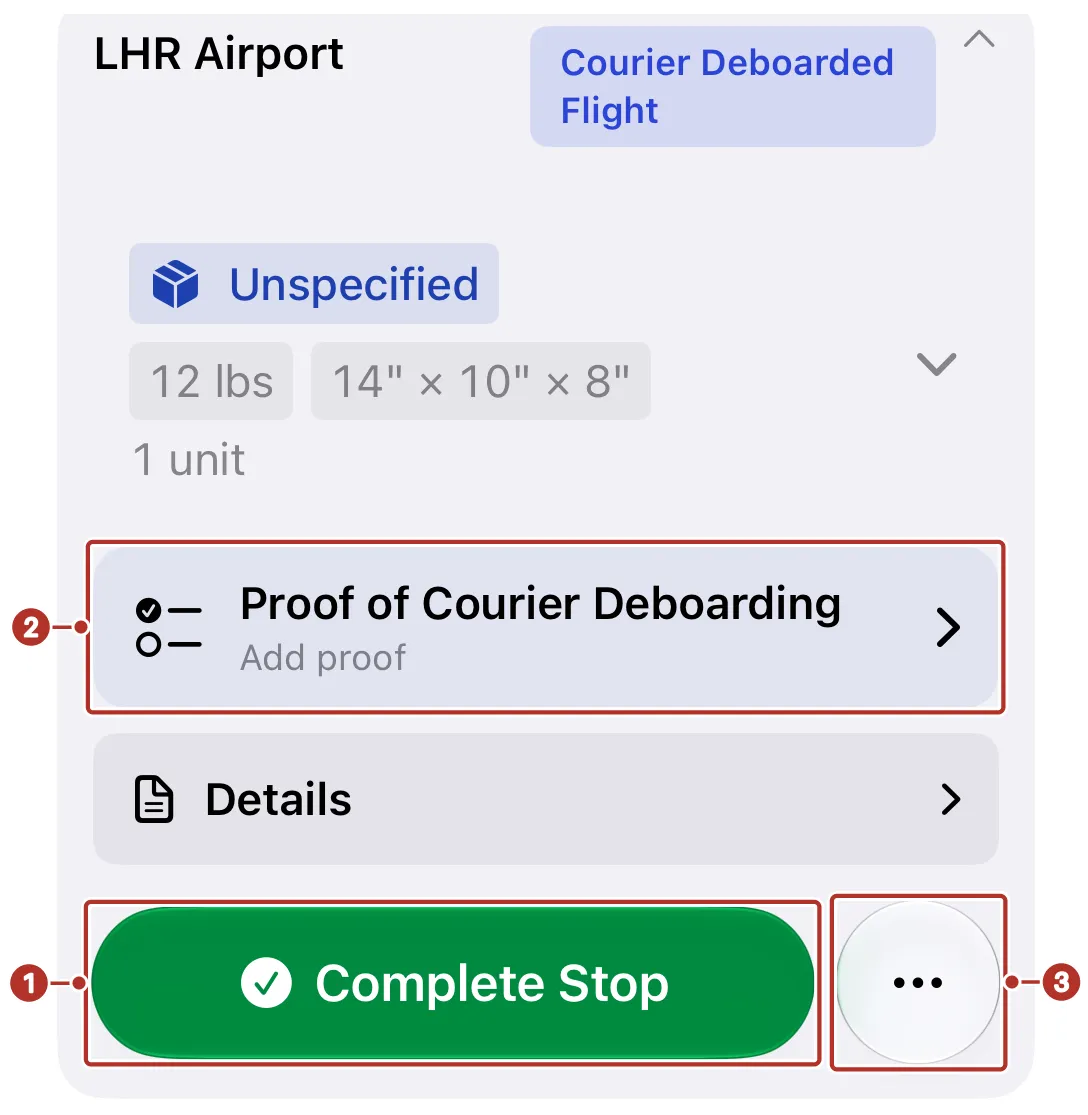
An expanded OBC deboarding task on the Stops tab of an order in progress. 1 Complete Stop button on the task card, 2 proof row, Proof of Courier Deboarding, 3 ellipsis menu beside Complete Stop.
-
Refresh and confirm the saved result after reconnecting.
Repeat for each configured leg and the final delivery. If a task is blocked or the itinerary changes, contact the forwarder. Do not manually complete an event solely because a flight is shown as departed or arrived.
Delays and changes
Use the Messages tab on the task group to report delays, rebooking, custody changes or missing instructions. Ask the forwarder to confirm the updated itinerary and refresh the task group. A message or old flight card does not prove that the saved itinerary was updated.
Phone features and sync
Where enabled, iPhone Live Activities provide a glance at current work; use the app to review full instructions and confirm actions. Android supports the driver workflow with its platform-specific presentation. Check Settings > Sync status for supported pending changes before signing out or switching organization.
Confirm completion
Reopen the task group and check its saved status, proof and handoffs with the forwarder. Resolve pending changes and any unfinished requirements before treating the trip as recorded.
See Multi-leg orders, Proof of delivery and Live location.