

Bidding and Assignment Requests
A listing offers one segment of an order to selected providers or drivers. Each recipient’s reply has its own bid thread. The listing’s response mode determines whether acceptance assigns the work automatically or waits for the dispatcher to choose a recipient.
Before you start
Use these workflows in a provider organization. Operators, administrators and owners can manage listings and reusable bidding groups. Recipients use Inbox to respond to work offered to them; managers use Sent to review their listings.
For provider recipients, your organization must coordinate the segment. For driver recipients, it must execute the segment. Driver assignment applies to supported ground or onboard-courier segments. If listing controls are missing, confirm the active organization, your role and the segment’s coordinator or executor with your team.
Shippers currently follow the shipment creation and getting started guides. Creating a shipper draft does not make provider bidding available; the coordinator assigns executors and drivers. A shipper self-service assignment-request or bidding journey is not established by this guide.
Choose an assignment path
Directly assigning a provider or driver and sending them a listing are different actions. A listing asks a recipient to respond before the assignment is settled under its response mode.
Immediate Assign or Reassign works when the assignee has agreed to direct assignment: a W2 driver with auto-assignment enabled, or a partner courier whose connection has Auto-assign turned on by that organization’s admin. Otherwise send the work as a listing: Bid asks for a response, and Dispatch directly asks a driver to accept or deny.
For a driver, use an authorized W2 profile with auto-assignment enabled and confirm both availability values. Have an authorized operator verify the saved driver classification before using Dispatching. For a partner courier, check the Auto-assign setting in the connection’s profile settings. Only the courier organization’s admin can turn it on, and the coordinating organization can see its status. A visible assignment button does not establish eligibility.
Dispatch directly in a listing sends an accept-or-deny request to the driver. It is the response path offered from the roster’s Bid action when auto-assignment is off. Confirm which path you need before sending work.
On the intended segment, use Assign provider > Bid to providers, or Bid to drivers when available. The dispatch roster can also show Bid for a driver who requires a response instead of automatic assignment. That opens a listing with the driver selected and Dispatch directly as the starting mode. Review the form before sending.
Confirm the selected segment even when the dialog or response refers to the order. A listing does not offer every leg of a multi-leg shipment.
Create and check the listing
-
Select Audience and Response mode. Provider listings offer First accept wins or Bid and negotiate. Driver listings also offer Dispatch directly.
-
Enter Listing description with the work, places, timing and handling requirements. Enter a short Bidder summary for the recipient’s inbox.
-
Under Participants, select Direct providers 1 or Direct drivers, a saved group 2, or both. Provider choices come from connected providers. Check the resolved recipient count 3; a group with no members does not satisfy the recipient requirement.
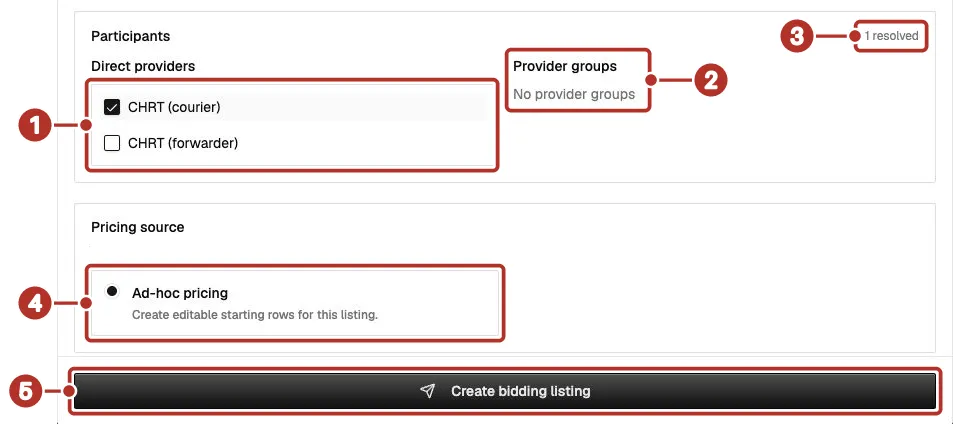
The Create bidding listing form, scrolled to Participants and Pricing source. 1 Direct providers list, 2 Provider groups, 3 resolved recipient count, 4 Ad-hoc pricing option under Pricing source, 5 Create bidding listing button. The Pro-forma pricing rows sit below this view.
-
If you are sending an opening amount, choose a Pricing source. Ad-hoc pricing 4 is selected by default: under Pro-forma pricing, use Add line and review the line descriptions, quantities, unit prices and total. The Currency picker beside Add line sets the currency for every line. Each line can also carry a Tax percentage and an AWB; an air waybill number looks like 020-12345678, and the field shows an error if it doesn’t. Use rate sheet adds a Rate sheet picker and previews rows from the sheet you select; those rows are read-only, so choose Copy to ad-hoc and edit to change them. If rows are already entered, changing the source asks you to confirm Clear and change source.
-
Review Share itemization before sending. On the web, switching it off also hides dispatcher offer and counter pricing, including totals, from the recipient’s thread history. See Check the latest terms before accepting a response. Open priced threads creates a priced response thread for each recipient when the listing is sent. Private internal notes are separate from the recipient-facing description.
-
Choose Send dispatch, Send first-accept listing or Create bidding listing 5, according to the mode. Reopen the saved listing from Sent and verify its segment, audience, recipients, description and response mode.
An opening offer and a recipient’s bid are different entries in the history. If a priced thread already exists, read it before assuming there has been a recipient response.
Reuse a recipient group
Open Bidding groups. Select Providers or Drivers, enter a group name and choose Create. Use Add or remove providers or Add or remove drivers to manage its members. Provider selection uses connected providers.
Review the saved members before selecting the group on a listing. Groups can be renamed or deleted with their available controls. Changing a reusable group is different from editing an existing listing’s participants; check the saved recipient list on each listing you intend to change.
Reply to a listing on the web
Open Bidding > Inbox and open the offer. Review the description, offered segment, response mode and history. Confirm the latest amount is readable before accepting.
For a dispatch request, use Accept dispatch or Deny dispatch when available. Dispatch requests do not offer price negotiation. Accept only if you can carry out the work.
For Bid and negotiate, a new response can use Submit bid, Accept or Deny. An open thread can also offer Send counter and Withdraw bid. Follow the actions available for the thread’s current state.
Check the latest terms
On the web, Share itemization off hides both the total and the rows for dispatcher-authored offers and counters in the recipient’s thread history. The counter label and comment can still appear. Your own earlier bid can remain visible, and the listing sidebar total reflects the listing’s opening pricing rather than the latest counter. Neither is a substitute for reading the current offer.
If the latest amount is missing, do not accept it. Ask dispatch to confirm the terms and resolve the missing amount, then refresh and review the latest response again. An available Accept button does not mean its pricing is visible.
Submit a bid or counter
Choose Submit bid or Send counter. Under Pro-forma pricing, use Add line as needed, then review Category, Unit price, Qty, Description, Unit, Tax, AWB and the calculated total. Use the Currency picker if the amount isn’t in the listing’s currency. Each entered quantity must be greater than zero. Check whether the draft contains the latest response’s rows before editing.
Add an optional Comment explaining your offer, then use the same action’s send button. Refresh and check the saved history for your amount and comment. Accept, Deny and Withdraw bid respond to the current thread without composing a new amount. Cancel in the unsent form closes that form without sending the action.
These amounts belong to the offer and negotiation flow. Rate configuration, invoicing, payment and settlement are covered separately in Billing.
Review responses and select the recipient
From Sent, open the listing and click the participant’s name in the Driver / Provider column to open their reply and history. Compare the latest response and comments before choosing an action. The responses grid shows a count such as 2 responses, pages through long lists and sorts by column. Filter by Status, Status changed or Created; when nothing matches, it shows No responses match your filters. The listing’s side panel also shows Created by and Priced threads opened.
- Send counter proposes revised terms for an open negotiated response.
- Deny rejects that response. It does not cancel the whole listing.
- Accept and assign is available for a recipient’s submitted bid or counter. It accepts that response and assigns the work immediately, closing competing open responses.
- Assign accepted bidder is available when a recipient accepted an offer that still needs dispatcher confirmation. That assignment is a separate action from the recipient’s acceptance.
With First accept wins or a direct dispatch request, successful acceptance follows the automatic assignment rule. With negotiation, an accepted recipient response can remain Accepted, needs confirmation until the dispatcher assigns it. There is no extra confirmation step after Accept and assign.
After the action, refresh the listing and reopen the order. Confirm the awarded response 1 and the executor 2 or driver saved on the offered segment 3. A provider award and that provider’s subsequent driver assignment are separate results.
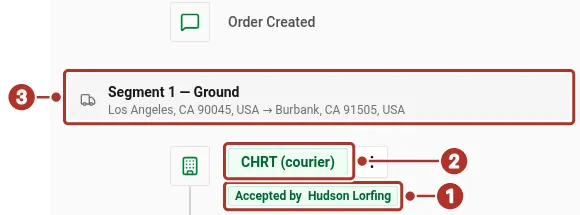
The order’s Timeline tab after a negotiated provider award. 1 Accepted by badge (the awarded response), 2 CHRT (courier) executor, 3 Segment 1 — Ground header (the offered segment).
Read the current state
A bid, counter or acceptance is also an entry in the response history. Read both the latest entry and the listing or thread state. A successful response message alone is not a saved assignment check.
Edit, withdraw or cancel
A manager can use Edit listing on an open listing to change its description, response mode, offer rows, itemization, internal notes or participants. The audience and order segment stay fixed. Save, refresh and check the resulting details and recipients.
A recipient can use Withdraw bid on an open negotiated thread when available. That withdraws their response from consideration; it does not cancel the listing for everyone.
A manager can use Cancel listing to stop recipients acting on the listing. The confirmation warns that cancellation cannot be undone. Read it before confirming, then refresh the saved listing. Listing cancellation does not substitute for changing a saved executor or driver assignment, or undoing completed work. If the work is already assigned, resolve the assignment separately with dispatch.
Respond in the driver app
Open Offers > Incoming Offers, review the offered work, then use Respond to Offer. Depending on the current offer, the app shows Send Bid, Send Counter, Accept Order, Decline or Withdraw Bid.
For a mobile bid or counter, enter Amount under Price and an optional comment. The amount must be greater than zero; the app sends one price line for the offered work. After your own bid or counter, wait for dispatch’s response or withdraw the open bid. After a negotiated acceptance, wait for assignment. The app’s available follow-up actions can differ from the web.
Reconnect and refresh after a failed response. Confirm the correct task group opens under your account and appears in Assigned to You before starting. See Accepting orders for the driver’s response and start workflow.