

Assign Cargo to Stops
Cargo records describe what is moving. Linking a cargo item to a stop tells the order which items each pickup, handoff or delivery handles. You can link cargo from two places: the order’s Cargo tab, which works across the whole route, and a stop’s details on the Timeline, which works one stop at a time. Both change the same saved link.
Before you start
- Select the provider organization that owns the order and open the order’s workspace. If the link controls are read-only, your role or the order’s state doesn’t allow changes. Ask your organization’s administrator rather than working around it.
- Make sure the order has cargo and stops. Use Add cargo on the Cargo tab to enter the items, and add the pickup, handoff and delivery stops on the Timeline.
Link cargo from the Cargo tab
Use this route when one item moves with several stops, or when you want to link a whole segment or route at once.
-
Open the order and choose Cargo.
-
Under Task associations, open Select cargo items… 1 and choose the item to link 2.
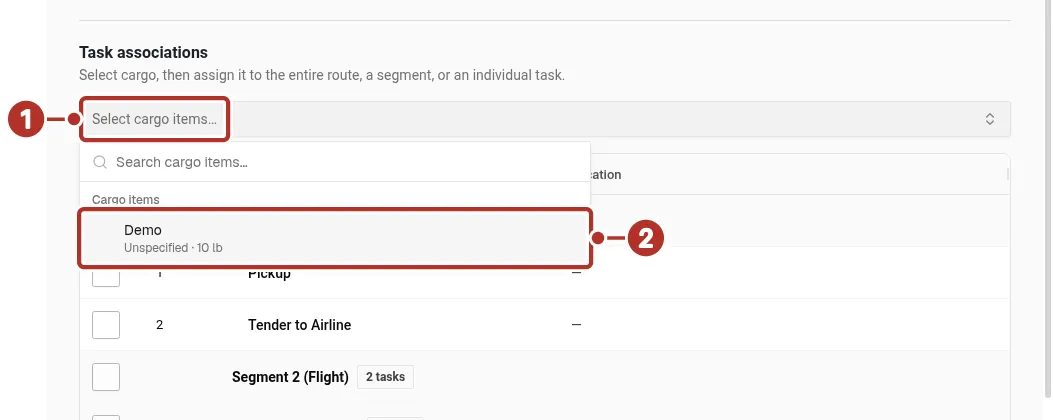
The Cargo tab with the cargo picker open under Task associations. 1 Select cargo items…, 2 cargo item.
-
In the list of steps, turn on the toggle for each task the item moves with, for example Pickup and Deliver. The toggle next to a segment 1 links every task in that segment, and the toggle at the top of the list 2 links the entire route. When an item is linked to only some segments, the route toggle shows a dash.
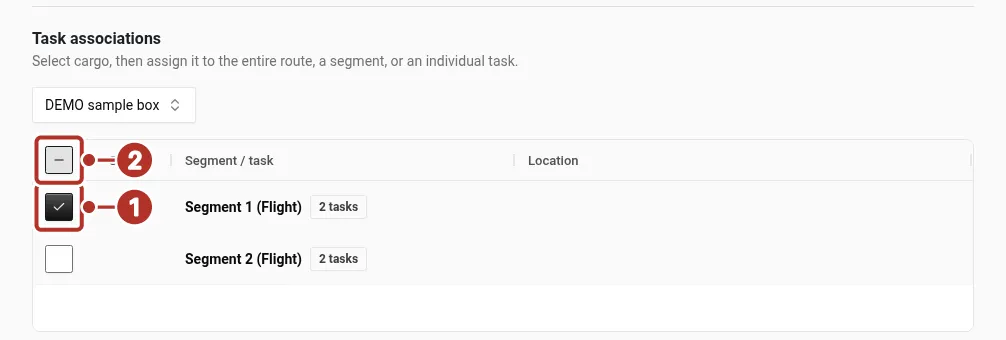
Task associations with one item selected and linked to one segment. 1 Segment 1 toggle, 2 route toggle.
When the item is linked to every task, the route toggle 1 and each task toggle, such as Pickup 2, are fully on.
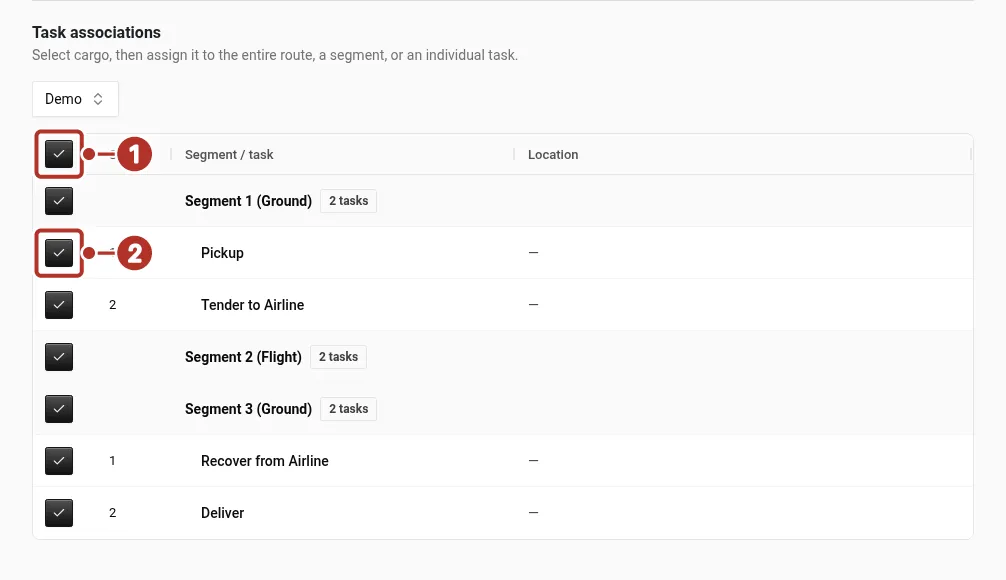
Task associations with the item linked to every task. 1 route toggle, 2 Pickup toggle.
-
Wait for the change to save. A toggle shows a dash when only some of the tasks beneath it are linked.
Link cargo from the Timeline
Use this route when you are planning a single stop and want to see or change its cargo without leaving the Timeline.
-
Open the order’s Timeline and choose View details under the stop.
-
In the stop’s details, scroll to Cargo. The heading shows how many items are linked, for example 1 item.
-
To link cargo, open the cargo picker 1 and choose the item. The picker lists the order’s cargo and ticks the items already linked to the stop. When the stop has no cargo, the section reads No cargo associated with this stop.
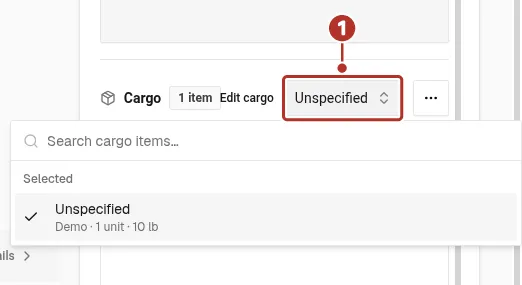
A stop’s details with the cargo picker open. 1 cargo picker.
-
The Cargo heading counts the linked items, for example 1 item 1. To remove an item from this stop, choose × (Unlink cargo from stop) 2 on its row. The other stops keep their cargo. Below the table, a footer counts the items and pieces linked to the stop.
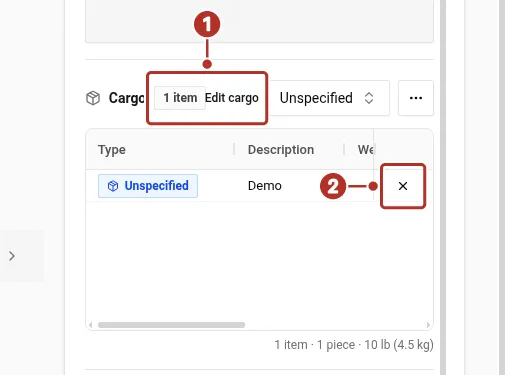
A stop’s details after linking: the item count and the unlink control. 1 1 item, 2 × unlink.
-
Choose Edit cargo to open the order’s Cargo tab and work with the whole route.
Which route to use
How to know it worked
Reopen the Timeline. Each stop shows an item count next to its name, such as 1 item. Open the stop’s details to see which items are linked. You can also reload the Cargo tab, select the item again and confirm the toggles match what you set. A link you can see after a reload is saved.
If something looks different
Related guides
- Creating Orders — add cargo and proof requirements for provider orders.
- Multi-Leg Orders — plan ground, flight and onboard-courier segments.
- Cargo Types — choose the right cargo category.
- Create and Assign an Order — stage the order and assign the work.
- Proof of Delivery — see what drivers capture at each stop.