

Add a Customer
Learn how to add an off-platform customer before creating their orders.
Use an off-platform customer record when you need to describe an external customer that is not connected as its own chrt organization. Check existing records first.
Before you start
Confirm your active organization and the customer’s company/contact details. Creating an off-platform record does not create the customer’s sign-in account or invite them.
Add the record
-
Open Orgs 1 in Provider mode, choose Shippers 2, choose New shipper 3, then choose Create off-platform.
In the list, the Type column tells existing records apart: Off Platform Shipper 4 for an off-platform customer, Shipper 5 for a customer connected as its own chrt organization. The Known Shipper column shows Known or Not a known shipper for each shipper, and the Company column header filter finds one by name.
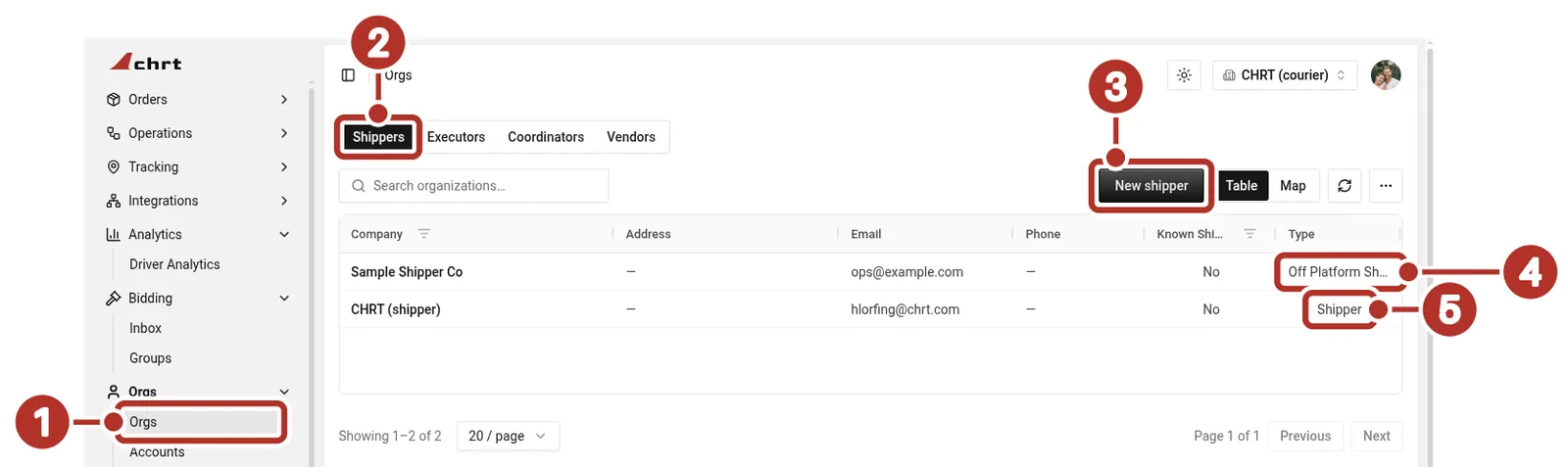
Orgs > Orgs in a provider organization, Shippers tab. 1 Orgs in the sidebar, 2 Shippers tab, 3 New shipper, 4 Type shows Off Platform Shipper (the list shortens it to Off Platform S…) for an off-platform customer, 5 Type shows Shipper for an on-platform customer.
New shipper offers Connect on chrt 1 and Create off-platform 2; choose Create off-platform for a customer that does not use chrt yet.
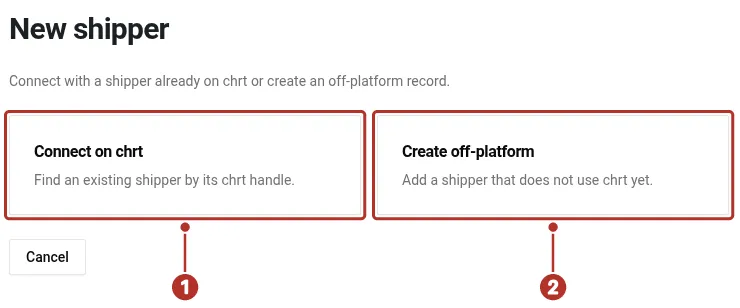
The New shipper page. 1 Connect on chrt card, 2 Create off-platform card.
-
Review the new-record form’s Company Name 1, Business Email 2 and available contact fields.
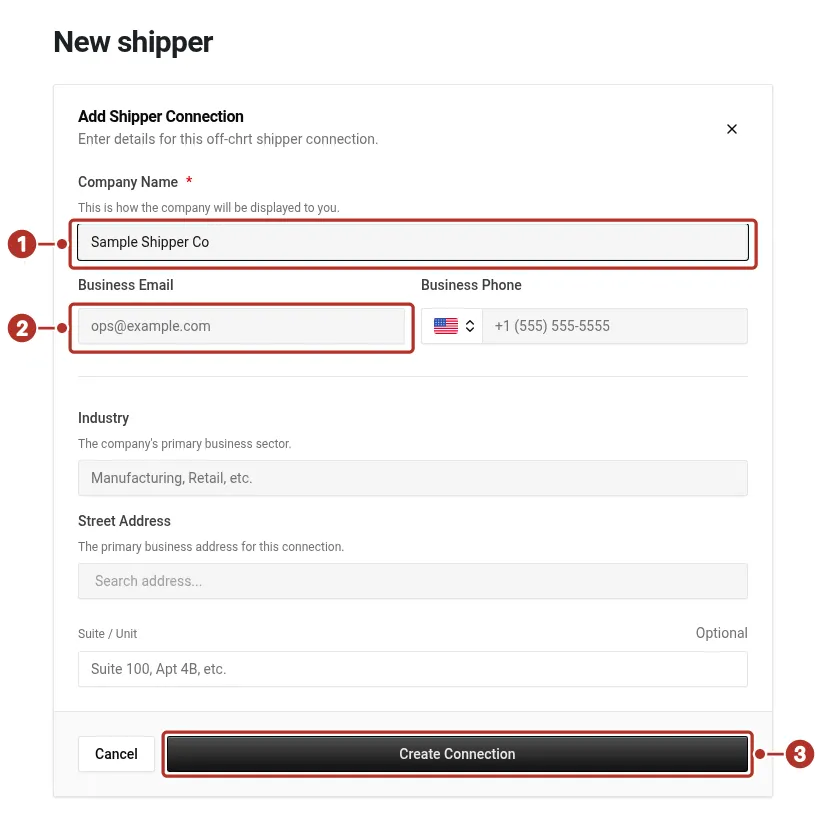
The Create off-platform form on New shipper in a provider organization, with only Company Name filled in. 1 Company Name field, 2 Business Email field, 3 Create Connection button.
-
Enter the actual company details and review required-field errors.
-
Use Create Connection 3 when the form is valid.
-
Reopen the saved record and confirm it belongs to the intended organization. It shows the Off Platform Shipper badge 1 and Not a known shipper 2, with Contact Info, Tax, Settings and Related tabs 3 and an Edit button 4.
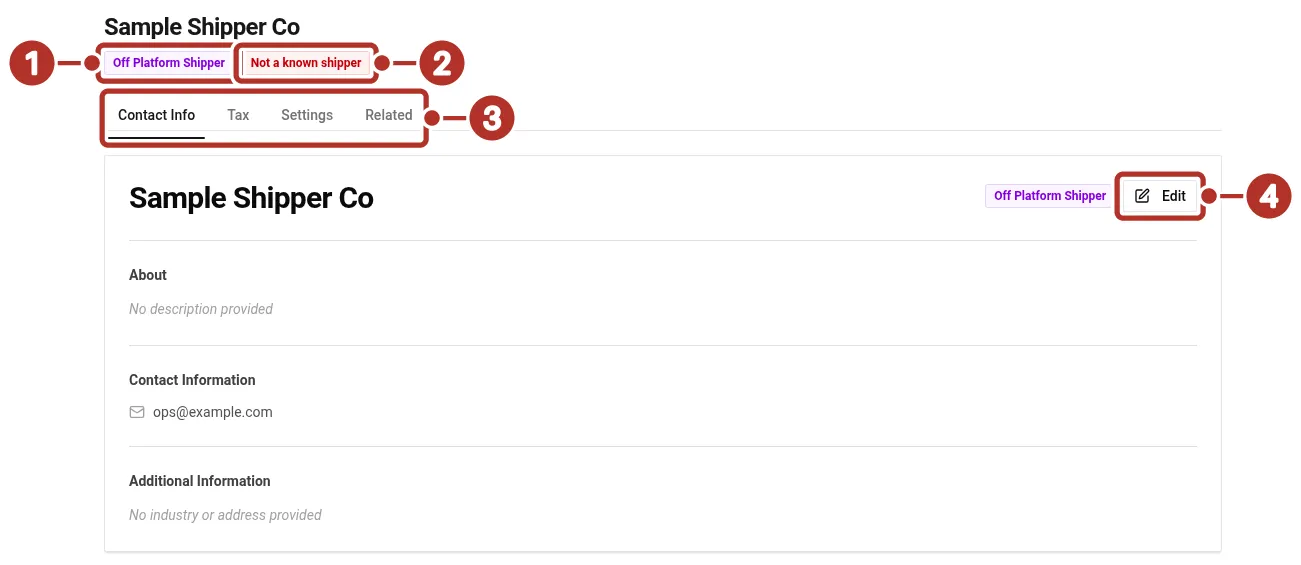
The saved off-platform shipper record, reopened from Orgs > Shippers. 1 Off Platform Shipper badge, 2 Not a known shipper badge, 3 Contact Info, Tax, Settings and Related tabs, 4 Edit button.
If the customer already has its own chrt organization, choose Connect on chrt on the New shipper page instead, enter its handle and select Connect. Avoid creating another off-platform record just because a search or refresh failed.
Use it on an order
Select the saved customer as the shipper where the order permits it. Check the order’s saved ownership after selection; a record in a list is not proof it was attached to that order.
See Connections, Create and assign an order and Support.