

Connections
A connection records a working relationship between organizations. Check which organizations are involved, the active organization and the saved connection state before creating or assigning work across it.
Org modes: shipper and provider
A shipper requests and coordinates shipments. A provider performs or coordinates logistics work; couriers and forwarders use provider workflows. Organization type is separate from each user’s membership role and driver profile.
Public profiles and handles
An organization handle identifies its public profile. Open the provider’s actual shared profile link and confirm its identity. Sign-in, organization setup and connection creation can be separate steps. Do not assume following the link has already connected the intended organization. A connection’s Contact Info tab shows a read-only Files list when the organization has files.
Connect
Use the connection action the profile makes available. Confirm the active organization, complete required setup and review any errors. After the flow, reopen the provider relationship and confirm its saved state before relying on it for an order.
In the Orgs flow, selecting Connect creates the connection right away; there is no separate invitation or acceptance step. Check existing relationships before creating duplicates: a result that is already connected shows a disabled Connected button.
On-platform vs off-platform
An on-platform organization has its own chrt account and access governed by its relationship and permissions. An off-platform record lets your organization describe an external partner; creating the record does not invite that partner or give them app access.
Use the current organization/network page to find the relationship and the appropriate add action. Confirm the saved customer/provider record and select it on the order when needed. Avoid assuming telemetry, proof or messages are automatically available across every connection.
On a shipper connection’s Settings tab, the Known shipper switch marks that shipper as known; operators or higher can change it. The connection header then shows Known or Not a known shipper.
In the image below, Orgs 1, the Shippers tab 2 and New shipper 3 are the path to the add action, and the Type column distinguishes Off Platform Shipper 4 from Shipper 5.
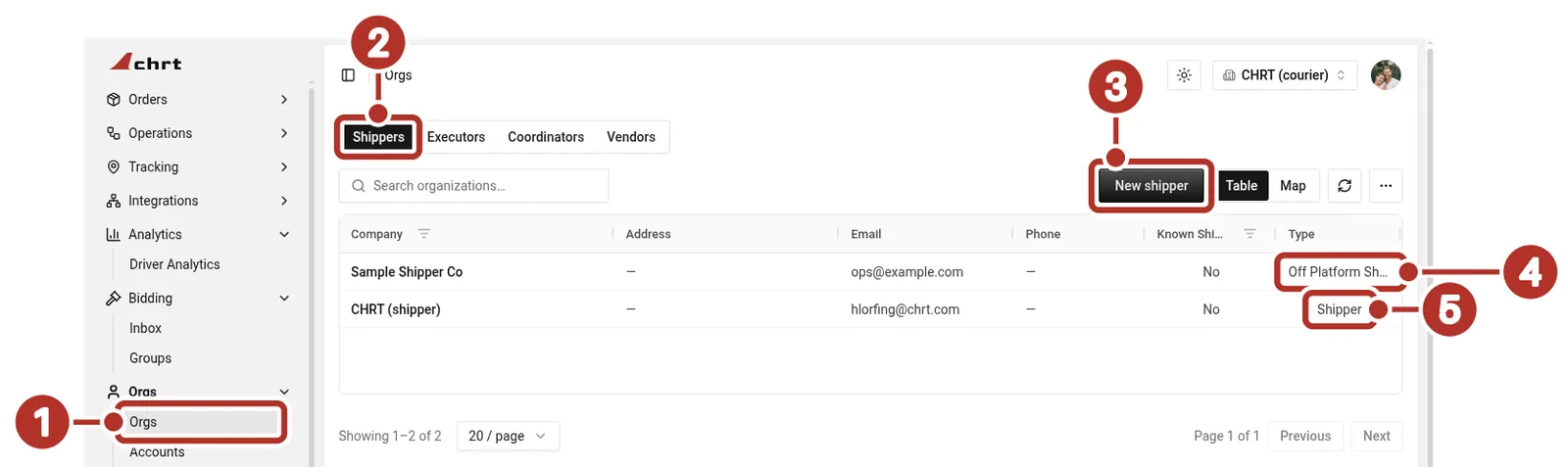
Orgs > Orgs in a provider organization, Shippers tab. 1 Orgs in the sidebar, 2 Shippers tab, 3 New shipper, 4 Type shows Off Platform Shipper (the list shortens it to Off Platform S…) for an off-platform customer, 5 Type shows Shipper for an on-platform customer.
See Connect with a provider, Add a customer and Roles.
Default rate sheet
Every active connection has a default rate sheet slot. The default rate sheet is the pricing template that auto-applies to every new order assigned across that connection — you don’t have to pick one each time.
Defaults are kept per connection direction:
- A forwarder ↔ shipper connection has the forwarder’s shipper-pay-provider default — what the forwarder charges that shipper.
- A forwarder ↔ courier connection has the forwarder’s provider-pay-provider default — what the forwarder pays that courier.
- A courier ↔ driver pairing (not a connection per se, but stored similarly) has the courier’s provider-pay-driver default — what the courier pays that driver.
You can override the default on any individual order or task group. See Billing primitives for how rate sheets attach to task groups.