

Create and Assign an Order
Before you start
Confirm the active organization, the shipper/customer and the provider responsible for the work. Gather the cargo, locations, timing, instructions and proof requirements. Driver execution also needs an eligible driver’s linked profile; an invitation alone is insufficient.
Create and review a draft
-
Open Orders and click Create Order, or open New Order. Either one creates a draft and opens its workspace on Timeline.
-
Review the order name 1 and ownership in the header, including the selected shipper/provider 2. The name is the order ID until you add an external reference with the pencil icon (Edit external order reference).
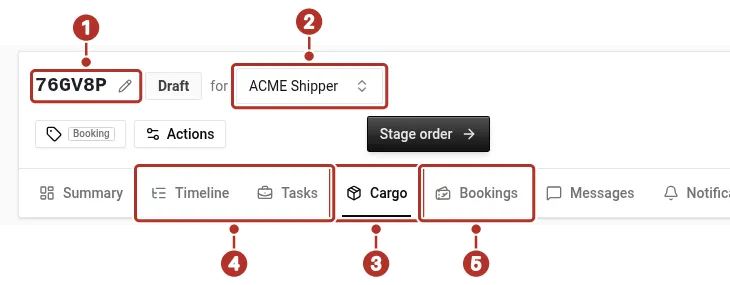
Order workspace header and tab row of a draft order. 1 Order name with its pencil and the Draft badge, 2 Shipper selector (CHRT (shipper) here), 3 Cargo tab, 4 Timeline and Tasks tabs, 5 Bookings tab.
-
Use Cargo 3 to describe what is moving and review its associations.
-
Use Timeline and Tasks 4 to configure and review the route, stops, timing and proof. Ground tasks on these rows show a short ID chip after the task title.
-
For flight-linked cargo, review the relevant Bookings 5 and itinerary information. A flight or booking preview does not prove cargo acceptance.
-
Resolve the displayed readiness errors and review the whole draft before staging.
Add cargo creates a row immediately, and cargo grid edits submit automatically. Reopen Cargo to confirm the saved values; preparing a draft does not make these edits temporary.
Stage and verify
Use Stage order when available. A provider draft needs a shipper selected, and a shipper’s own draft needs a coordinator chosen with Select coordinator…. The service validates readiness; an error is not a reason to bypass the required data. If staging fails, CHRT shows The order could not be staged with the requirements that are not met, such as Stops are missing cargo, No stop has a time window or The order has no coordinator. Affected stops are named under each requirement, and Go to Cargo opens Cargo. Fix each item and stage again.
After staging, refresh/reopen the saved order and check its status, cargo, work and ownership. If staging succeeded but refresh failed, resolve the refresh before repeating the action. A draft reference or preview alone does not prove the work is staged.
Assign and confirm
On the intended ground task group 1, review Assign provider first. Its available actions include Assign to own org, Assign a provider and Bid to providers. Choose the executor appropriate to the work and confirm the saved provider 2 before assigning a driver. Available actions depend on your role and the group. The Accepted by label 3 shows the saved response behind the executor, the Awaiting driver assignment row 4 shows that no driver is saved yet, and the Pickup and Deliver stops 5 are Stop 1 and Stop 2.
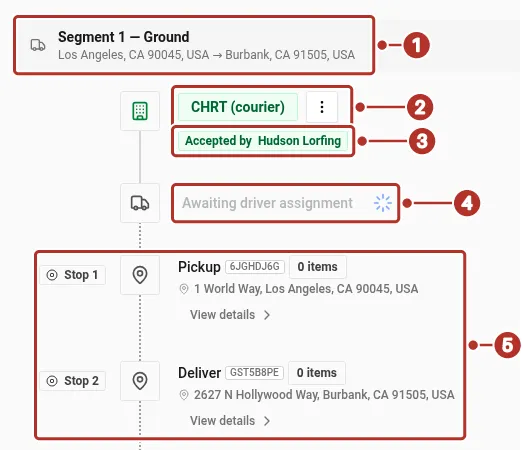
Segment 1 on the Timeline tab of a draft order. 1 Segment 1 — Ground header, the ground task group, 2 CHRT (courier) executor chip, the saved provider, 3 Accepted by label, the saved response behind the executor, 4 Awaiting driver assignment row: no driver is saved yet, 5 Pickup and Deliver stops (Stop 1 and Stop 2).
Immediate Assign or Reassign works when the assignee has agreed to direct assignment: a W2 driver with auto-assignment enabled, or a partner courier whose connection has Auto-assign turned on by that organization’s admin. Otherwise send the work as a listing: Bid asks for a response, and Dispatch directly asks a driver to accept or deny.
Before immediate driver assignment, have an authorized operator confirm the driver has the approved W2 profile with auto-assignment enabled and review both availability values. Reload the profile to confirm its saved classification. Follow Driver setup. For a partner courier, check the Auto-assign setting in the connection’s profile settings before assigning directly. A visible Assign button is not a substitute for eligibility.
For direct driver assignment, open Assign in the driver row (the control is labeled Assign driver for accessibility), then choose Assign a driver. Select the eligible driver for the executing organization and confirm the saved assignment, then ask the driver to refresh and open the same work in the mobile app. See Dispatching. Marks 1 to 4 show the Staged badge, the tab row, the ground task group and its executor chip, and mark 5 is the Driver Assigned row where the saved assignment appears.
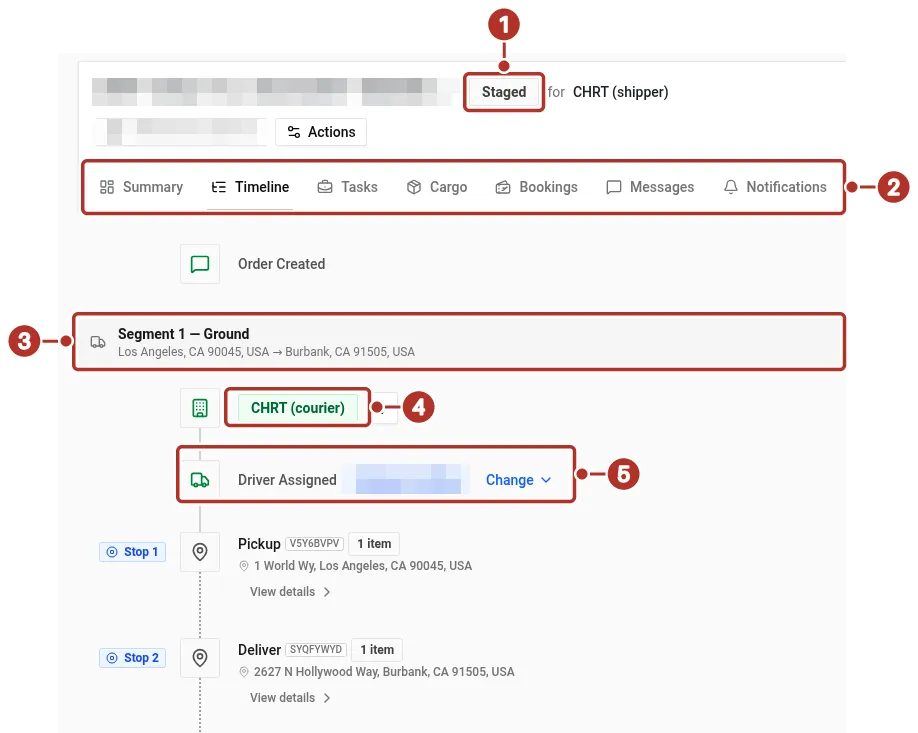
Order workspace, Timeline tab, of a staged example order, with the Stop 1 Pickup and Stop 2 Deliver rows below the driver. 1 Staged badge, 2 Section tabs, Summary through Messages; further tabs such as Audit Log sit to the right, outside the picture, 3 Segment 1 — Ground task group, 4 Executor chip, 5 Driver Assigned row with Change.
For work that requires a response, Bid to providers, Bid to drivers and the roster’s Bid action lead to Bidding and assignment requests. The listing’s Dispatch directly mode is an accept-or-deny request to a driver, separate from immediate Assign.
A saved order, offer response and driver assignment are different results. Resolve missing profiles, organization mismatches or permissions with dispatch rather than creating duplicates.
For financial setup, use the existing billing reference. This guide covers the operational draft, stage and assignment flow.
See Add a customer, Add a member and Driver app.