

Sign Up and Connect with a Provider
Before you start
Creating a shipper organization is free. It lets you place orders with your provider.
Open the provider’s actual profile link and confirm the company. If you already belong to the intended organization, sign in with that account instead of creating a duplicate.
Connect from the profile
-
Review the provider and its connection action.
-
Complete hosted sign-in/sign-up when requested. Follow the methods shown; a password or a particular SSO button is not mandatory for every account.
-
Create or select the intended organization if requested.
-
Choose Shipper when your company is requesting shipments rather than performing logistics work.
-
Return to the provider profile and complete the available connection action.
-
Reopen the relationship and confirm the saved connected state under the intended organization. In the example below, the provider handle @chrt-forwarder 1 has a disabled Connected badge 2 under it, and the organization switcher shows CHRT (shipper) 3.
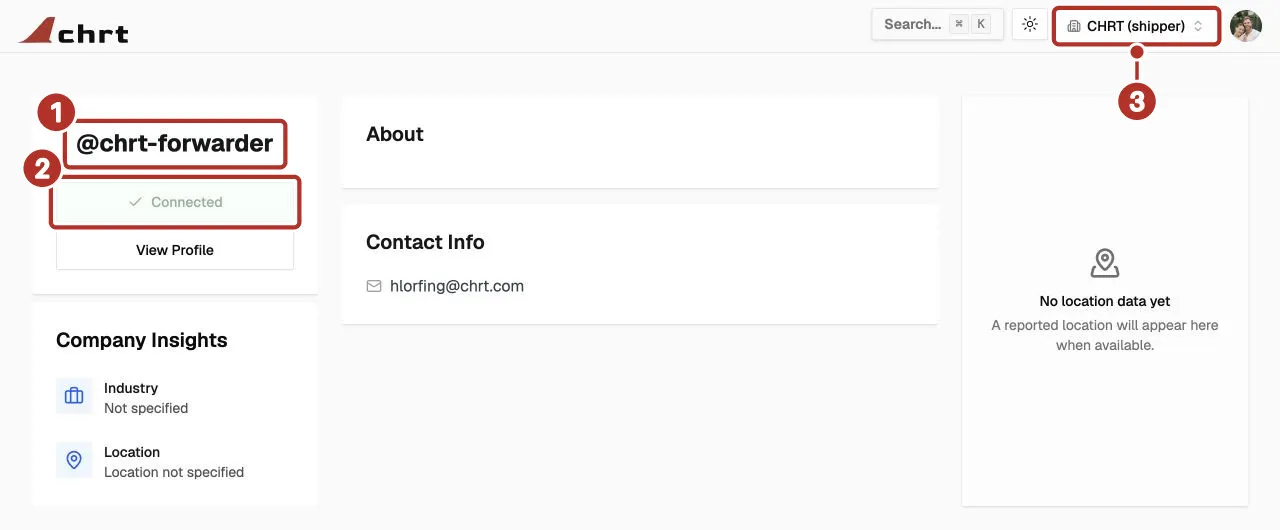
The @chrt-forwarder profile viewed from a shipper organization. 1 provider handle @chrt-forwarder, 2 disabled Connected badge, 3 organization switcher showing CHRT (shipper).
Sign-in, organization setup and connection creation are separate outcomes. Returning to a profile is not by itself proof of a connection.
Already signed in
Check the active organization before connecting. If the relationship is already connected, use it instead of recreating it. If the profile asks for further setup or reports an error, complete that step and check the saved relationship again.
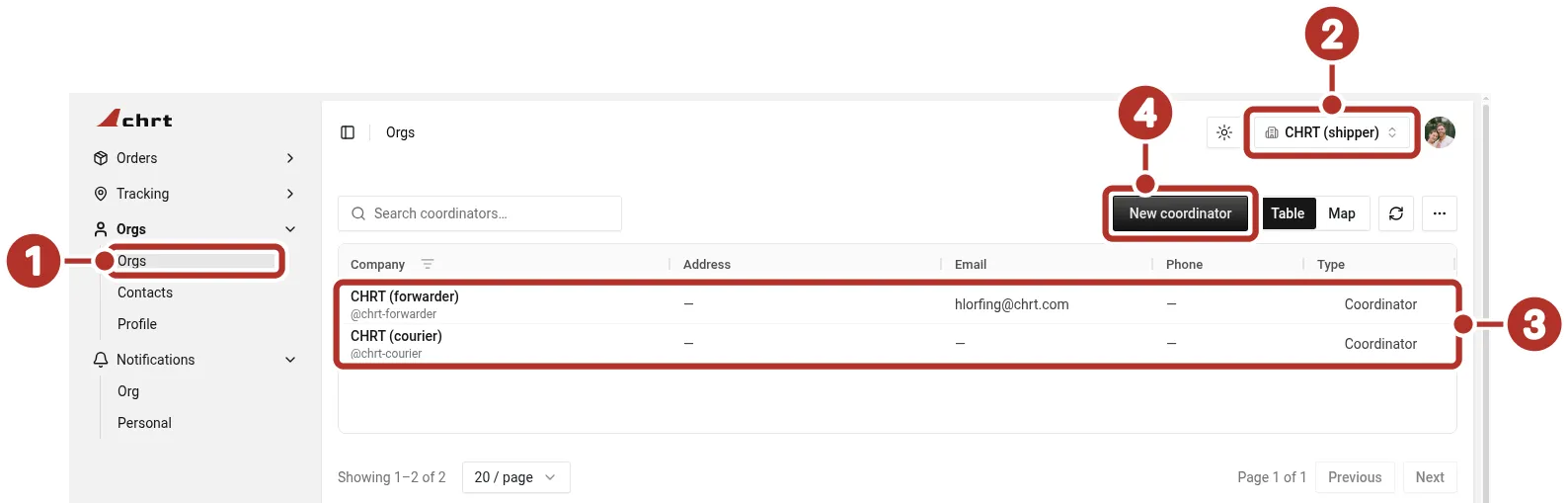
The Orgs list in a signed-in shipper organization, with existing providers listed as Coordinator and a New coordinator button above the table. 1 Orgs > Orgs in the sidebar, 2 organization switcher showing CHRT (shipper), 3 saved relationships, each with Type Coordinator, 4 New coordinator button.
On the New coordinator screen, the handle field under Search for New Orgs 1 and the result area beneath it 2 are empty in the example below.
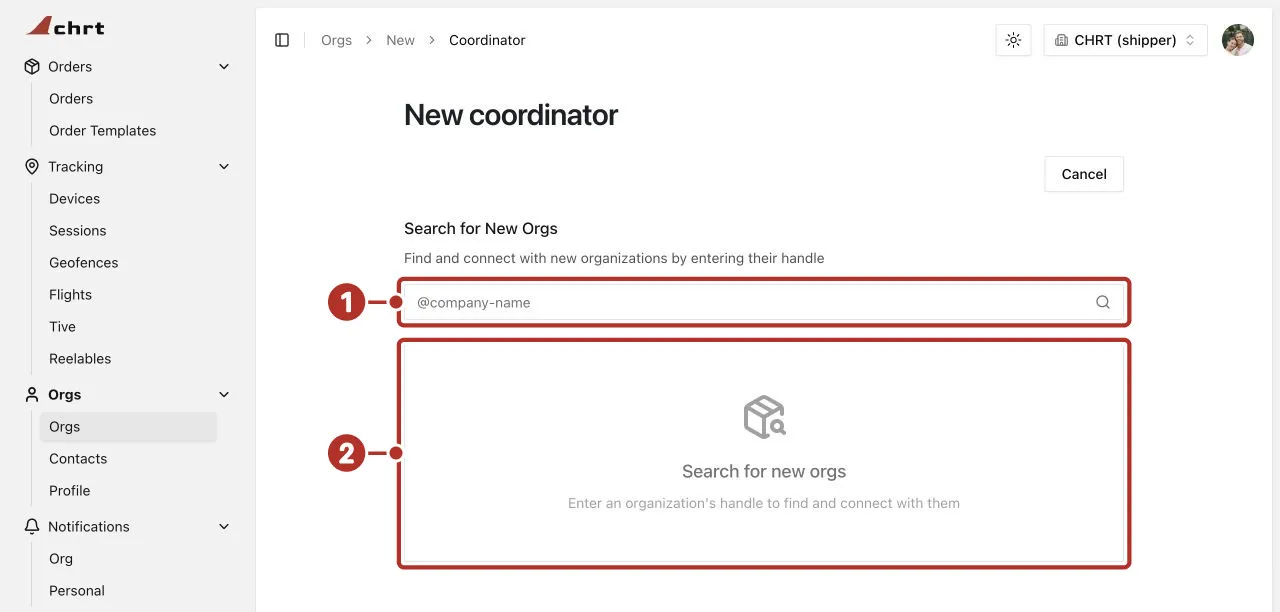
The New coordinator screen with an empty handle search. 1 handle field under Search for New Orgs, 2 result area beneath the handle field. This signed-in route is separate from the public-profile sign-up flow.
Do not assume a public profile grants access to private orders, contact information or tracking. Those depend on the connection and sharing configuration.
See Create or select an organization, Connections and Create your first shipment.