

Sign Up and Connect with a Provider
Before you start
Creating a shipper organization is free. It lets you place orders with your provider.
If you already have a chrt shipper account, sign in first and then open the provider profile link.
Step-by-step instructions
-
Open your provider’s public profile page.
The URL usually looks like
https://chrt.com/@provider-handle. -
Click Sign Up and Connect.
chrt will send you through sign up and then bring you back to the connection flow for that provider.
-
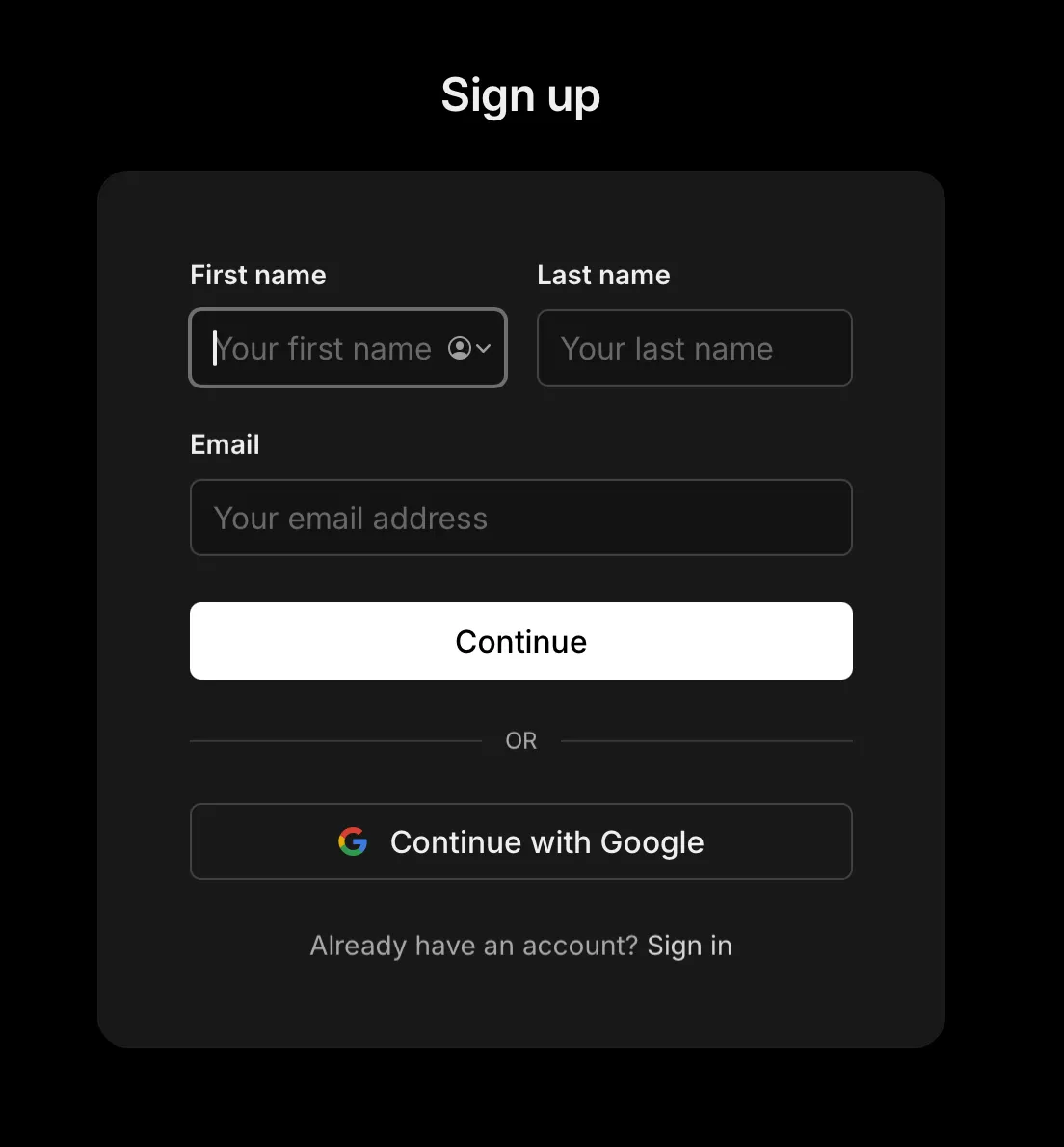
Enter your name and email address.
On the sign-up screen, enter your first name, last name, and email address, then click Continue. You can also use Continue with Google if your organization signs in with Google.
-
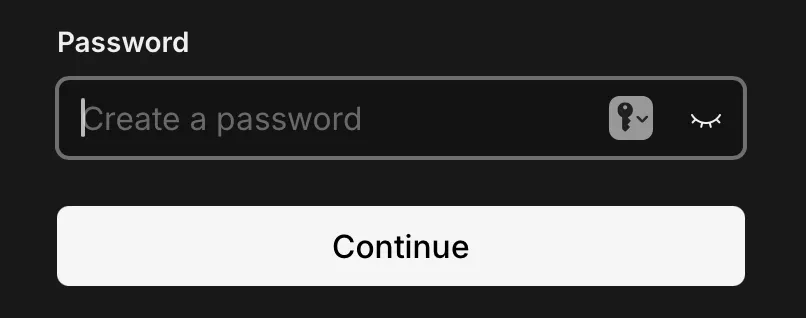
Create a password.
Enter a password for your chrt account and click Continue.
-
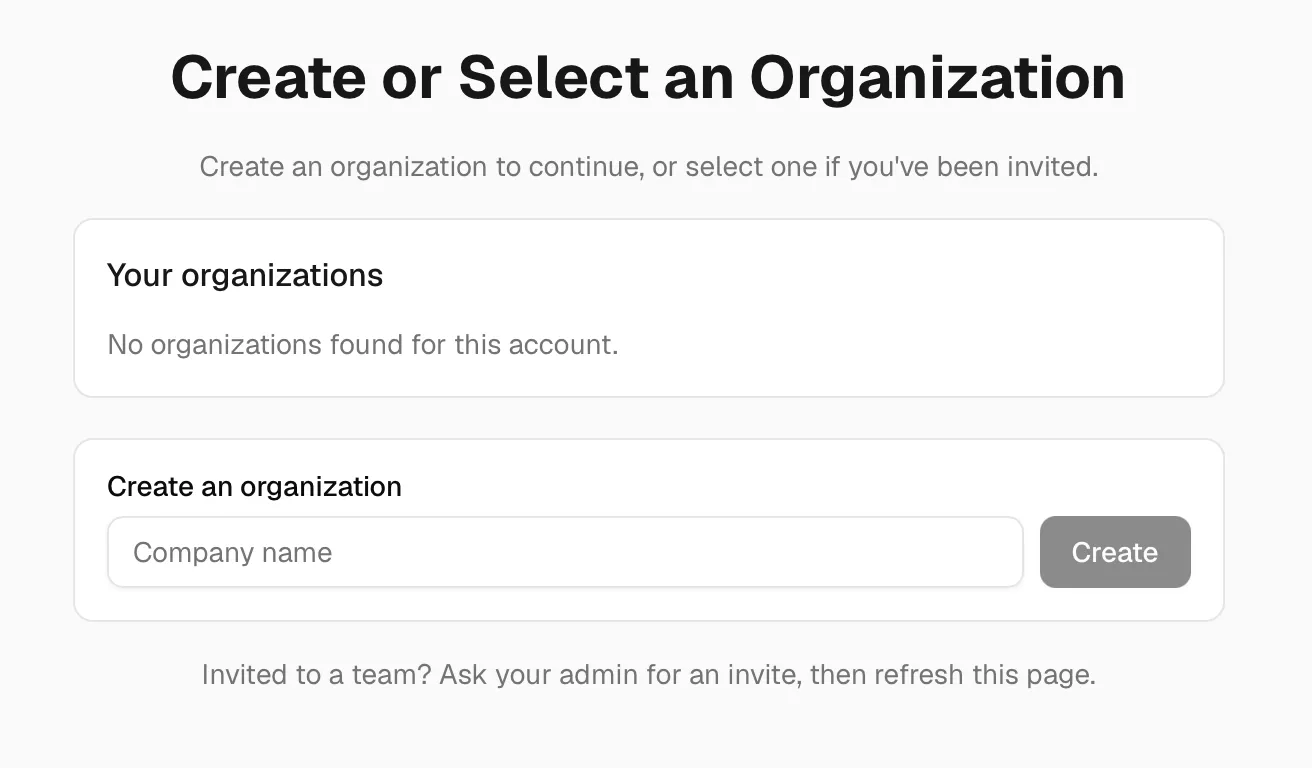
Create or select your organization.
If you are new to chrt, enter your company name and organization handle. If you have been invited to an existing chrt organization, select it from Your organizations instead.
-
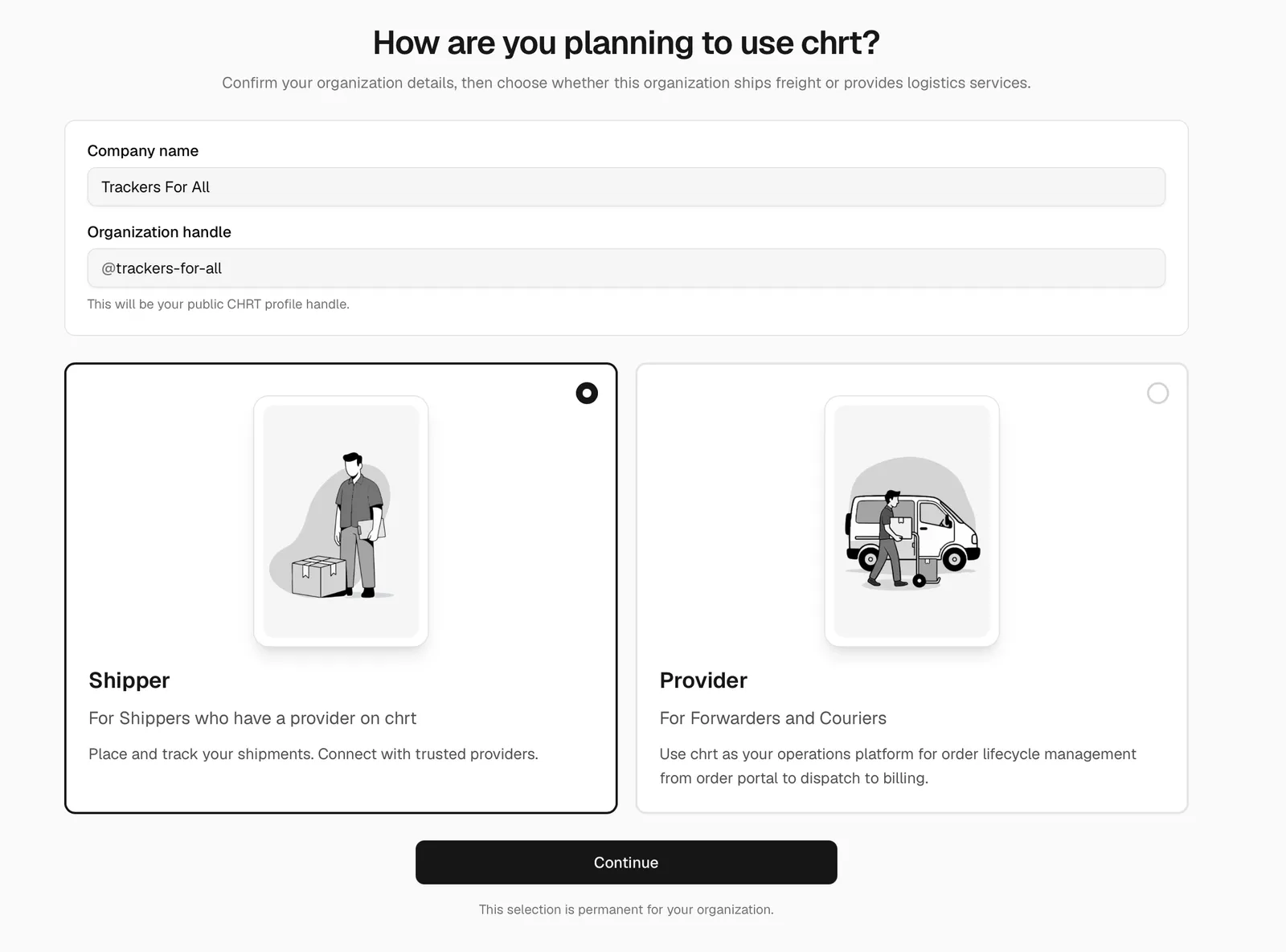
Choose Shipper when chrt asks how your organization uses the platform.
A shipper organization is for teams that place shipments and work with logistics providers. It is the right option when you want to place orders with your provider and see shared tracking sessions.
-
Finish the connection.
Click Continue after selecting Shipper. chrt creates your shipper profile and connects your organization with the provider from the profile link.

How to know it worked
After setup, the provider profile should show Connected or chrt should return you to the provider profile after creating the connection.
Once connected, you can place orders with that provider. If the provider shares a tracking session with your shipper organization, you can view it from chrt.
If something looks different
- If you see Connect instead of Sign Up and Connect, you are already signed in. Click Connect to connect the current organization.
- If you are asked to choose between Shipper and Provider, choose Shipper unless your company performs logistics work for customers.
- If the profile shows Connected, your organization is already connected to the provider.
- If you accidentally create the wrong type of organization, contact chrt support before placing orders or inviting teammates.
- Contact hi@chrt.com if you have issues.
Connecting from inside chrt
If you are already signed in and do not have the provider’s profile link, you can also open Connections from the app:
- Open chrt.com/connections.
- Click Find New if the search panel is not already open.
- Search for the provider handle.
- Review the provider result.
- Click Connect.