

Add an Organization Member
Use the members settings page to invite teammates into your chrt organization. Choose the role before sending the invite so the new member gets the right app access on day one.
Before you start
You need owner or admin access to manage organization members. If you do not see Members in settings, ask an owner or admin on your team to invite the new member.
Step-by-step instructions
- Open Members settings, or open chrt and go to Settings > Members.

- Click Invite user.
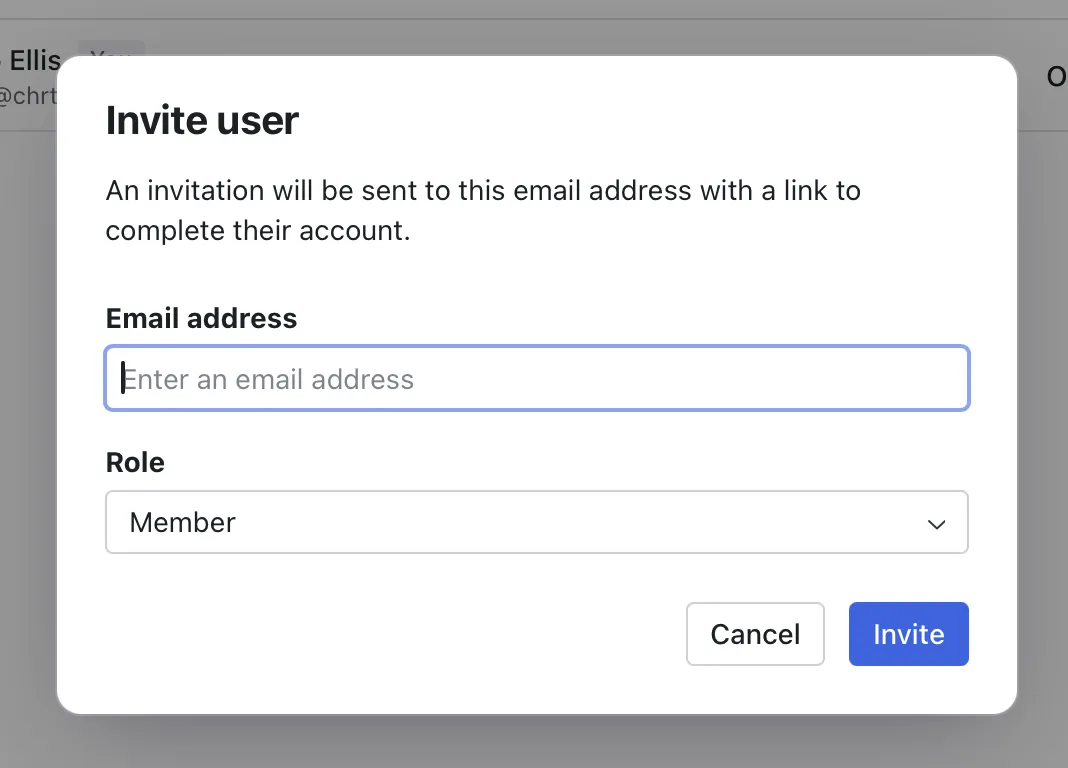
- Enter the person’s email address.
- Open Role and choose the correct role for the person you are inviting.
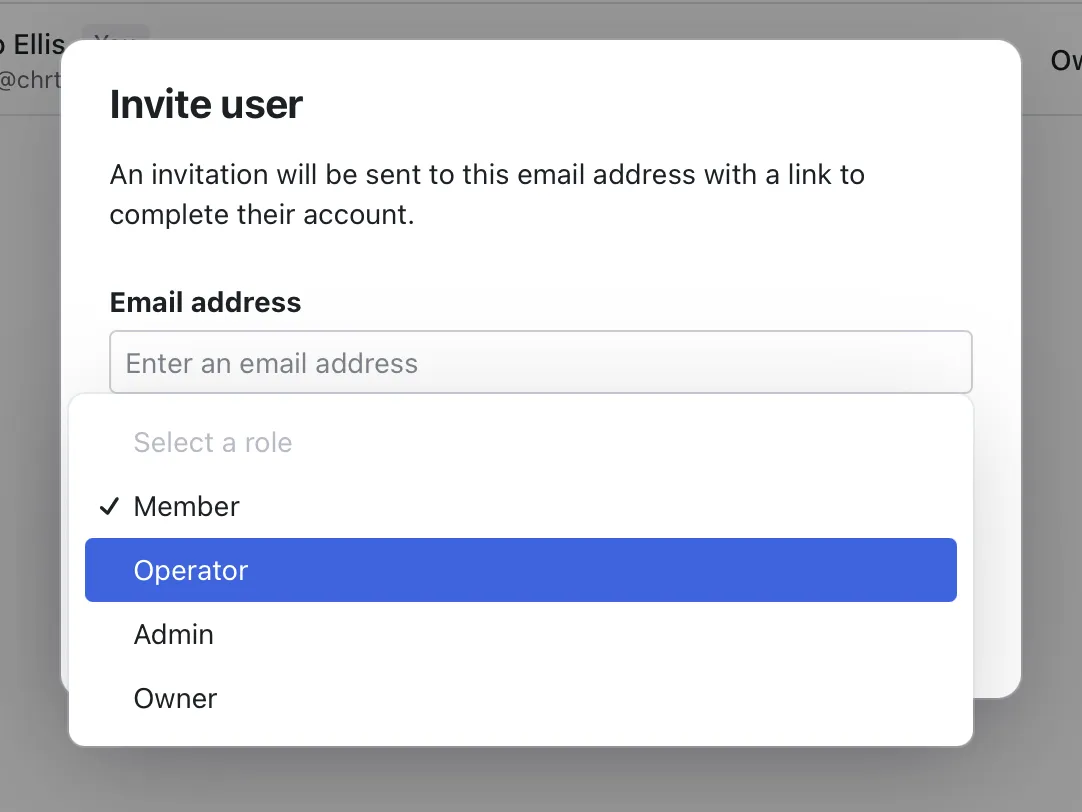
- Review the email address and role.
- Send the invitation.
Make sure you invite the person with the correct role before sending. Owner and admin roles can manage sensitive organization access. Member access is intentionally limited for people who only need the driver app.
Default roles
Drivers should use the chrt driver app instead of the full web dashboard. Send them the driver app page so they can download the app and sign in after accepting the invite.
If you’re inviting a driver
Drivers use the same invite flow as any other teammate — there is no separate driver invite.
- From Members settings, click Invite user and enter the driver’s email.
- Choose Member as the role. Member is the right role for anyone who should only use the driver app; it intentionally limits access to the web dashboard.
- Send the invitation. The driver receives an email, signs in once on chrt.com to accept it, then installs the driver app and signs in there.
Send the driver the chrt.com/driver-app link alongside the invitation email so they can install the app while waiting for the invite to land.
How to know it worked
The invited person should appear as pending in the members list until they accept the invitation. After they accept, they can sign in with the role you selected.

If something looks different
- If you cannot see Members, confirm you are signed in as an owner or admin.
- If the role names look different, choose the lowest role that gives the person the access they need.
- If you invited someone with the wrong role, update their role from Members before they start using chrt.
- Contact hi@chrt.com if you have issues.