

Choose Organization Type
Before you start
You need an active organization before this page appears. If you have not made one yet, follow create or select an organization first.
This setup screen asks how your organization plans to use chrt. The choice is permanent for the organization because it controls the product routes, setup checklist, permissions, and billing flow shown to your team.
Step-by-step instructions
- Confirm the Company name.
- Confirm the Organization handle. This becomes your public chrt profile handle.
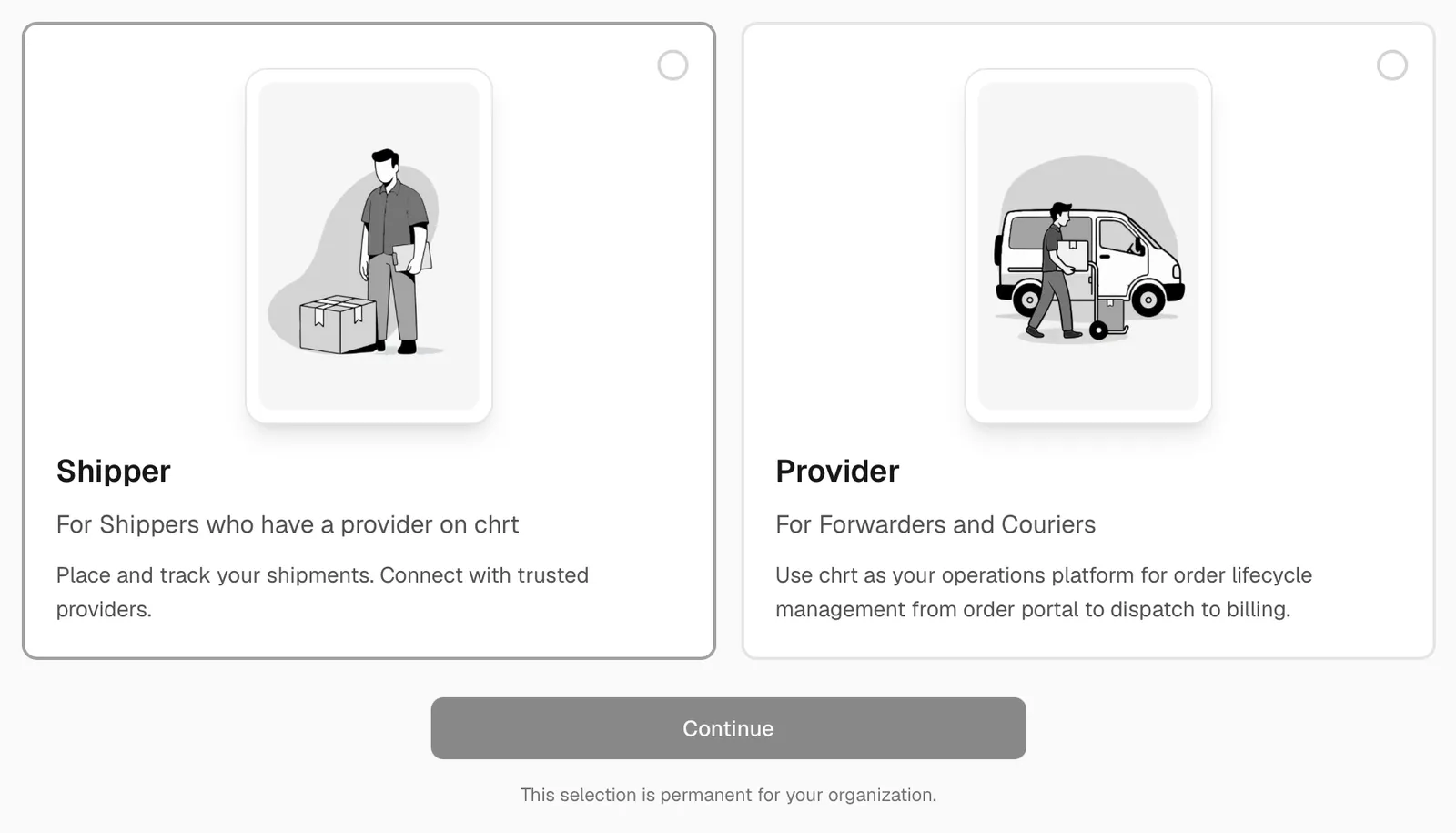
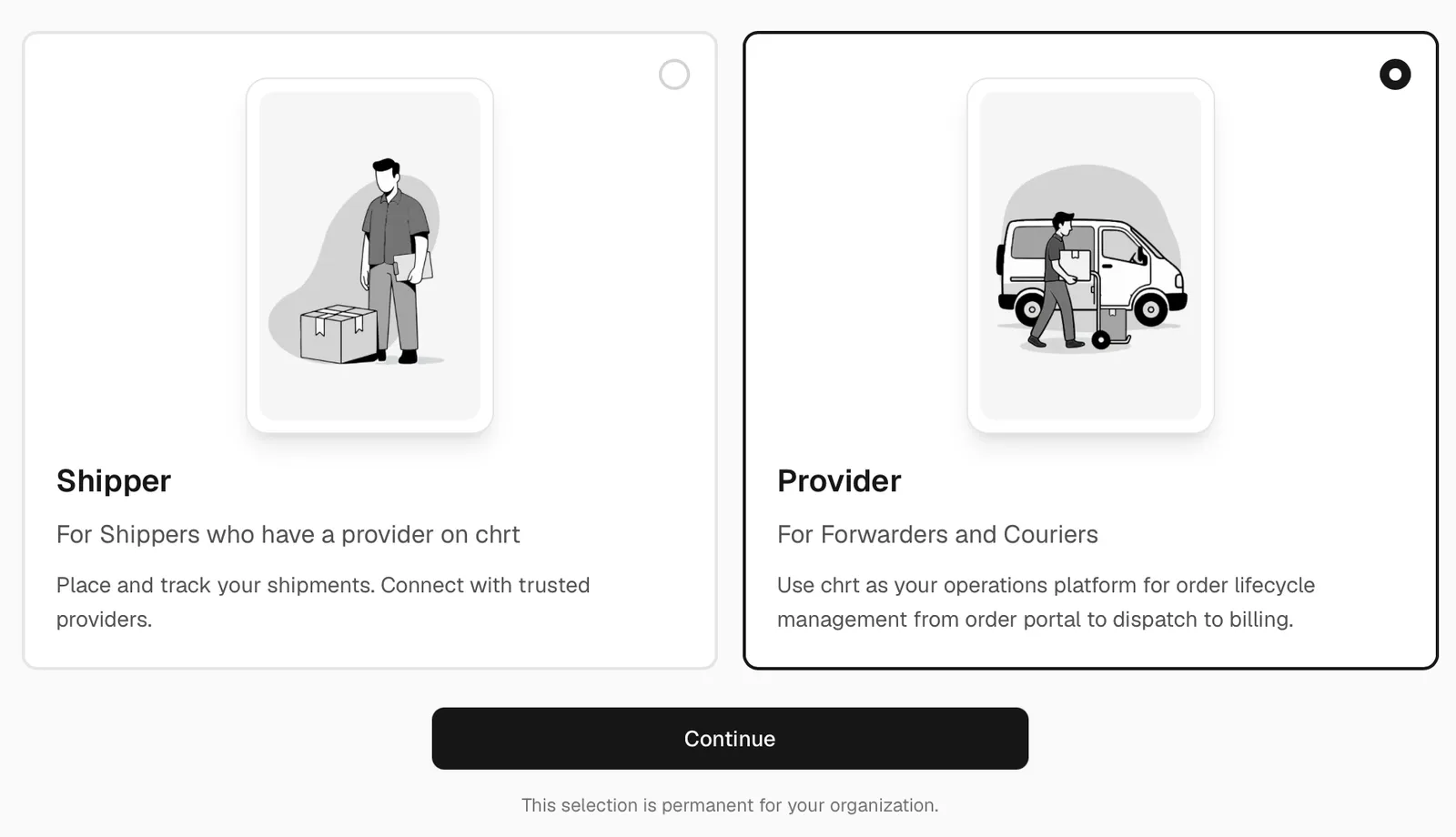
- Review the two organization types: Shipper and Provider.
- Choose the type that matches what this organization does.
- Click Continue.
Choose Shipper when
Choose Shipper when your organization places shipments and wants to manage, track, or coordinate freight with providers on chrt.
This is the right choice when you are the cargo owner, manufacturer, healthcare team, lab, warehouse, or operations team that needs freight moved by another company.
Shipper organizations can connect with providers, create shipments, track work, and manage shipment visibility. Learn more on the shipper platform page.
Choose Provider when
Choose Provider when your organization provides logistics services to other companies.
Couriers, freight forwarders, operators, and carrier teams should choose Provider. This includes teams that dispatch drivers, manage pickup and delivery work, coordinate flight or ground legs, send tracking updates, collect proof of delivery, and bill customers.
Provider organizations use chrt as an operations platform for the full order lifecycle: customer intake, dispatch, tracking, proof of delivery, and billing. Learn more on the freight forwarder page and the driver app page.
Provider setup can include subscription checkout. Review pricing or open the subscription page if you need to confirm plan details.
What happens after you continue
chrt saves the selected mode to the organization. That selection determines the main navigation, onboarding checklist, and which workflows are shown by default.
Shipper organizations continue into the shipper setup checklist: connect with a provider, set up shipper info, create the first shipment, and track shared work.
Provider organizations continue into the provider setup flow. Depending on your plan, you may be sent through subscription checkout before entering the app. After access is available, the provider checklist guides you through inviting a driver, adding a customer, setting up a rate sheet, and creating an assigned order.
If you are not sure
Ask what your organization primarily does in chrt:
- If your team requests shipments from another company, choose Shipper.
- If your team performs logistics work for customers, choose Provider.
- If your team is a courier company or freight forwarder, choose Provider.
If you selected the wrong mode, contact chrt support before creating real orders, inviting team members, or setting up billing.
- Contact hi@chrt.com if you have issues.