

Operational Task Templates
A task template defines reusable operator work, such as coordination or a handoff checklist. Applying it creates operational tasks for an order. Those saved tasks form the order’s task list; the reusable template and the order’s tasks are separate records. This operator work is separate from the order’s route tasks, driver proof requirements and the full shipment setup in an order template.
Before you start
Select the intended provider organization and open Tasks. This workspace is provider-only. The service can still deny access to a particular queue or action; ask your administrator if the expected work is unavailable.
Create a reusable task template
-
Choose Manage Task Templates, then New template.
-
Enter Name 1 and Description 2, explaining when operators should use the template.
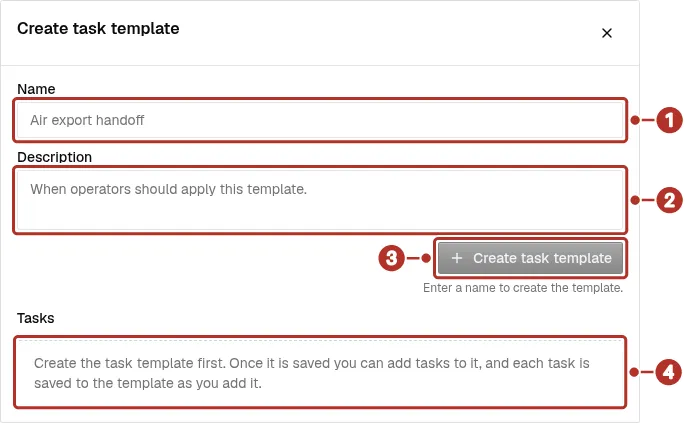
Operations > Tasks > Manage Task Templates > New template: the Create task template panel before it is submitted. 1 Name, 2 Description, 3 Create task template, disabled until a name is entered, 4 Tasks area: save the template before adding tasks.
-
Use Create task template 3. Save the template before adding its entries. Mark 4 shows the Tasks area, which asks you to save the template first.
-
Use Add task for each entry. Review Title, Type and Description. For entries that show deadline settings, review the anchor and offset rather than assuming all deadlines use the same reference: Deadline measured from 1 sets the reference and Deadline offset 2 sets how long before or after it the task falls due.
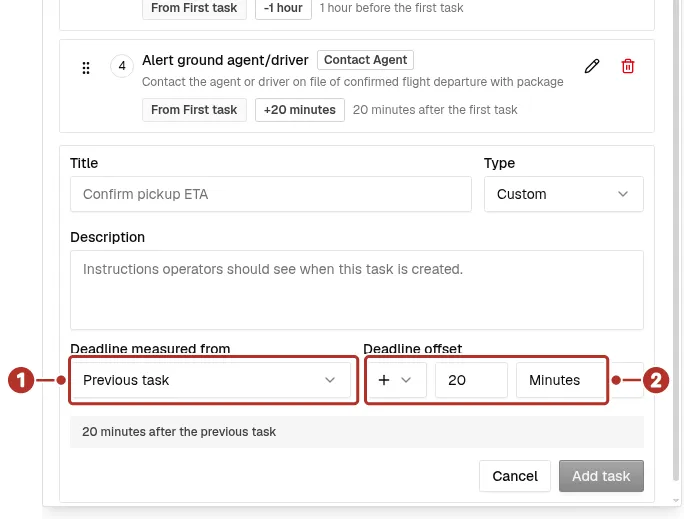
A task template’s Add task form, unsaved, with a deadline measured from the previous task. 1 Deadline measured from, 2 Deadline offset.
-
Confirm each added entry and its position in the template. Reopen the saved template before applying it to live work.
Template details and entries are saved separately. An open editor or a typed entry is not proof that the whole template was saved. When editing an existing template, use Save details for changed name/description and confirm entry changes separately. Creating the template and applying its tasks to an order are separate saves.
Apply a task template to an order
Open the order’s Tasks section and choose New task 1 > From task template where your account has access. In Apply task template, choose the intended template or templates 2 and review the previewed tasks. Check the order, department, entry tag and starting deadline settings 3 that the panel offers.
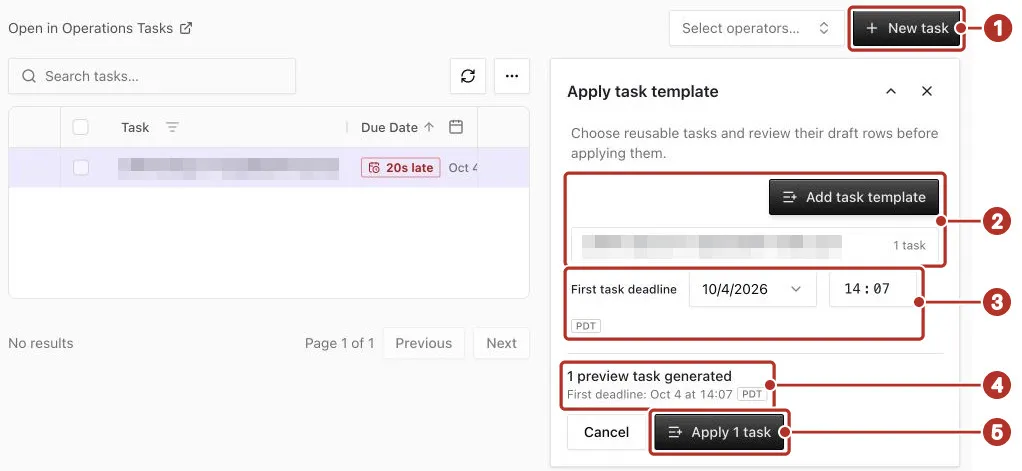
An order’s Tasks tab with the Apply task template panel open, before anything is applied. 1 New task, 2 Add task template and the selected template row (1 task), 3 First task deadline, date and time, 4 1 preview task generated, 5 Apply 1 task.
Review the displayed task count 4 before using Apply 1 task 5, whose label follows that count. This action creates tasks for the selected order. Reopen the order’s operational tasks and confirm the saved entries and deadlines.
The saved tasks show their Task Type 1 and Due Date 2.
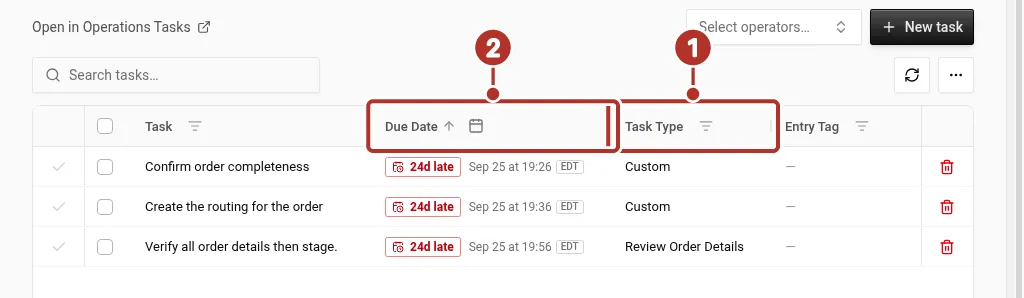
An order’s Tasks tab with saved tasks and their deadlines. 1 Task Type, 2 Due Date.
If Scheduled task templates are shown, inspect that saved configuration separately. A template scheduled for staging is not evidence that its tasks already exist. Confirm the generated tasks after staging the order. Configure task template rules in the order template’s Tasks section; do not assume the order application panel offers every scheduling control.
Work from the queue
Return to Tasks to inspect the actual order-linked work, its current status, assignment and deadline. The order link in a task row opens that order’s Tasks tab. Reusable task templates and tasks already created for an order are different records; check the record you intend to change.
Use the configured task instructions and check the saved result after each consequential action. A checklist entry does not by itself prove a physical pickup, delivery, customs event or driver proof submission. See Orders and tasks for those distinctions.