

Orders, Task Groups, Segments, and Stops
An order organizes a shipment’s cargo and work. A task group organizes related work within that order, and a task records an action or event within the group. Segment and stop are useful operational labels, but always follow the labels and relationships shown for the current workspace.
Order
Open an order by its reference. The workspace can show a draft or staged 1 order and has Summary, Timeline, Tasks, Cargo, Bookings, Messages 2 and Audit Log sections where your access permits them; an order reference alone does not prove readiness or assignment.
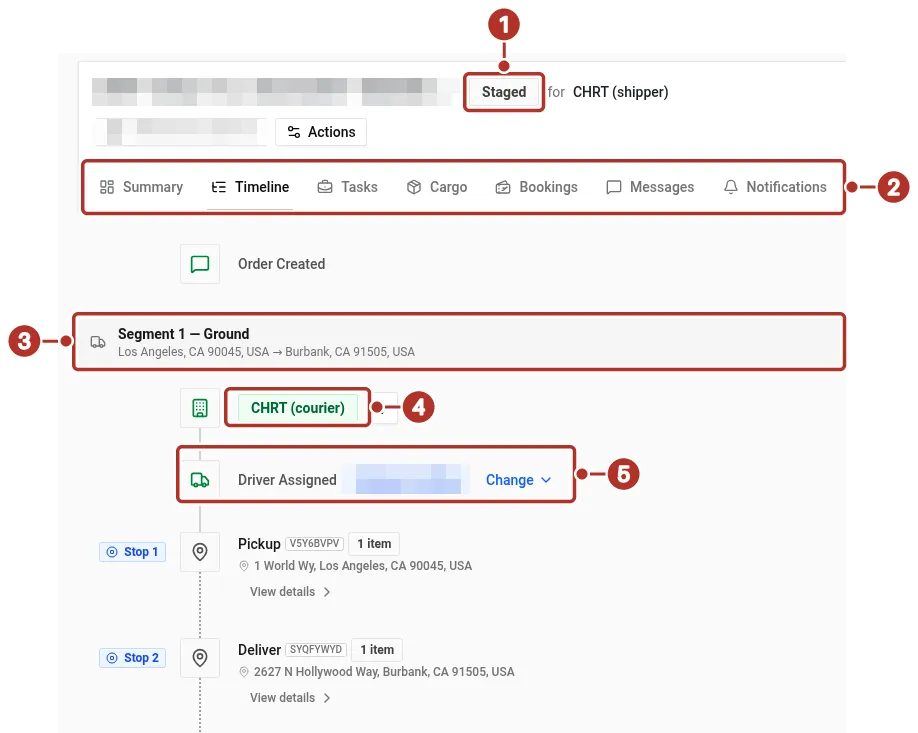
Order workspace, Timeline tab, of a staged example order, with the Stop 1 Pickup and Stop 2 Deliver rows below the driver. 1 Staged badge, 2 Section tabs, Summary through Messages; further tabs such as Audit Log sit to the right, outside the picture, 3 Segment 1 — Ground task group, 4 Executor chip, 5 Driver Assigned row with Change.
Order states
A draft is work being prepared. Stage order asks the service to validate readiness and stage it. If the order is not ready, CHRT lists the requirements that are not met, such as Stops are missing cargo or The order has no coordinator, and you can fix them and stage again. A shipper operator can edit and stage a draft their own organization created, after choosing a coordinator with Select coordinator… in the header. After the action, refresh/reopen the order and inspect its saved state. If staging succeeded but refresh failed, resolve the refresh before repeating the action or concluding that nothing was saved.
Later status reflects the configured task groups and execution. Do not infer live tracking, locked editing or automatic completion solely from a status label.
Task group
A task group 3 identifies a unit of configured work, such as a ground movement, flight-linked cargo or on-board courier work. Its executor 4, driver 5 and task sequence must be checked separately. One order can include several groups and handoffs.
Task
Tasks describe the configured pickup, delivery, airline handoff, flight or handling events. A task can have instructions, timing, proof and custody requirements. Complete or report the actual event; a flight departure does not by itself prove cargo loading or customs clearance.
Cargo
Cargo records describe what is moving. Check quantity, measurements and handling instructions, then review which task groups or legs the cargo is associated with. Selecting a type is not evidence that a carrier has the required qualification or that a handling rule is enforced.
On an editable provider order, Add cargo creates a row immediately and grid edits submit automatically. Reopen Cargo to confirm what saved; the order’s staging action is separate.
Visibility and handoffs
The creator/coordinator, executor, shipper and assigned driver can have different access. Do not assume a provider sees the entire order or that reassignment removes all prior visibility. Confirm the applicable saved assignment and sharing settings with the parties involved.
For billing setup, see the existing billing guide.
See Create and assign an order, Cargo types, Tracking and Driver proof.