

Create or Select an Organization
Before you start
Sign in with the account your team uses. If the company already has a workspace, ask its administrator to invite you rather than creating a duplicate. Confirm the identity of the organization you are selecting.
Create or select
- Review Your organizations on the organization-selection screen.
- Use Select for the active organization you want to work in.
- If you need a new company workspace, enter its name under Create an organization and use Create.
- Wait for selection to finish. If an error appears, resolve it before trying to create another workspace.
- Complete the organization-type setup if requested.
Creating the authentication organization and completing its chrt setup are separate steps. Reopen the active organization and check its name and type before inviting people or creating orders.
To change organization later, open the organization switcher 1 in the top bar, filter the list in its search box 2, and choose an organization. The current organization 3 carries a check mark.
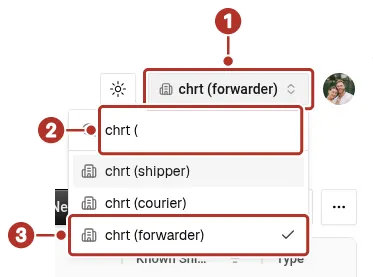
The organization switcher in the top bar of the Orgs page, open and listing the account’s organizations, with the current one checked. 1 organization switcher, 2 search box, 3 current organization.
Choose the right workspace
Create a new organization only for a genuinely separate company or authorized operational workspace. Select the existing one when returning or accepting an invitation. The type you choose on the setup screen is permanent for the organization, so check it before you continue. If the name is wrong or selection fails, contact support before adding real work.
See Choose organization type and Roles.
Access and pricing
Shipper organizations can be created without paying for a provider subscription. This gives shippers limited access for the shipper side of chrt:
- review provider-created shipments and coordinate with the provider
- connect with providers on chrt
- track shipments with live maps and operational visibility
- view proof of delivery, including photos, signatures, and barcodes when provided
- receive alerts and shipment updates
- use shipper analytics and coordination tools where available
Learn more about shipper workflows on the shipper platform page.
Provider organizations need an active paid plan to access provider features. Choose Provider if your organization is a courier company, freight forwarder, carrier, dispatcher, or logistics operator. Provider features include dispatch, driver assignment, provider order management, proof-of-delivery collection, rate sheets, billing, invoicing, and customer operations.
Review current plans on the pricing page. If you choose Provider during setup, chrt may send you to subscription checkout before unlocking the full provider workspace.