

Set Up Shipper Info
Before you start
Confirm the active shipper organization. Organization-profile editing requires the applicable owner/admin access. This profile is separate from your personal Account Settings page.
Review and edit the profile
-
Open Edit profile.
-
Review Company Name 1, Business Email, Business Phone and the available company/address fields.
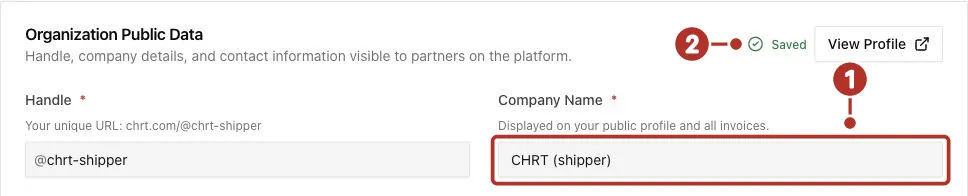
The Edit profile page of a shipper organization: the top of the Organization Public Data card. 1 Company Name field, 2 Saved status beside View Profile. Only the top of the form is shown.
-
Enter the details your providers should use for coordination.
-
Click Save. The button reads Saving… and then briefly Saved. If a field shows an error, correct it and click Save again.
-
Reopen the profile and confirm the saved values.
The form doesn’t save as you type. The status near the top of the form, next to View Profile, reads Unsaved while you have changes that aren’t saved yet and Saved 2 when the form matches your saved profile. Save stays unavailable until you change a field, and Cancel puts the form back to the last saved values.
The Organization Files card below the form accepts images and PDF files up to 25 MB, such as your logo. You can delete a file from the card. Files appear in a read-only Files list on your public profile and on connection Contact Info.
Use an organization contact address appropriate for the team. Do not put access credentials or private shipment information in a public company description.
If access is denied, ask the organization’s owner/admin to update the profile. If a provider reports old information, compare the saved profile and active organization before creating another record.
See Roles, Connections and Support.