

Creating Shipments
Create the shipment
Open Orders and click Create Order. CHRT creates a draft and opens it on Timeline. You can also open New order, which creates a new draft every time it opens. Keep the order reference so you can return to the same draft. Orders lists In Progress and Staged orders by default; include Draft in the Status filter to see drafts.
Build the route in Timeline and enter the items in Cargo. Have the cargo description and measurements, pickup and delivery locations, required times, contacts, handling instructions, and proof requirements to hand. Creating and editing a draft needs an operator role or higher, and you can edit only drafts your organization created.
Use Orgs to review the coordinators you are connected to. A saved connection does not by itself configure an order or prove that a provider has accepted the shipment.
Choose the coordinator and stage the order
In the order header, after by, use Select coordinator… to choose one of your connected coordinators. When the draft is ready, click Stage order. If staging fails, CHRT shows The order could not be staged with a list of the requirements that are not met, for example Stops are missing cargo, No stop has a time window or The order has no coordinator. Affected stops are named under each requirement, and Go to Cargo takes you to Cargo when cargo is missing. Fix each item and click Stage order again.
Once an order is staged, it belongs to the coordinator and your organization follows it from the shipper view.
Review the order as a shipper
Open the order from Orders using the reference CHRT showed when you created it, or the reference supplied by your coordinator. The reference is the order’s name in the header and the Order ID 1 column in the list. It is the generated order ID until the coordinator adds an external reference, and you can’t edit it. In that order’s row, the Status 2 column shows the order’s status (Completed in the example below) and the Coordinator 3 column shows its coordinator.
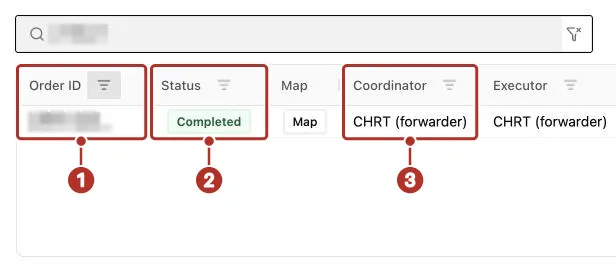
Orders list in the shipper workspace, searched down to one order. 1 Order ID column, 2 Status column (Completed), 3 Coordinator column.
The shipper order view offers Summary, Timeline, Cargo, and Messages 1. Use the information available in those sections to check the shipment. You can edit and stage a draft your organization created; provider editing and staging controls on other orders are separate.
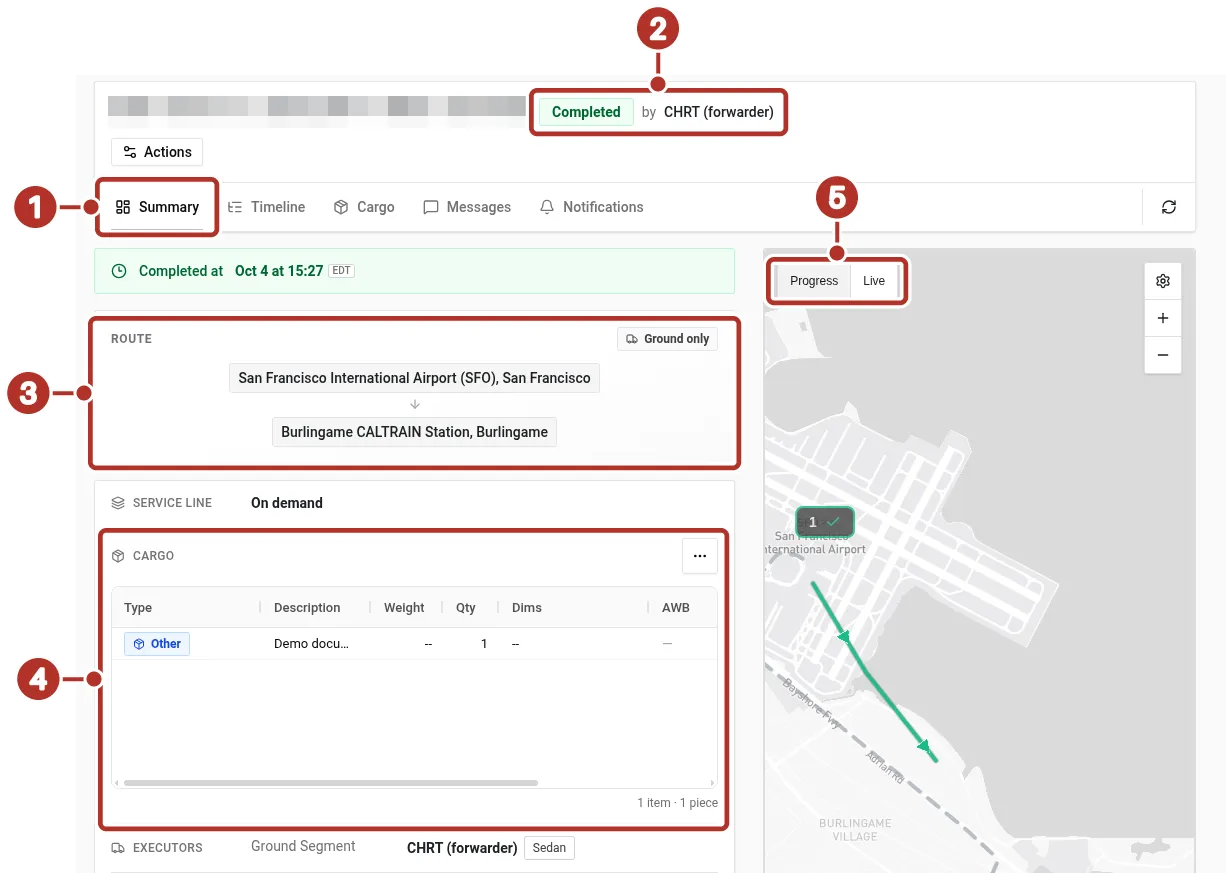
Order Summary tab in the shipper workspace, for a completed order created by the provider. 1 Summary, Timeline, Cargo and Messages tabs, 2 Completed status and the coordinator, shown as by CHRT (forwarder), 3 Route card, 4 Cargo section, 5 Progress / Live toggle on the map.
- Review Summary for the status 2 and shipment information shown. Marks 3 to 5 show the Route card, the Cargo section and the Progress / Live toggle on the map.
- Review Timeline for the configured journey, stop details, and reported events available to you.
- Review Cargo for the recorded items and their shipment associations.
- Review Messages for coordination updates. Confirm important changes in the saved shipment details as well.
Ask your coordinator to correct missing or incorrect details and confirm the intended executor and progress. A route, booking preview, or status alone does not establish a physical handoff or cargo acceptance.
Provider preparation and staging
When your coordinator creates the order, the coordinating provider prepares cargo, route, stops, and proof requirements in its permitted provider workspace. It reviews readiness and stages the order when the controls and required setup are available. Ask that team to confirm the saved order status and details before treating the shipment as ready for execution.
Provider staging, driver assignment, starting work, and completing shipment events are separate outcomes. Apart from drafts your organization created, your shipper view is for following the information shared with your organization; it does not confer provider controls.
Review cargo and its associations
Open Cargo 1 to review the recorded cargo type, description, quantity, and associated route and stops. On Summary, the cargo shows as a table with Type, Description, Weight, Qty, Dims, AWB and SHCs columns, and a footer that counts items and pieces, for example 2 items · 5 pieces. Ask your coordinator to correct the saved items or associations when needed. For this order the Cargo associations are read-only for this order 2 notice appears under Task associations.
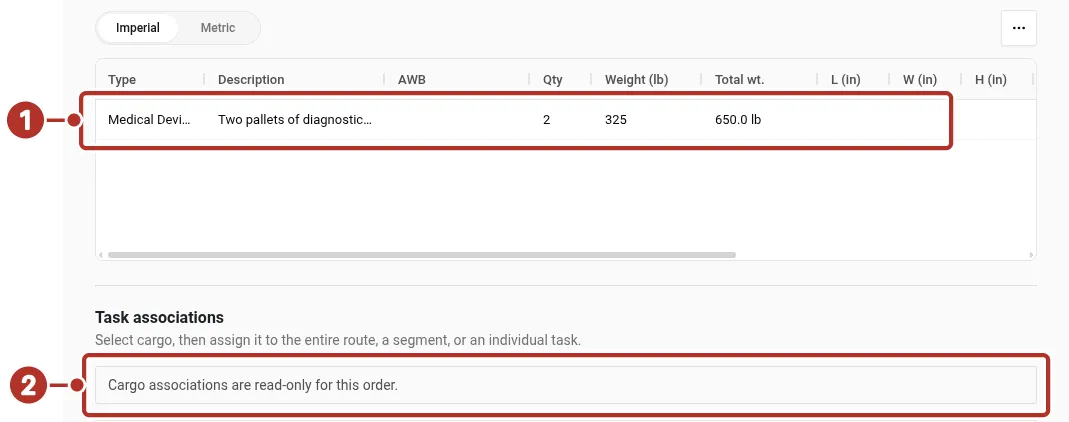
Order Cargo tab in the shipper workspace, with the cargo row and the notice under Task associations. 1 Cargo row, 2 Cargo associations are read-only for this order notice.
Review reported proof
Open the relevant stop in Timeline and inspect its task artifacts under Attachments. Read the artifact’s status, recorded time, provider, recipient, and attachment separately from the task’s completion fields.
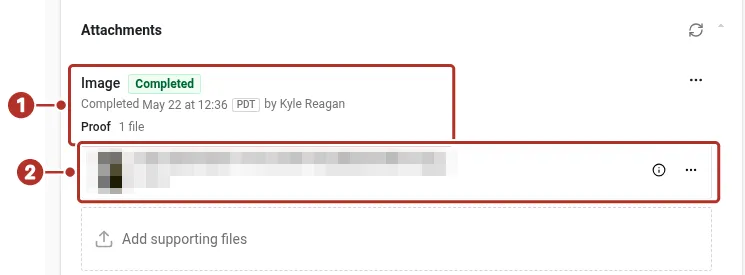
Stop Deliver detail in Timeline for the shipper, scrolled to Attachments. 1 Image artifact, 2 saved proof file.
In this example the Image 1 artifact has its own completion time and one saved proof file 2; the delivery task and order record their own completion times. These are separate recorded events, not evidence of a physical delivery.
For billing workflows and rate configuration, see Billing.
Provider teams can use Bidding and assignment requests to coordinate segment offers and responses. Follow your shipments from Orders.