

Order Schedules
Recurring work and reusable templates
For repeated shipments, keep a reusable order template so the route, cargo, and task requirements are consistent. The current order workspace includes Order Templates. A template and an automatically recurring schedule serve different purposes.
Review a template
Open the template your team intends to use. Review its Summary, Timeline, Cargo, and Tasks sections. Check locations, handoffs, cargo quantities, and required proof before using the template for a shipment. In a shipper organization, the template header reads by and Select coordinator… lets you choose the coordinator who will run its orders.
A template workspace shows the Summary, Timeline, Cargo and Tasks tabs 1, an Add first segment control 2, the for shipper selector 3, the template name 4 and Create draft 5.
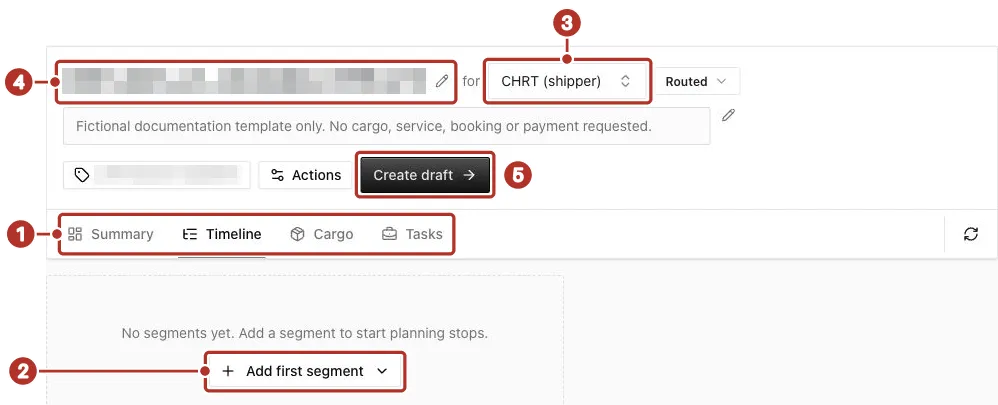
Order Templates > a saved template workspace, Timeline tab, no segments yet. 1 Summary, Timeline, Cargo and Tasks tabs, 2 Add first segment, 3 for shipper selector (CHRT (shipper) here), 4 Template name, with its pencil, 5 Create draft.
Confirm automatic generation before relying on it
If your organization uses an automated recurring-order arrangement, confirm its current configuration and operating process with your administrator. Verify the next expected shipment appears as a saved order with the correct route and assignment. Do not assume saving a template activates a recurring schedule.
Check every generated shipment
Review each order created from recurring work as its own shipment. Confirm its date/time requirements, customer/coordinator, cargo, and dispatch assignments. Follow Creating Shipments and Tracking Shipments for the saved-order checks.