

Public Tracking Links
Review what you intend to share
A public tracking URL can be opened outside your organization. Treat it as a link a recipient may forward. Decide which sources the recipient needs and inspect the recipient-facing page before sharing it. Public tracking is separate from inviting someone into your CHRT organization.
Open the order sharing controls
Open the order and choose Share tracking from its Order actions menu, if available to your role. The dialog lists Tracking Settings by Segment 1. Each segment has a Driver Location source with its own Sharing is control 2; while it is off the dialog reads Public sharing is off. 3. Cargo sources appear under Cargo (Driver Tracking) 4 with their own controls. If settings fail to load, retry rather than assuming the displayed state is current.
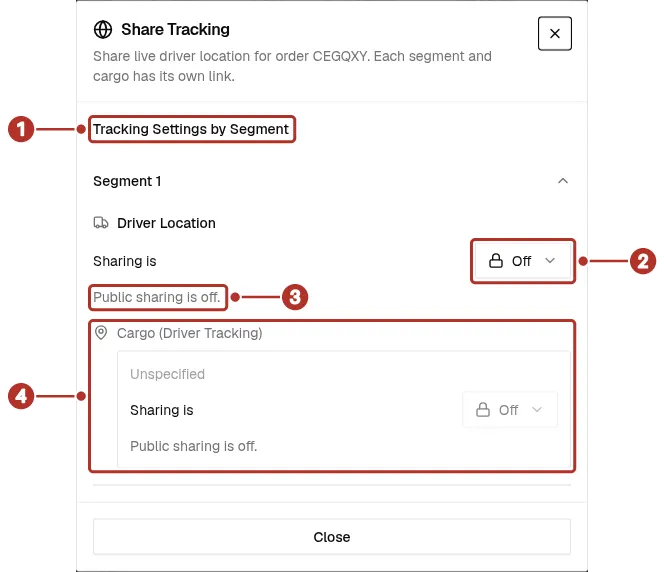
The Share Tracking dialog for an order with sharing off. 1 Tracking Settings by Segment heading, 2 Sharing is control for Driver Location, 3 Public sharing is off. line, 4 Cargo (Driver Tracking) source.
Select sources and copy the link
Turn on only the sources intended for the recipient. Setting Sharing is to On 1 gives the segment a Public badge 2 and a public link 3 with Copy link and Open 4. Anyone with the segment’s link can see the driver’s last location. A Public Tracking Summary 5 records who made the source public and when. Each segment and cargo source has its own link, and turning sharing off and on again creates a new link: links sent earlier stop working.
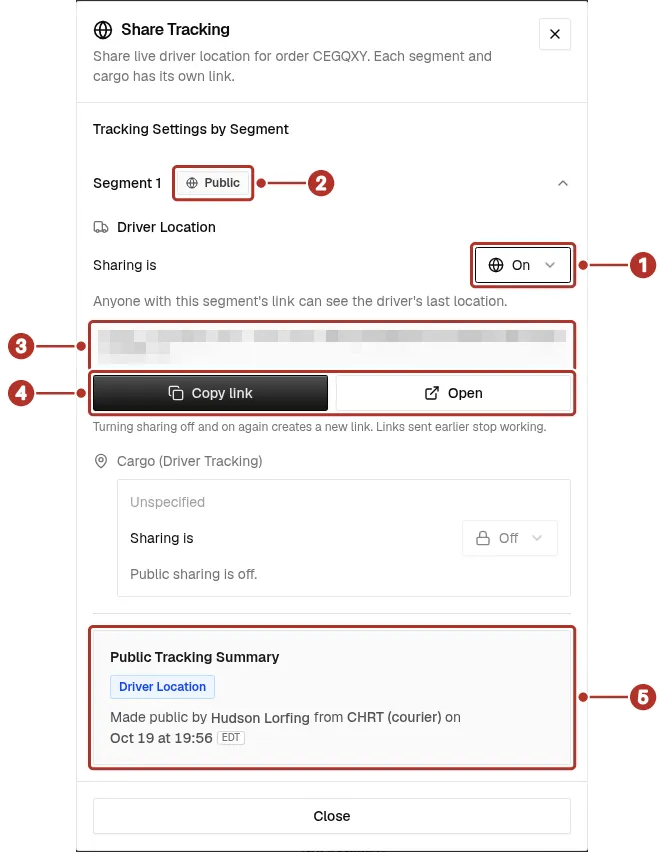
The Share Tracking dialog after Sharing is was set to On for the driver location. 1 Sharing is control set to On, 2 Public badge, 3 public link, 4 Copy link and Open buttons, 5 Public Tracking Summary.
Open the link signed out and inspect what is visible. The page shows Live tracking and the order’s status 1, how recently it was updated, with a refresh button 2, the driver’s last location on the map 3 and a bar with the coordinates and Last seen time 4. The location is only as current as the driver’s last report.
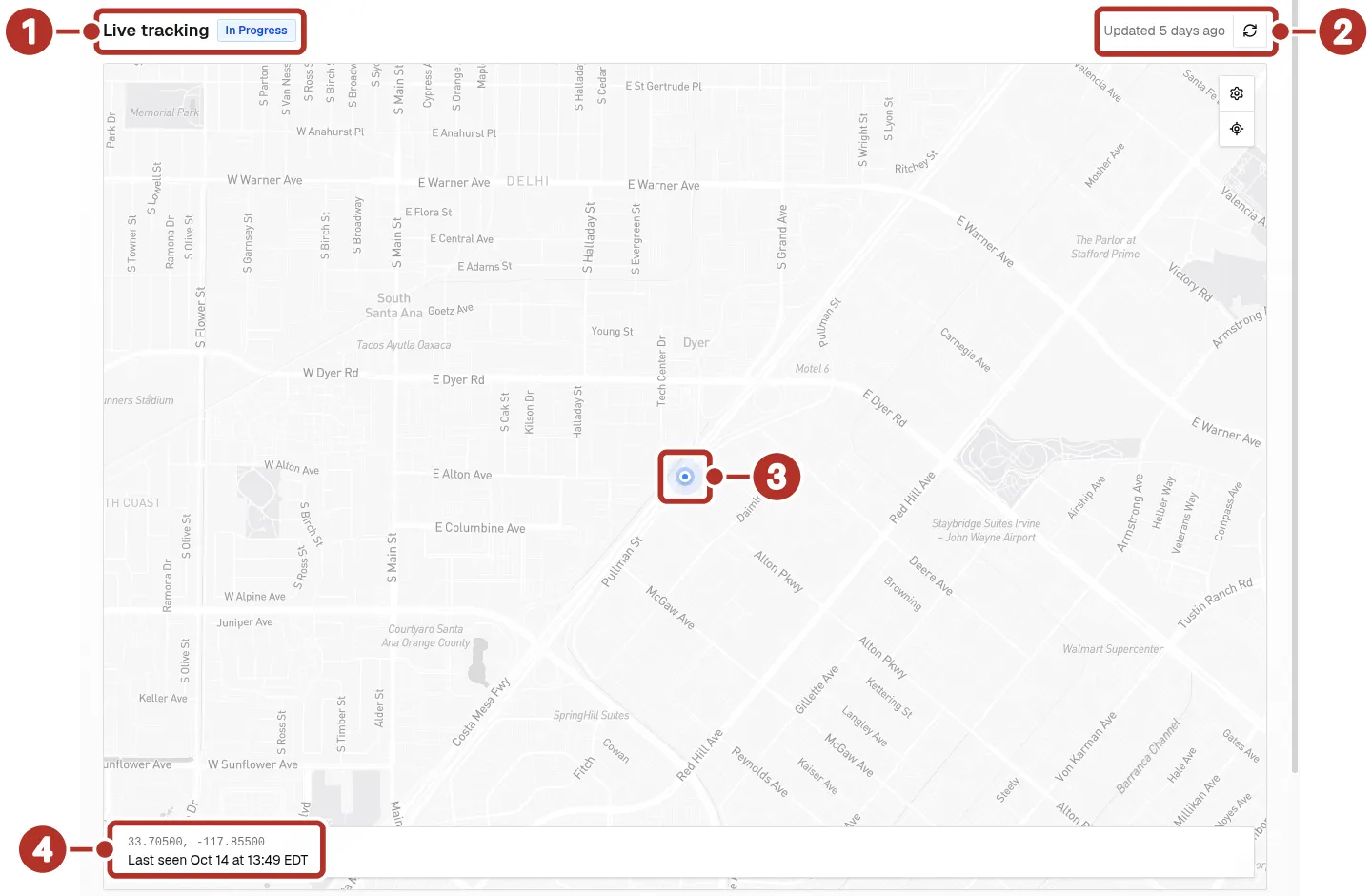
The public tracking page a recipient sees when signed out. 1 Live tracking title and In Progress status, 2 Updated age and refresh button, 3 driver location marker, 4 coordinates and Last seen bar.
Change sharing carefully
Reopen the sharing dialog to change the sources being shared. After you turn a source off, reload the public link from a signed-out browser, including a page a recipient already had open: it shows This link is no longer active 1 and tells the visitor that tracking was turned off or the link was replaced.
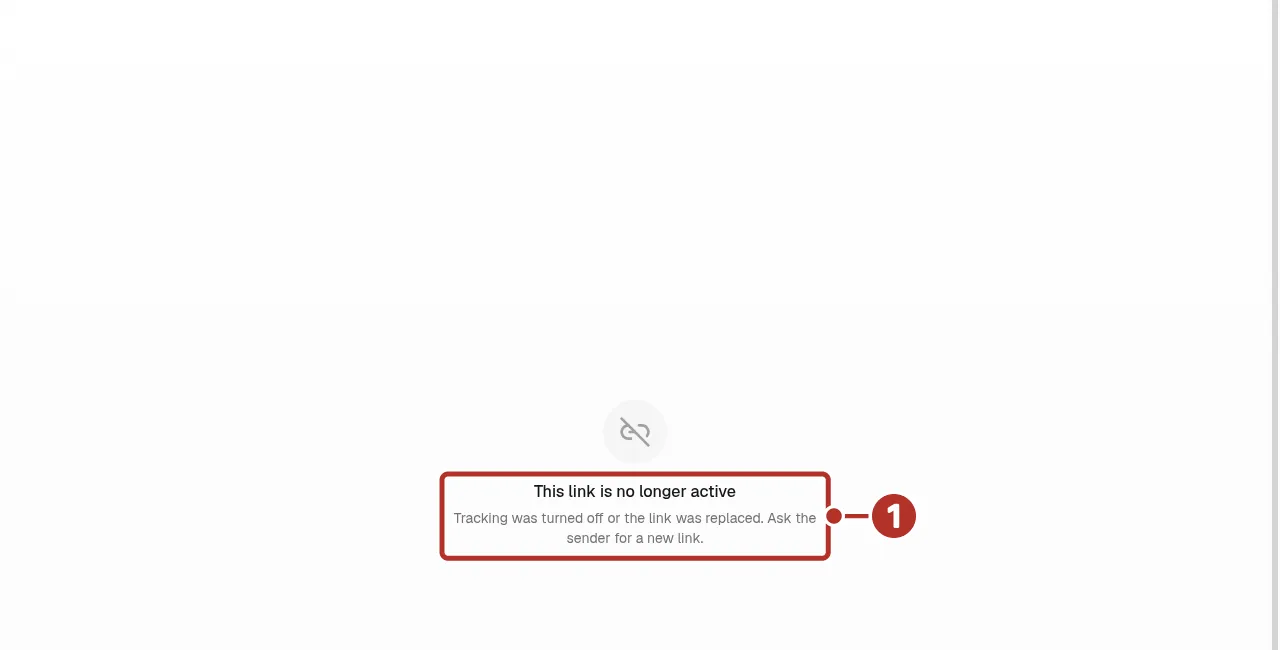
The same public link, reloaded after the driver location source was turned off. 1 This link is no longer active message.
Standalone tracker sessions
A standalone session has its own sharing settings and lifecycle. Follow Standalone Trackers and Share Tracking, and check the actual public session page. Do not apply an order’s sharing behavior to a session or assume deleting a session erases every copy of its data.