

Share Tracking
Review organization sharing and public-session controls
A session has two separate sharing controls: Shared with orgs for organization sharing, and Public tracking for its public link. Review the session and intended audience before changing either control.
Sharing with an organization
Open the existing session from Sessions, then open Session details and find Shared with orgs 1. When editing is available, Add Org 2 lets you choose from the organizations offered to your current organization. Existing organization badges can also have a remove control.
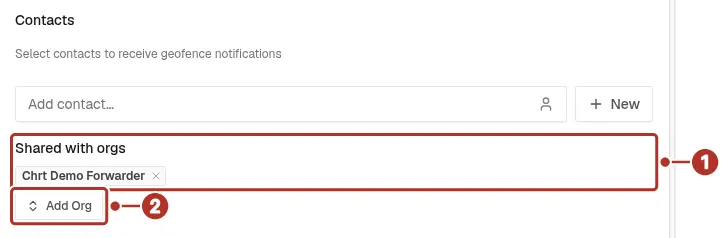
The Shared with orgs section of a session’s detail panel, with one organization badge. 1 Shared with orgs, 2 Add Org.
If you use Add Org, check the selected organization carefully. Reload the session and confirm that the intended organization appears in Shared with orgs. Have the recipient verify the session and the information they can see before relying on that sharing arrangement.
The sessions table has a Shared With column for reviewing the listed organizations. Use the detail panel for editing. If Add Org or a badge’s remove control is absent, your view may be read-only; do not assume that every viewer can change sharing.
If the organization you need is not offered, review the appropriate organization connection in Orgs and ask hi@chrt.com for help with access. Connecting providers explains the shipper connection path.
Making a session public
Under Public tracking, open Share. The Session public tracking sharing 1 dropdown supports turning public sharing on or off when editing is available. Copy and open-link controls are available when sharing is enabled.
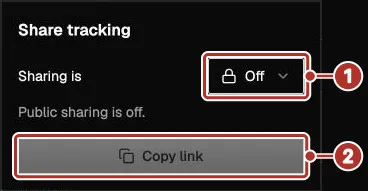
The public sharing panel opened from Share under Public tracking. 1 Session public tracking sharing dropdown (shown as Sharing is, set to Off), 2 Copy link button (disabled).
A public link is intended for viewing outside the signed-in organization sharing flow. Treat it as information you are distributing beyond your organization: review what the public page displays before sending it. After changing the setting, reload the settings and test the public page in a separate recipient view.
If the panel reports that it could not confirm the sharing change, refresh the settings and check the state before trying again. A change to sharing controls does not establish that previously viewed or copied data has been removed.
Check the audience and purpose
Organization sharing and public sharing do not have the same audience. Check both settings for the session you are sharing, and confirm the recipient’s actual view. This guide does not promise an expiry period, historical-data lifetime, or the timing of access removal.
Read the Privacy Policy and Product Terms for the policies that apply to location and shipment data.
Related guides
- Standalone trackers — session settings and status.
- Trackers on orders — tracking associated with an order.
- Supported devices — device records and compatibility.
- Tracker API — use the API reference for programmatic access.