

Share Tracking
Use this guide to share a tracking session your org owns with a connected shipper organization so they can view the session inside chrt. After this flow, the shipper appears under Shared with orgs on the session and can open the session from their tracking area.
Before you start
- The shipper organization must already be connected to yours. If not, share your public profile link and have them follow Connect with a provider first.
- You need a registered tracking device and an active tracking session to share. If you don’t have one yet, follow Standalone trackers to register a device and create a session.
Sharing with an org is different from creating a public link. A shared org gives another signed-in chrt organization access to the session. A public link can be opened by anyone who has the URL — see Standalone trackers for the public flow.
1. Open Devices and register the tracker
Open chrt.com/tracking/devices. If this is your first tracker, the page shows No Tracking Devices Yet. Click Register Device to add the tracker to your organization.
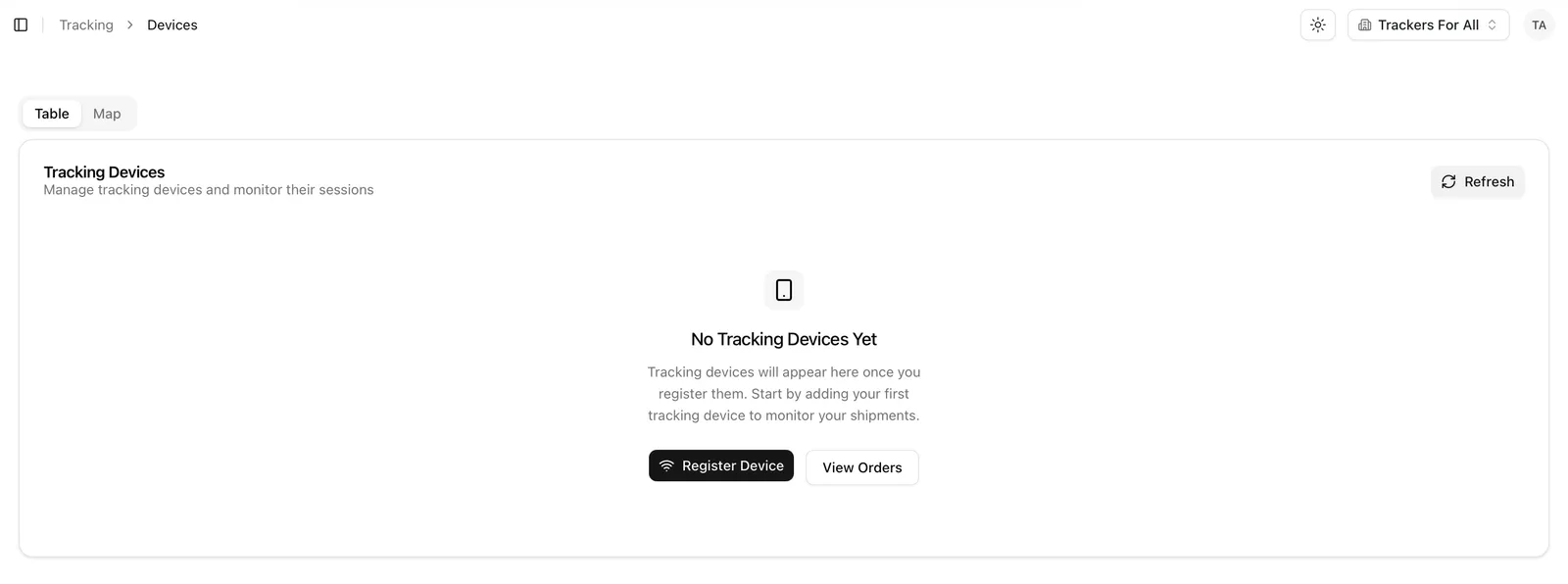
2. Enter the device details
In the Register Device dialog, enter the Device MAC Address printed on the tracker. You can optionally add a Type, Comments, and an External Reference ID.
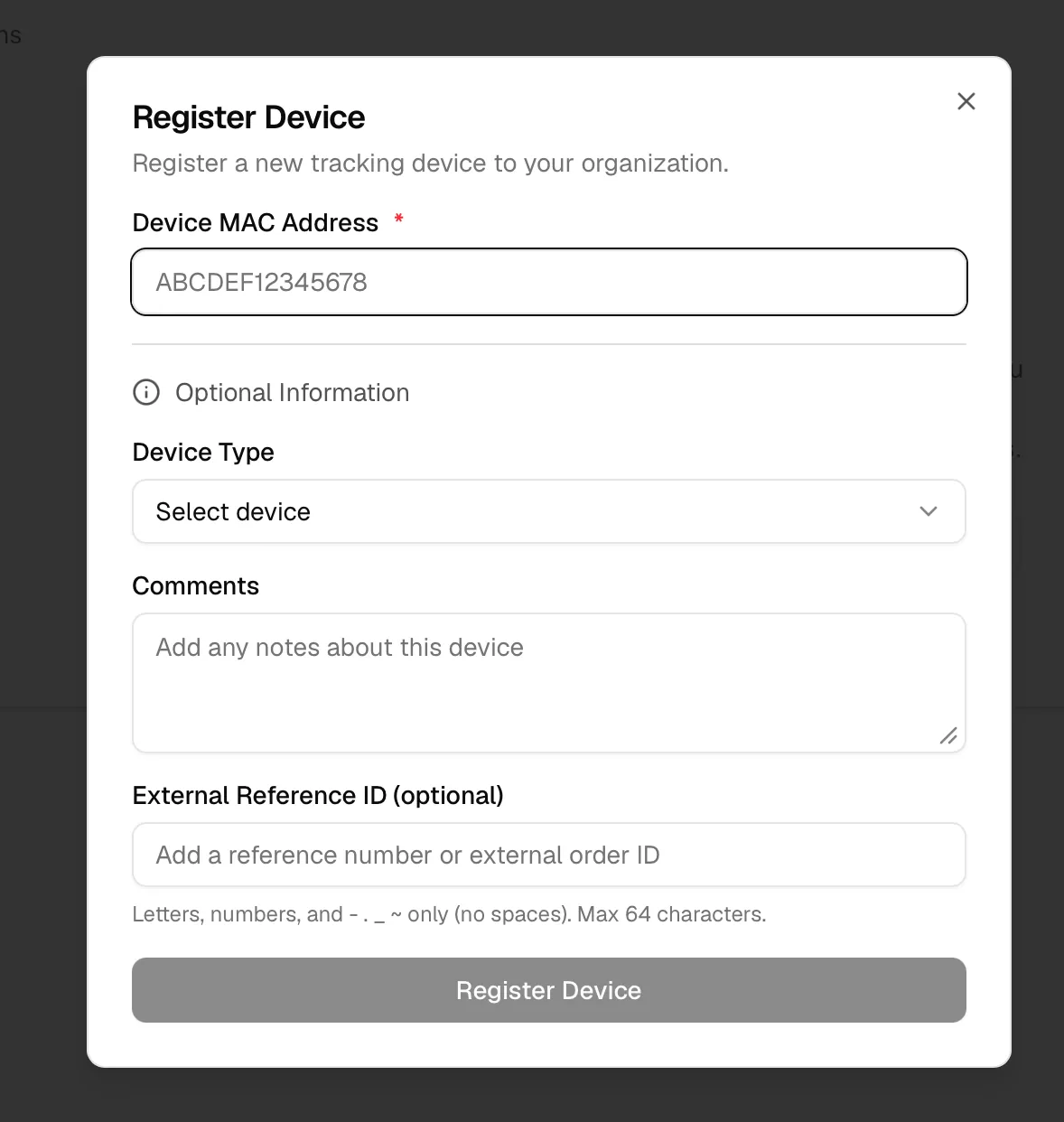
3. Save the registered device
Click Register Device to save. The device now appears in your devices table. For the full registration flow, see Standalone trackers.
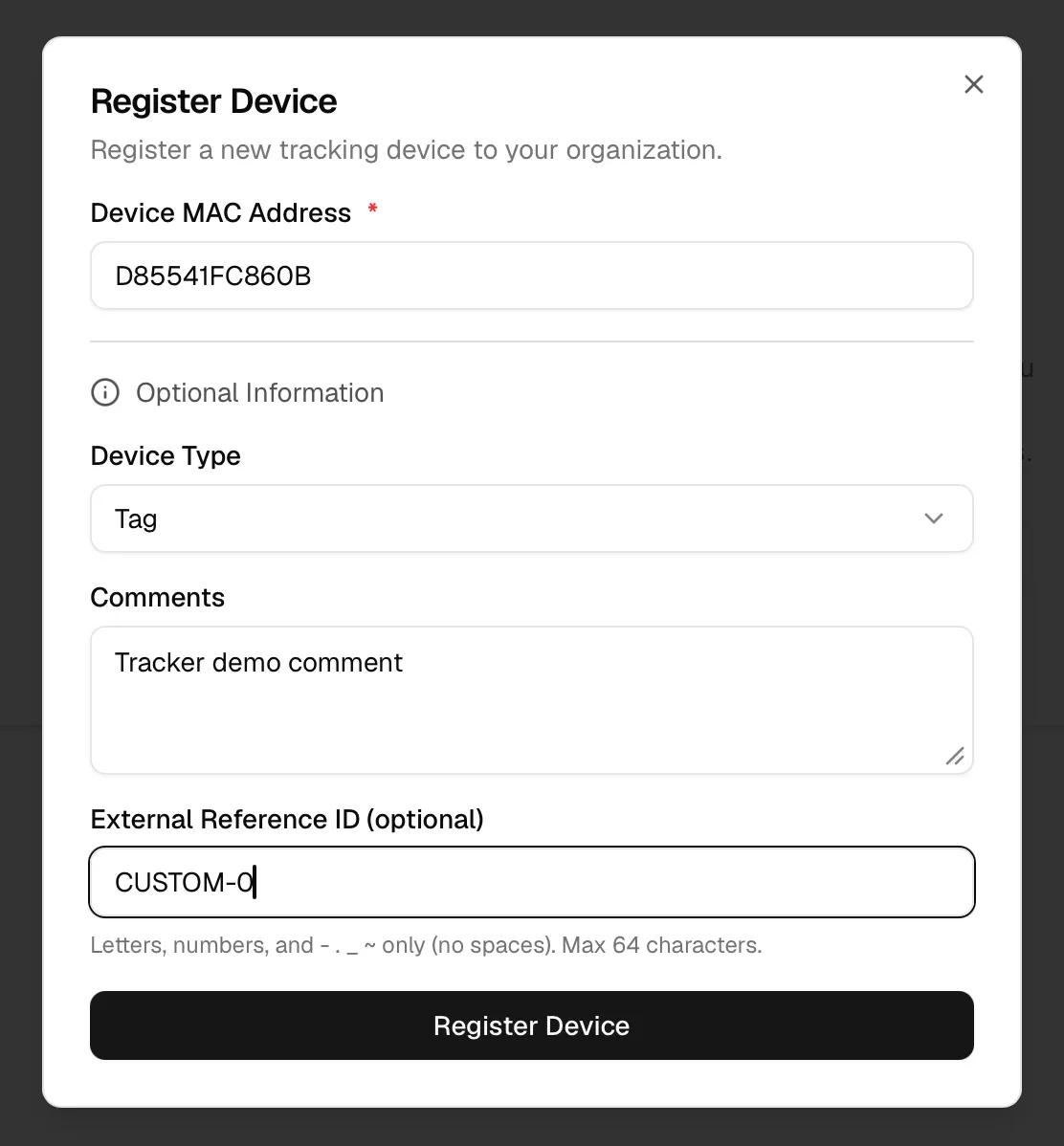
4. Start a tracking session
In the devices table, find the new device. In the Status column, click Create Session. You can also start from chrt.com/tracking/sessions and click Create Session there.
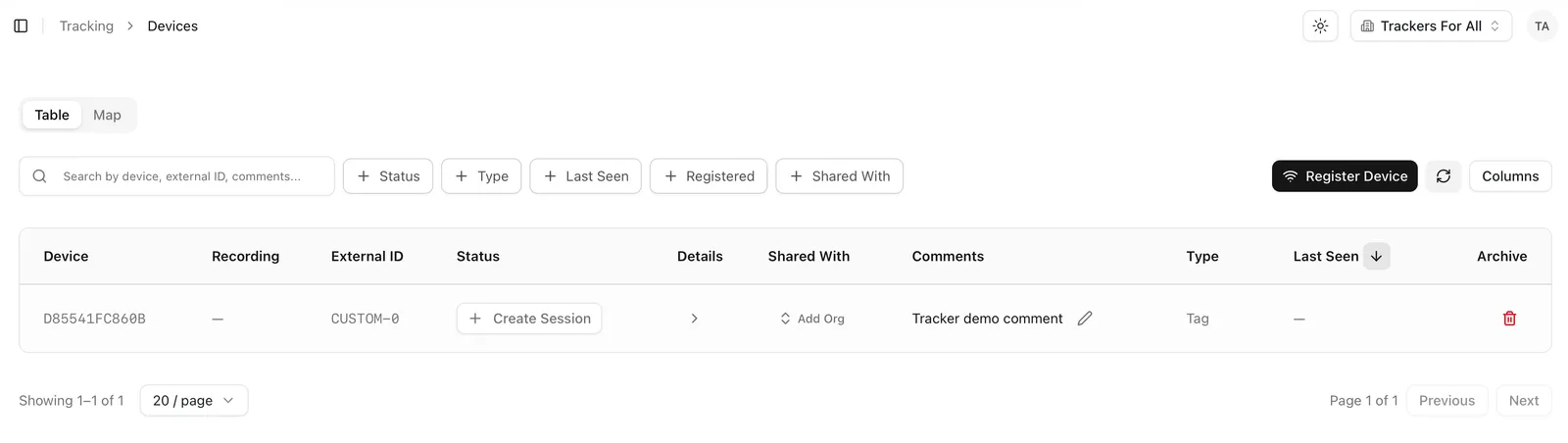
5. Create the session
Confirm the selected Device, add any External reference, Comments, Flight details, or Termination settings you need, then click Create Session.
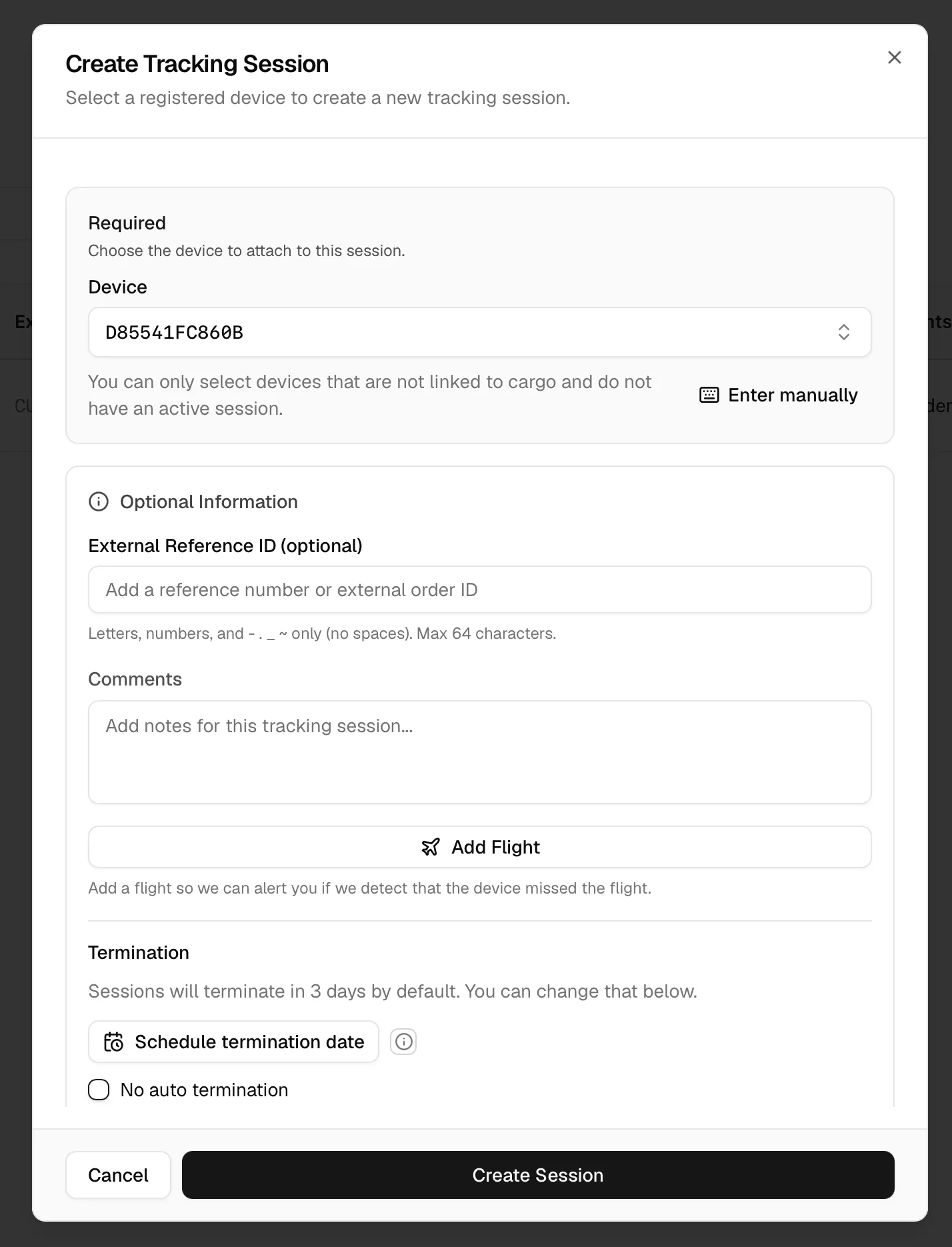
6. Add the shipper organization as a shared org
You can share from either place:
- From chrt.com/tracking/sessions, find the session, open the Shared With column, click Add Org, and select the shipper organization.
- From the session detail page, open Session details, find Shared with orgs, click Add Org, and select the shipper organization.
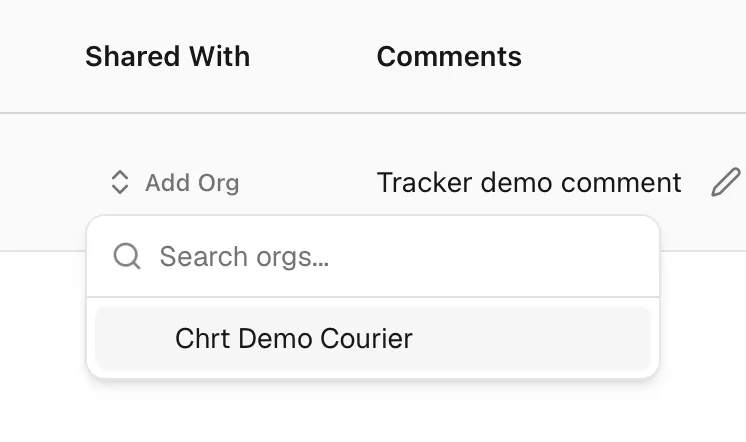
Shared-org access doesn’t expire. If you want time-bounded visibility for a customer, use the public link flow on Standalone trackers and terminate the session when the shipment ends.
How to know it worked
The shipper organization appears in the session’s Shared With column on the sessions table, and in the Shared with orgs section on the session detail page. The shipper can sign in to chrt and open the session from their tracking area.
If something looks different
- Shipper not in Add Org. Confirm their organization is connected to yours under chrt.com/connections. If they aren’t, send them your public profile link and ask them to follow Connect with a provider.
- No tracker data on the session yet. Wait for the device’s first location ping. It can take a few minutes to about 15 minutes after a session starts. If you see nothing after 30 minutes, email trackers@chrt.com.
- You need to share with someone without a chrt account. Use the session’s public link instead — see Standalone trackers.
- Contact hi@chrt.com if you have other issues.
Related guides
- Standalone trackers — register devices and create sessions.
- Trackers on orders — attach trackers to cargo on a chrt order.
- Supported devices — what hardware chrt supports and where it shows up.
- Tracking concepts — how chrt models devices, sessions, and pings.
- Connecting providers — connect a shipper org before sharing with them.