

Connections
Find the organization
Open Orgs. In Provider mode, choose Shippers 1 for customers, Executors 2 for couriers running your work, or Coordinators 3 for providers coordinating work with you. A single organization can have more than one relationship with your team. In the Shippers list, the Type column 4 shows Shipper for a customer connected on chrt and Off Platform Shipper for one that is not. The Known Shipper column shows whether each shipper is known, and its filter narrows the list by that value. Use the Company column header filter to find a shipper by name.
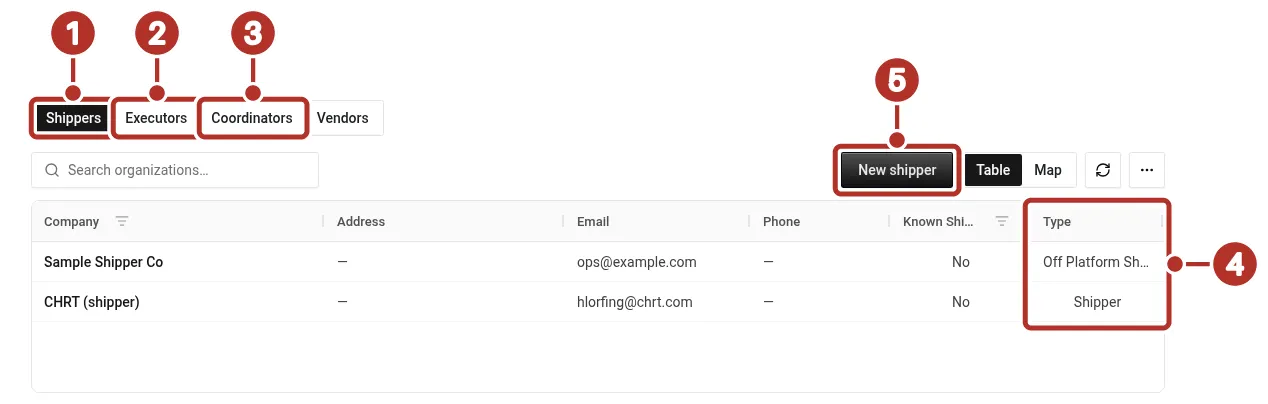
Orgs > Orgs in a provider organization, Shippers tab selected. 1 Shippers tab, for customers, 2 Executors tab, for couriers running your work, 3 Coordinators tab, for providers coordinating work with you, 4 Type column: Shipper for a customer connected on chrt, Off Platform Shipper (shown as Off Platform S…) for one that is not, 5 New shipper button.
Create the correct relationship
Choose New shipper 5, New executor, or New coordinator in the relevant list.
- For a shipper or an executor, the page asks you to choose between Connect on chrt (find an organization that already uses chrt by its handle) and Create off-platform (add one that does not use chrt yet). Choose Connect on chrt here.
- New coordinator has no choice. It opens the handle search directly.
In the handle search, enter the organization’s handle 1, review the result card, and select Connect. If the organization is already connected, the card shows a disabled Connected button instead. Selecting Connect creates the connection and returns you to the list; this flow has no invitation or acceptance step. Reopen the list to confirm the saved relationship.
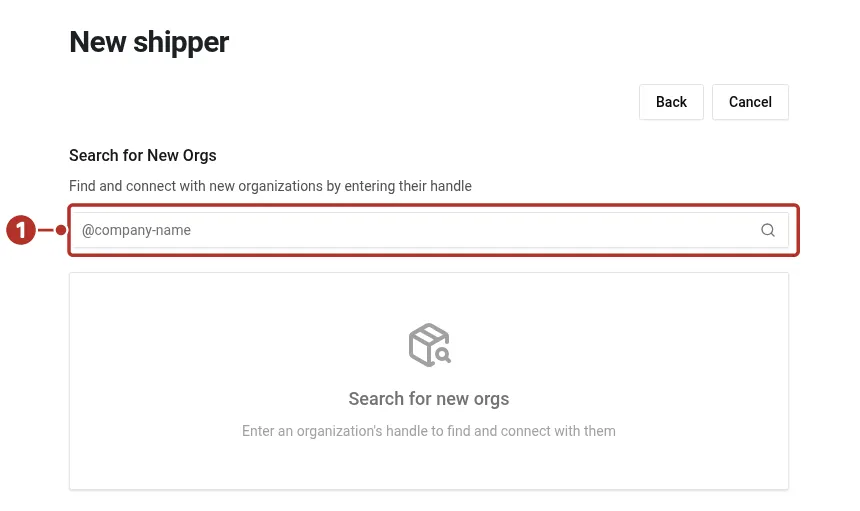
The handle search opened from New shipper > Connect on chrt in a provider organization, before a handle is entered. The result card and Connect appear after you enter one. 1 handle field.
The note under the list says you can only create off-chrt connections and suggests that the other organization open your profile page and click Connect. That is a second route, started from their side; Connect on chrt starts from yours.
Read the connection profile
Open the saved relationship. Contact Info contains the organization/contact information; Related provides related records. Provider profiles also have Tax and Settings sections. For a shipper, the connection header shows Known or Not a known shipper, and the Settings tab has a Known shipper switch. Only an operator or higher can change that switch; other roles see it read-only. Use the actual fields available to your role, and confirm changes after reopening the profile.
Auto-assign for partner couriers
On a connection between a coordinating organization and a partner courier (its executor), the Settings section has an Auto-assign switch. When it is on, the partner courier allows the coordinator to assign orders directly to its organization without a listing and bid, so an immediate Assign can skip that step. This is the partner’s consent to direct assignment.
The partner organization controls it. Only an administrator or higher in the partner (executor) organization can turn Auto-assign on or off; other members of that organization see it read-only. The coordinating organization sees the switch as a status showing whether the partner has consented, and cannot change it. In Provider mode, the Executors list also shows an Auto Assign column you can filter.
Reopen the connection’s Settings and confirm the saved value before relying on it, and do not treat a visible Assign button as proof of consent. When Auto-assign is off, send the work as a listing instead; see Marketplace and Bidding and assignment requests. For the full assignment rules, see Dispatching.
Record an off-platform partner
For a shipper or executor that does not use CHRT, choose Create off-platform on the New shipper or New executor page. Enter the Company Name 1 (required) and, if you have them, the Business Email 2, Business Phone, Industry and Street Address, then choose Create Connection 3. Reopen the saved record. This records the partner; it does not create a CHRT login or verify that partner’s ability to receive app assignments.
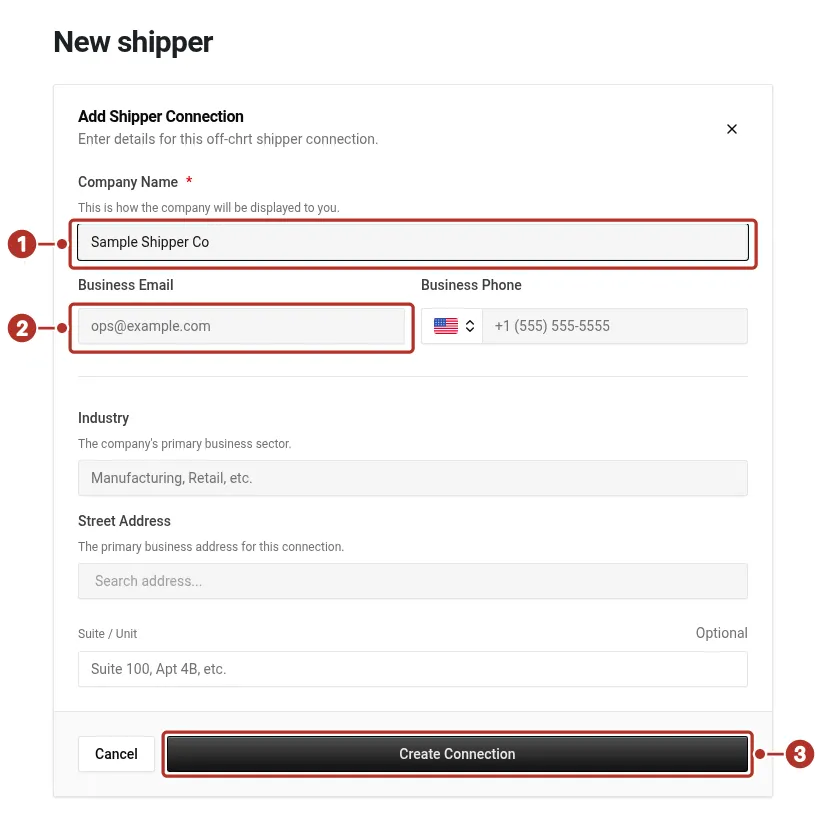
The Create off-platform form on New shipper in a provider organization, with only Company Name filled in. 1 Company Name field, 2 Business Email field, 3 Create Connection button.
The saved record reopened in a provider organization shows the Off Platform Shipper badge 1, Not a known shipper 2, the Contact Info, Tax, Settings and Related tabs 3 and Edit 4. The contact, industry and address details are empty until you add them.
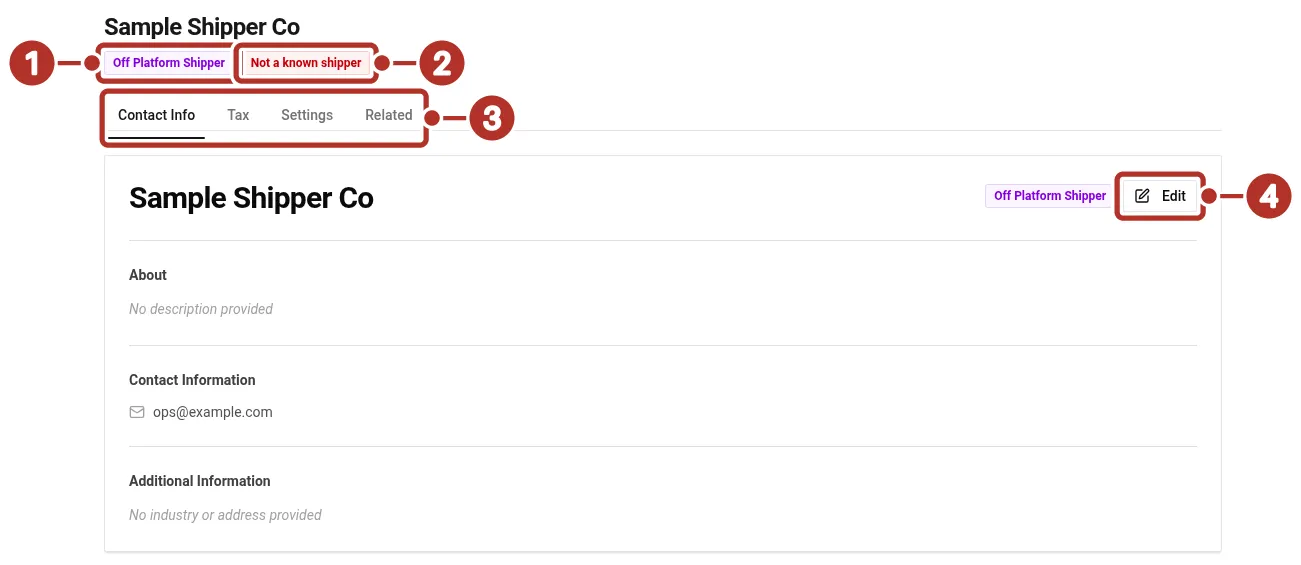
The saved off-platform shipper record, reopened from Orgs > Shippers. 1 Off Platform Shipper badge, 2 Not a known shipper badge, 3 Contact Info, Tax, Settings and Related tabs, 4 Edit button.
Before you start
- Connecting with anyone on chrt is free and doesn’t commit you to any volume.
Record an off-platform shipper
Record them as an off-platform shipper so you can still build orders that reference them and bill them through chrt.
Their billing statements still work — you’ll send them through chrt and they’ll pay off-platform with a reference, or via a Stripe-hosted invoice if you’ve set one up.
For billing workflows and rate configuration, see Billing.
Related guides
- Getting Started
- Creating Orders
- Drivers
- Dispatching
- Marketplace
- Rate sheets — attach default SPP and PPP rate sheets per connection.
- Billing — statements grouped per connection.