

Creating Orders
Build drafts for your shippers and off-platform connections
You can build orders on behalf of shippers or off-CHRT connections, or you can receive orders from connected shippers and freight forwarders through CHRT—whether they use the web app or the API.
This page explains how creating orders works in CHRT so you can confidently build orders for your shippers and off-platform connections.
1. Open the draft builder
Go to chrt.com/orders/drafts/new.
2. External reference (optional)
If you have an external reference number (for example, an order ID from a freight forwarder), enter it in External reference ID, then click Create draft order.
3. AI-assisted build or manual setup
- Email or unstructured text: Paste the message into AI order builder. CHRT builds a draft and takes you to a preview so you can confirm everything before you submit.
- Manual build: On the Order setup tab, choose the organization the order is for. You will see your on-platform and off-platform connections and can select the right one.
4. Add cargo
Cargo is required before an order can be placed. If you do not yet know what is moving, choose Other or Unspecified and you can leave the remaining fields blank for now.
Cargo considerations
- Each cargo line should represent item(s) that share the same pickup and delivery pattern. If three identical trays use the same pickup and delivery, enter one line with quantity: 3 and the shared dimensions.
- If different items use different pickup/delivery pairs (for example, A→D, B→E, C→F), create separate cargo lines for each.
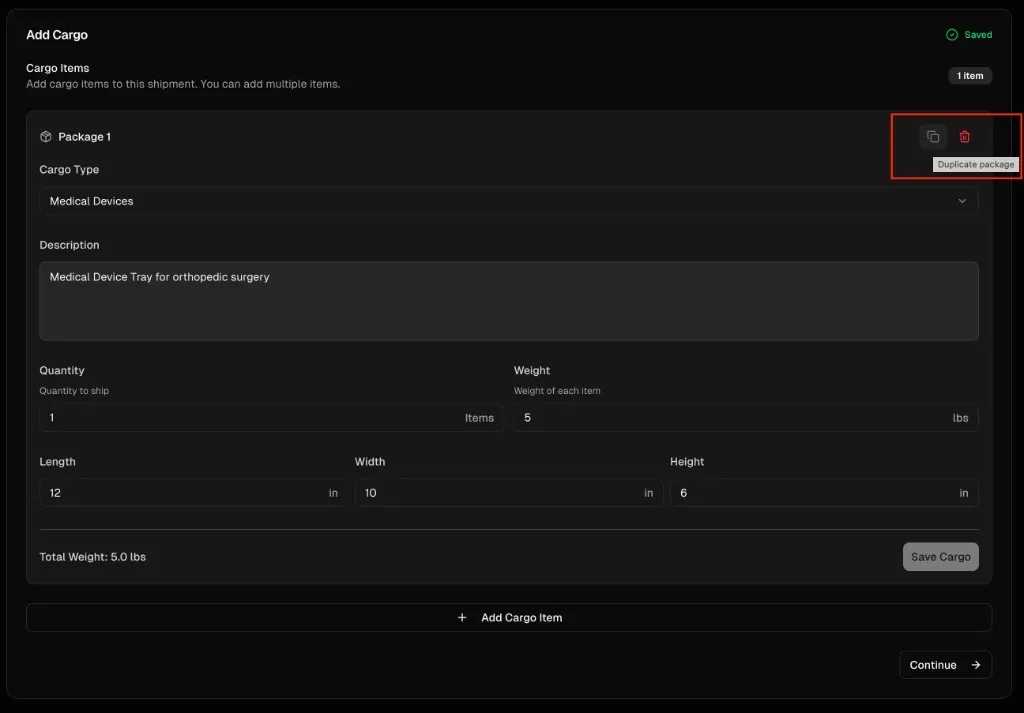
- To move faster, create and save one cargo card, then use Duplicate in the top-right of the card to copy it before editing details.
5. Add segments
Couriers usually add ground segments only. Freight forwarders may add flight or OBC (on-board courier) segments—if you run NFO or air charter workflows and need help, email hi@chrt.com.
Add a flight segment only when your operation actually handles that leg. Each segment can include unlimited stops.
6. Add stops and stop details
For each segment, add stops and specify what happens at each stop. Associate which cargo is picked up or delivered there. Segments support unlimited stops.
You can collapse segments for a simpler view, drag and drop to reorder stops, or use route optimization when available.
Addresses
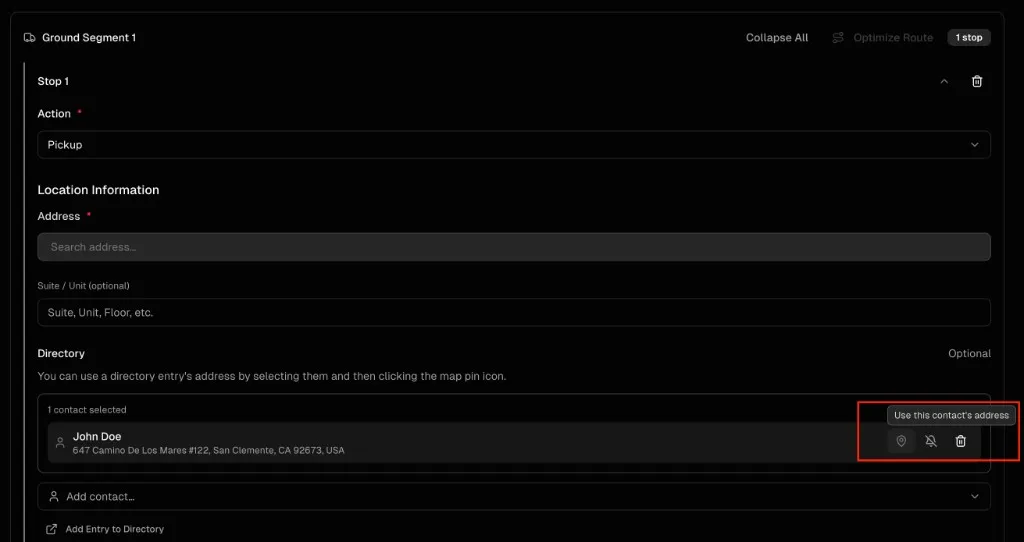
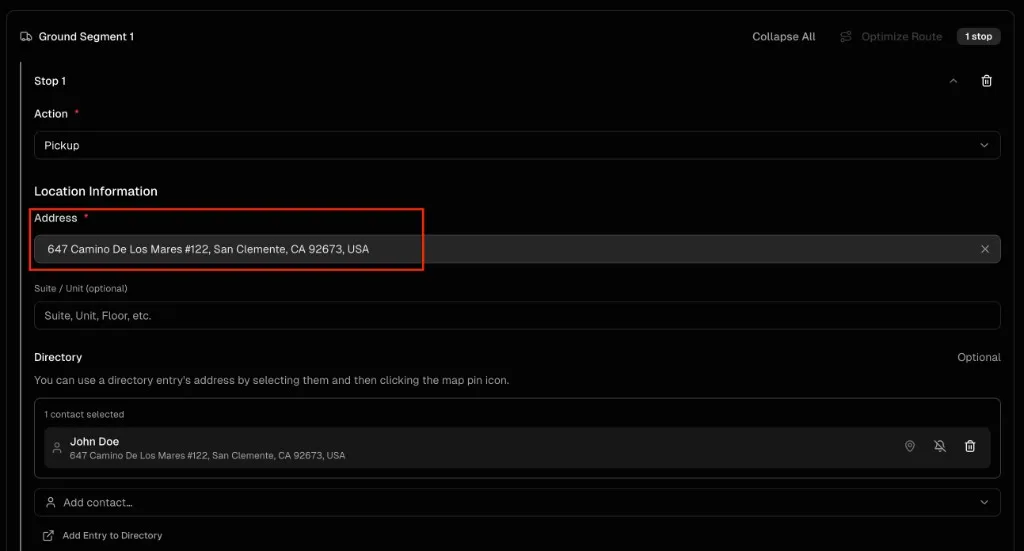
- If a contact exists on an on- or off-platform connection, select them and click the map pin on their card to fill the stop address from their saved address.
- Otherwise, type in the address field and choose a result from autocomplete.
- Always add second-line address detail when needed (unit, suite, floor, building, and so on).
Point of contact
Add contacts on the stop so drivers and dispatch see the right people and context in the driver app:
- A person with phone or email
- General location notes your drivers rely on (for example, hospital parking, room number, navigation tips)
- A combination of location guidance and a named contact
Ad hoc notifications
Add contacts to the stop, then use the bell icon on their card to opt them into email notifications for this order’s pickup and delivery events.
Cargo at each stop
You must choose which cargo lines apply at this stop—for a pickup, a delivery, or both when multiple pieces move. If several lines apply, select all of them.
Warning: Forgetting to select cargo at a stop is the most common mistake when placing orders.
Time windows
Use time windows to constrain when the driver should arrive. You can add multiple windows (for example, 9:00–11:00 or 12:00–14:00), a single window, or an exact instant (for example, arrive between 9:00 and 9:00 for a precise appointment).
Special instructions
Free-text guidance for the driver specific to this stop.
Proof and artifacts
Add requirements the driver must complete—photos, signatures, barcode scans, or other proof tied to this stop.
7. Preview and submit
The final step summarizes the order and shows quoted earnings (revenue and cost from your rate sheets). Submit the draft to turn it into an order you can dispatch and act on.
- Validate runs checks for the most common configuration issues.
- If you do not submit, the draft stays in Drafts. Review and resume anytime at chrt.com/orders/drafts.
Drafts, ownership, and order states
- Who can edit: Only the user who created a draft can modify and submit it. Teammates in your organization can still see drafts others have started—this reduces two people building the same order at once.
- After submit (staged): A submitted draft becomes a staged order: it is ready for action, but no driver has started driving to pickup yet.
- In progress: After a driver accepts the order and marks that they have started driving in the driver app, the order moves to in progress and driver tracking applies.