

About
Manage shipment work
CHRT brings the shipment route, cargo, tasks, tracking, messages, and proof into an order workspace. Provider teams coordinate and execute shipment legs for their customers. Use the sections relevant to your work and check the saved state before treating a change as complete.
The order Summary shows the Route 1, the Cargo grid 2, the Executors and Ownership 3 and a map of the order 4.
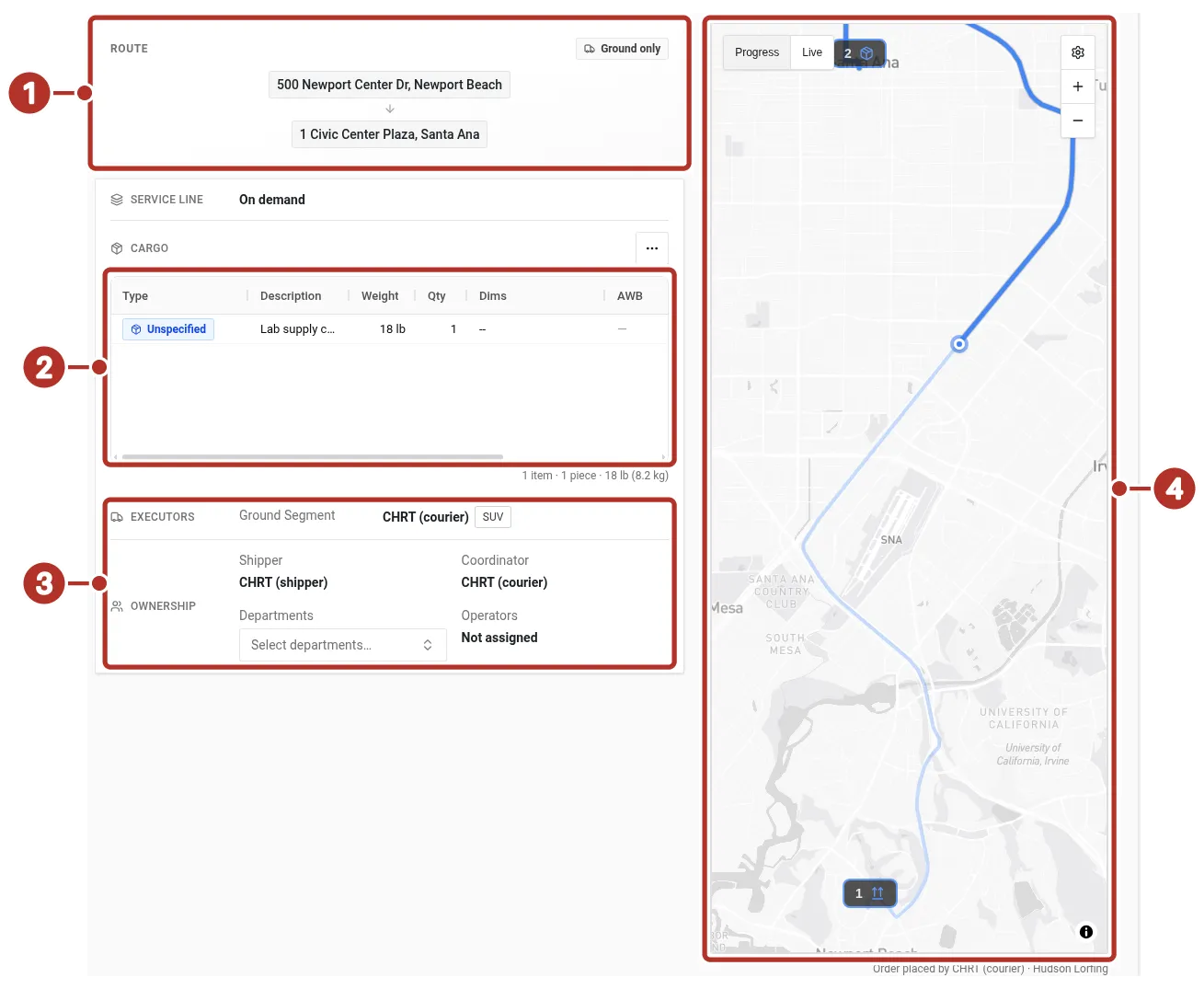
The Summary tab of an order in progress. 1 Route panel, 2 Cargo grid, 3 Executors and Ownership, 4 map with Progress and Live.
Build and follow the route
Use Timeline to inspect shipment legs and stops. Ground, flight, and onboard-courier segments represent different transport work. Add the locations, contacts, time requirements, cargo, and proof requirements the people performing the work need.
Keep proof with its task
Task artifacts support images, files, signatures, scans, and other evidence. Inspect the actual completed artifact and associated task. A proof requirement describes what should be captured; it does not guarantee that evidence has already been collected or that a compliance obligation is satisfied.
Connect your working partners
Use Orgs to manage the relationships available to your organization. Provider mode distinguishes Shippers, Executors, Coordinators, and Vendors. Review the saved relationship and contact information before assigning work.
Read tracking with its source
Review the map’s available tracking sources and update times. Driver location and device observations provide different information. Shipments without a reporting source do not gain live location simply because an order exists.
Route updates to your team
Configure organization groups and personal notification preferences for the available events/channels. Webhook settings support integrations with receiving systems. Verify delivery separately from saving the configuration.
Before you start
Specialized Cargo Handling
See Cargo Types for the full list and how it affects routing, handling, and pricing.
Billing & Rate Sheets
- Rate Sheets — define your pricing structures with base rates, per-mile charges, per-minute charges, minimum charges, and cargo-type multipliers. Set defaults for your organization, for specific connections, or for individual drivers.
- Line Item Groups — each task group in an order gets a detailed cost breakdown that you and the shipper can both see
- Statements & Invoicing — deliveries are grouped into statements, which can be turned into Stripe invoices with a click
- Stripe Connect — get paid directly through CHRT’s payment infrastructure
Notifications
- Notification Groups — configure who on your team gets notified about what (new orders, task completions, billing events) and how (email, SMS, push)