

Order Templates
Use an order template when shipments share a route, cargo description or operational setup. A template is reusable preparation; creating a draft and staging an order are separate actions.
Before you start
Select the provider organization responsible for the work and confirm access to Order Templates. Follow the actions your account permits. If access is denied, ask the organization’s administrator rather than assuming a role or bookmark grants access.
Create and configure a template
-
Open New Order Template. This opens the Create order template dialog.
-
Enter Name 1 and, when useful, Description 2, then use Create template 3.
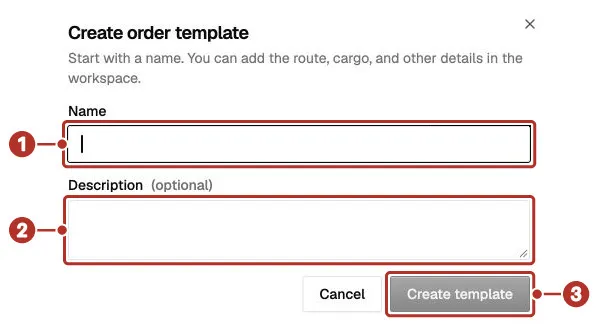
Order Templates > Create order template dialog, shown empty. 1 Name field, 2 Description field (optional), 3 Create template button. The form is empty, so Create template is grey.
-
In the template workspace, review Summary, Timeline, Cargo and Tasks 1. Configure the relevant route, cargo and operational task-list settings for the intended work. The screen below shows Add first segment 2 on a Timeline with no segments yet.
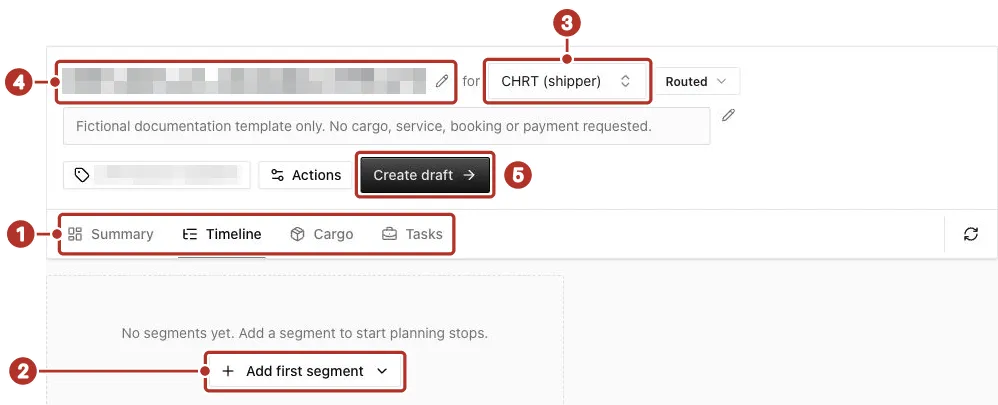
Order Templates > a saved template workspace, Timeline tab, no segments yet. 1 Summary, Timeline, Cargo and Tasks tabs, 2 Add first segment, 3 for shipper selector (CHRT (shipper) here), 4 Template name, with its pencil, 5 Create draft.
-
Review the shipper 3, ownership and other available metadata. Resolve errors and allow edits to finish saving before leaving the section.
In a shipper organization, the header reads by instead of for, and Select coordinator… lets you choose the coordinator who will run the template’s orders. Segment details in a shipper template do not offer executor selection; assigning executors is the coordinator’s job.
-
Refresh or reopen the template and confirm the saved values.
Give the template a name 4 that explains its use. Check timing and handling requirements for each shipment; reusing a template does not prove its previous values fit the next movement.
Create an order from the template
Open the intended active template and use Create draft 5. The app prepares a new draft and opens its order workspace. Review its cargo, locations, timing, shipper/provider and task-list configuration before using Stage order. Cargo shows as a table with a footer that counts items and pieces.
The draft’s order ID 1 is its name, and the shipper 2 follows for.

A draft order’s workspace header. 1 order ID, 2 for shipper.
Reopen the saved order and check its status and ownership. A created draft is not a staged order, driver assignment or shipment execution. If an action reports an error or the result does not refresh, inspect the saved state before trying again.
See Create and assign an order for staging and assignment, and Operational task templates for reusable operator work.
Maintain the template
The template actions include Copy template, Archive, Unarchive and Delete template where available. Review the template’s identity before changing it. Archived templates have editing and Create draft disabled in the workspace; use the appropriate active template for new work.
Prefer archiving when you need to stop using a template while retaining the record. Deletion has its own confirmation. Confirm the result in the template list before assuming a change succeeded.
Templates do not promise automatic recurring shipments. For separately configured order schedules, use Order schedules.