

Flights and Air Cargo
Book cargo space, submit e-AWBs, and trace air waybills in chrt.
Use chrt’s air-cargo tools to find space on a flight, book it, submit the electronic air waybill (e-AWB) to the airline, and follow the shipment by its air waybill (AWB). The work lives on the order’s flight segment, so the booking, the e-AWB and the shipment’s timeline stay connected.
Before you start
- You are the coordinating provider (the forwarder) for the order, and the order has a Flight Segment. Add one from Add Segment on the Timeline. Only the coordinating provider can book cargo on a flight.
- The flight segment is draft, staged or in progress. Cargo can’t be booked after that.
- The order has cargo, and the cargo is linked to the flight segment. Until it is, Book and Record an existing booking show Add cargo to this segment first. See Assign Cargo to Stops.
- To search airlines and book with one, your organization needs an IATA CASS office. See IATA CASS office.
- A cargo item can be on only one active booking at a time.
Book cargo with an airline
-
Open the order’s Timeline and select the flight segment. Under Flight setup, choose Book cargo or configure flight 1, then Book 2 (Compare rates and book cargo with an airline). Record an existing booking 3 is for a booking made outside chrt, and Find a flight to track 4 follows a flight without booking cargo. You can also use Book cargo on the order’s Bookings tab.
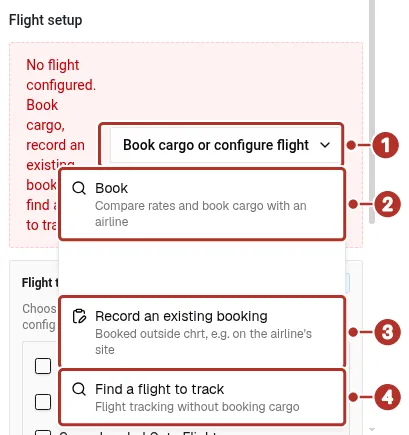
The Book cargo or configure flight menu on a flight segment that has cargo. 1 Book cargo or configure flight menu button, 2 Book, which compares rates and books cargo with an airline, 3 Record an existing booking, 4 Find a flight to track.
-
On Book cargo, check the Cargo 1 the booking covers and add Special handling 2 codes if the cargo needs them, up to 10. Confirm the Dimensions 3: pieces, length, width, height and weight per piece, in the units your app is set to, inches and pounds or centimeters and kilograms, and whether the pieces are stackable or turnable. Special handling codes and dimensions are fixed once the booking is created. Choose Continue to flight search 4. This creates a Draft booking and doesn’t contact an airline.
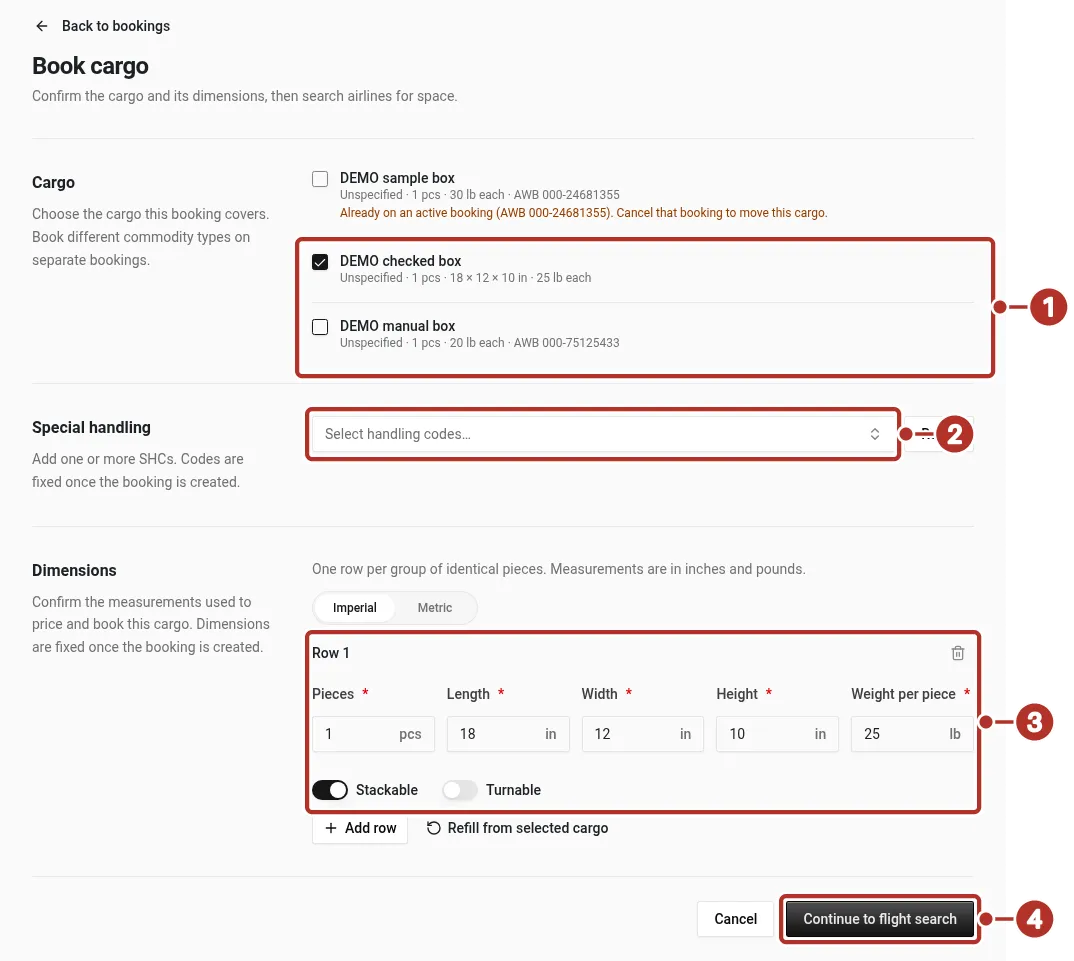
The Book cargo form for a flight segment. 1 Cargo list, 2 Special handling, 3 Dimensions, 4 Continue to flight search.
-
On Find a flight, choose From and To 1, set Departing on or after 2 and a Search window 3 of 1 to 5 days, and confirm the IATA CASS office 4. It’s preselected when your organization has one. Choose Search airlines 5. A search takes 5 to 15 seconds.
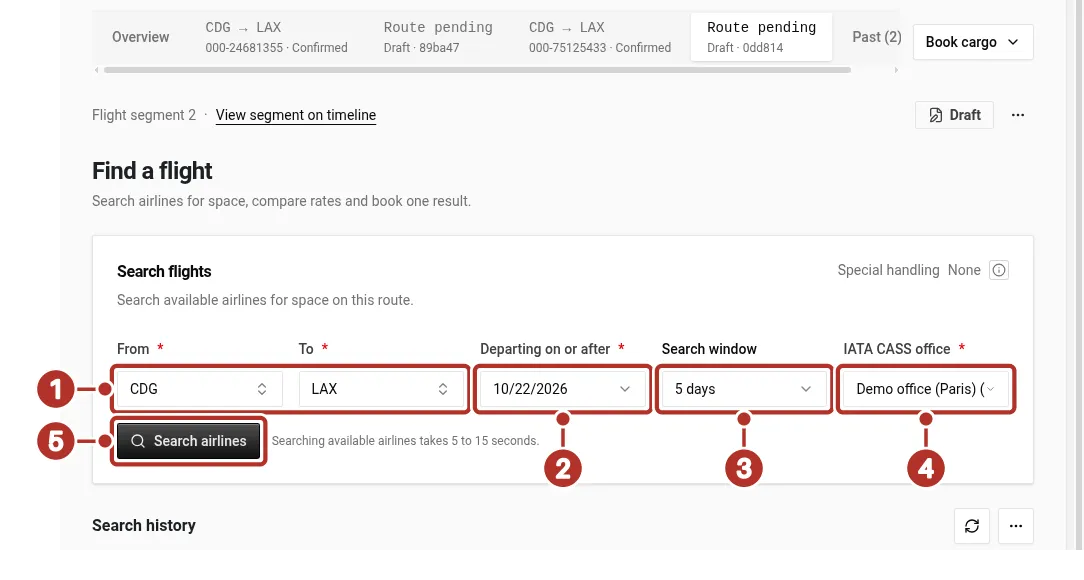
The Find a flight form on a draft booking. 1 From and To airport fields, 2 Departing on or after date, 3 Search window, 4 IATA CASS office, 5 Search airlines button.
-
Review the results 1 by carrier, route, aircraft, drop-off location and flights. Scroll right for departure, arrival and rates. Use the column filters 2, Body type, Currency, AWB and Bookable, to narrow the list. Choose Select 3 on the flight you want.
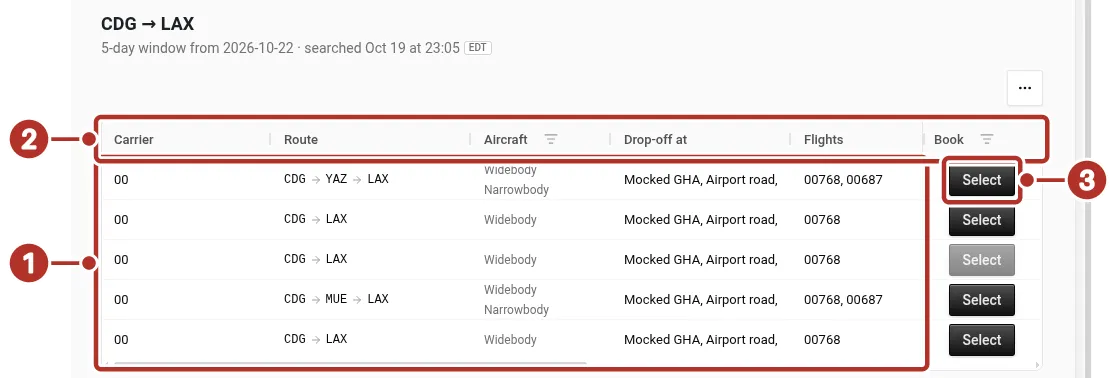
The Find a flight results for a Draft booking. 1 Results, 2 Column filters, 3 Select.
-
On Book with the airline, enter the Air waybill (AWB) 1 if you have one. Leave it blank and the airline assigns one, or choose Use from stock to pick an AWB from your AWB stock. If the airline requires it, the AWB is required and must match the airline’s prefix, for example
020-12345678. Check the itinerary and drop-off details 2, choose a rate under Rates 3, and review Selected rate charges and View airline conditions 4. Book selected rate 5 is at the bottom of the page.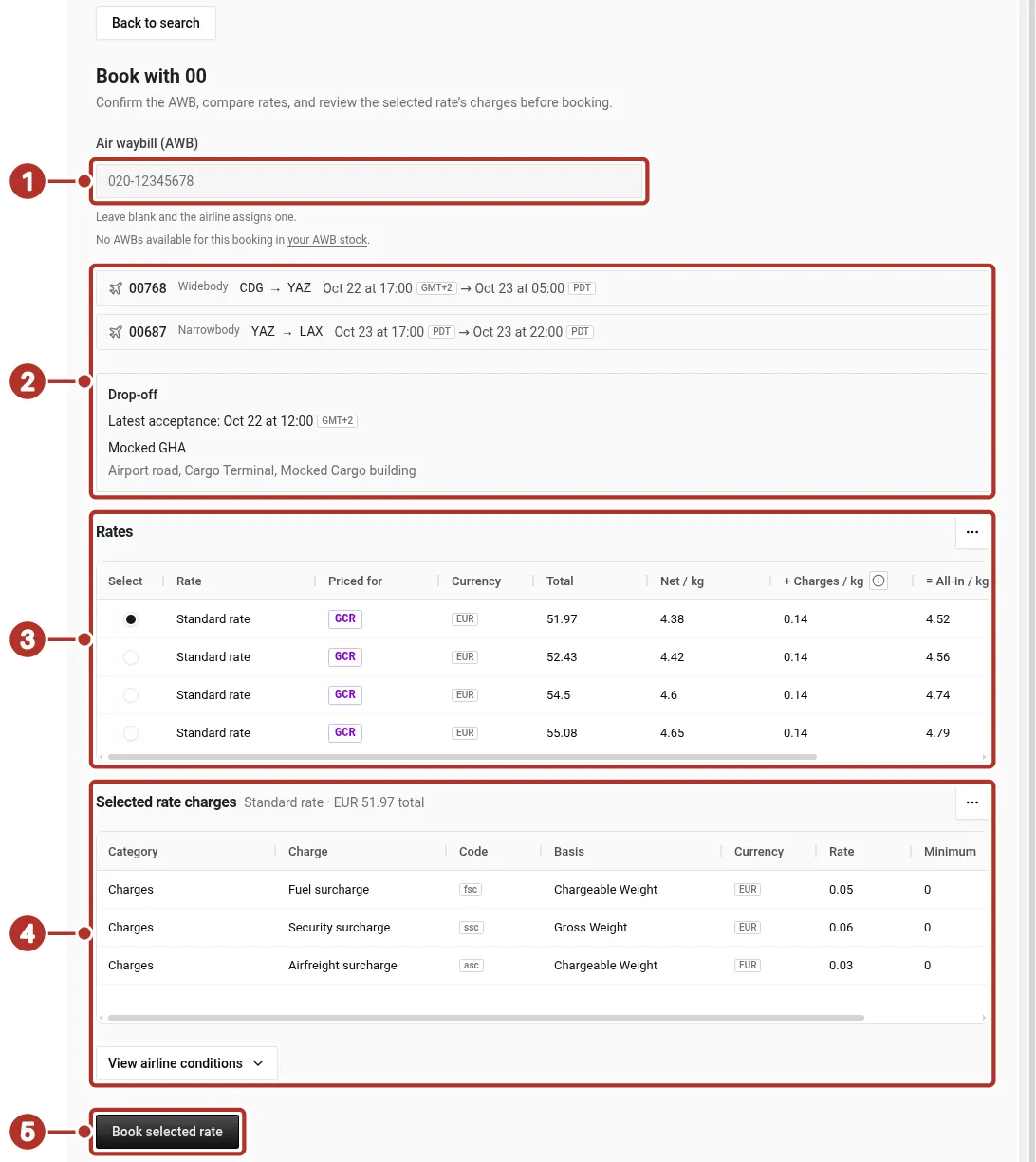
The Book with page for the selected flight. 1 Air waybill (AWB) field, 2 Itinerary and drop-off details, 3 Rates, 4 Selected rate charges and View airline conditions, 5 Book selected rate button.
-
Choose Book selected rate. There is no confirmation step, so review the rate first. Keep the page open while chrt books with the airline. It can take up to 35 seconds. Don’t choose Book selected rate a second time. Check the Bookings tab for the result instead.
-
The booking record opens with its status 1 and has two views, Booking details and e-AWB 2. A confirmed booking shows the AWB 3, the booked itinerary 4, the booked rate and charges, the drop-off and the booking details, including the IATA CASS office it was booked under.
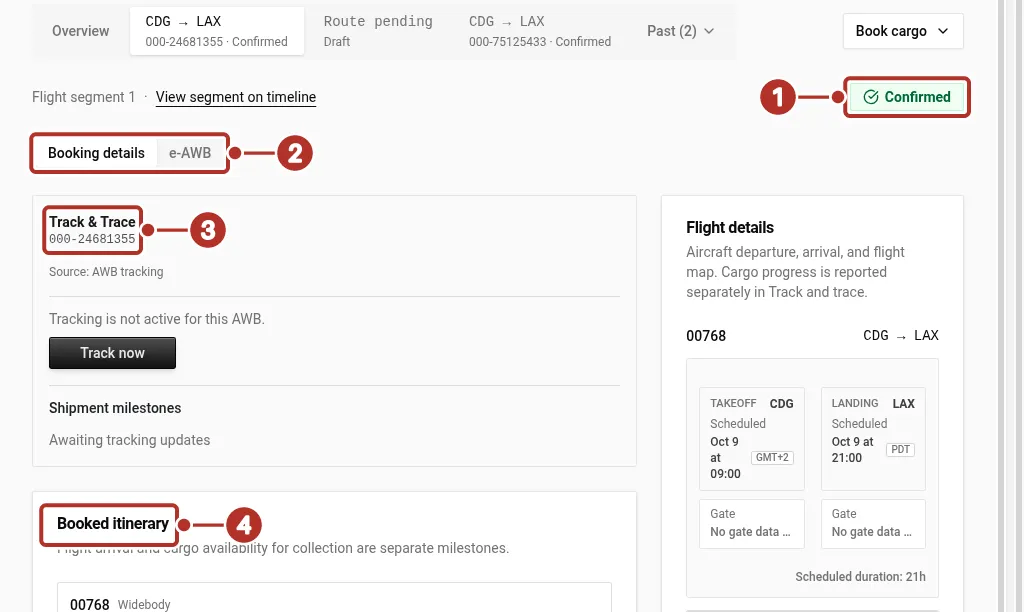
A confirmed booking on the order’s Bookings tab. 1 Confirmed status, 2 Booking details and e-AWB, the two views of each booking, 3 AWB under Track & Trace, 4 Booked itinerary.
Booking statuses
chrt updates the status when the airline answers. Use Refresh status in the booking’s actions menu if you need the latest answer sooner.
Record a booking made outside chrt
Use this when the cargo was booked another way, for example on the airline’s site.
-
On the flight segment, choose Book cargo or configure flight, then Record an existing booking (Booked outside chrt, e.g. on the airline’s site). You don’t need an IATA CASS office for this.
-
Under Cargo 1, choose the cargo this booking covers. Add Special handling 2 codes and confirm the Dimensions 3, the same as for Book. Cargo that is already on another booking is listed with its AWB.
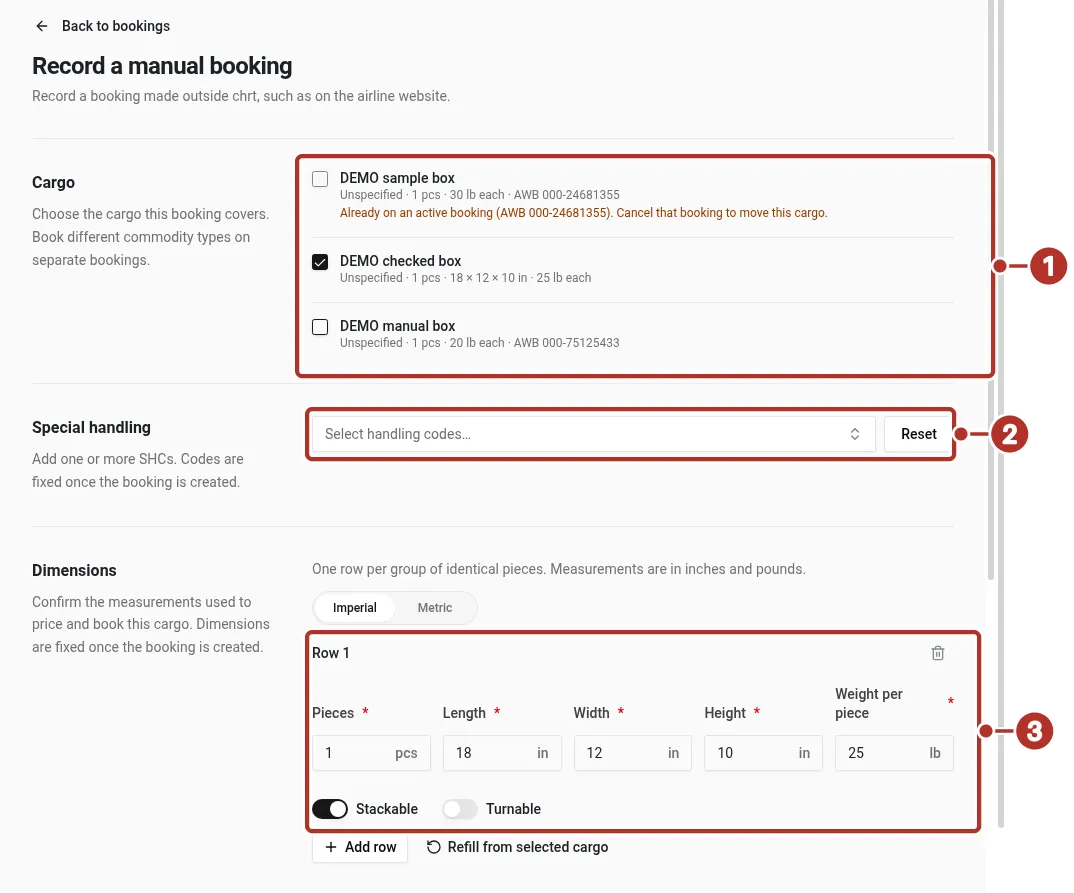
The cargo part of the Record a manual booking form. 1 Cargo list, 2 Special handling, 3 Dimensions.
-
Enter the Air waybill (AWB). It is required. You can also choose Use from stock.
-
Under Booked itinerary, use Search flights to pick the flights, or Enter manually 1 to enter each leg’s Airline code and Flight number 2, From and To 3 airports, and Departs date and Time 4 and the same for Arrives. Arrival must be after departure. Each time starts in the local zone of its airport. That zone shows beside Time and in Time zone 5, where you can choose a different zone. Turn on Road feeder truck for a truck leg, and use Add connecting leg for more legs.
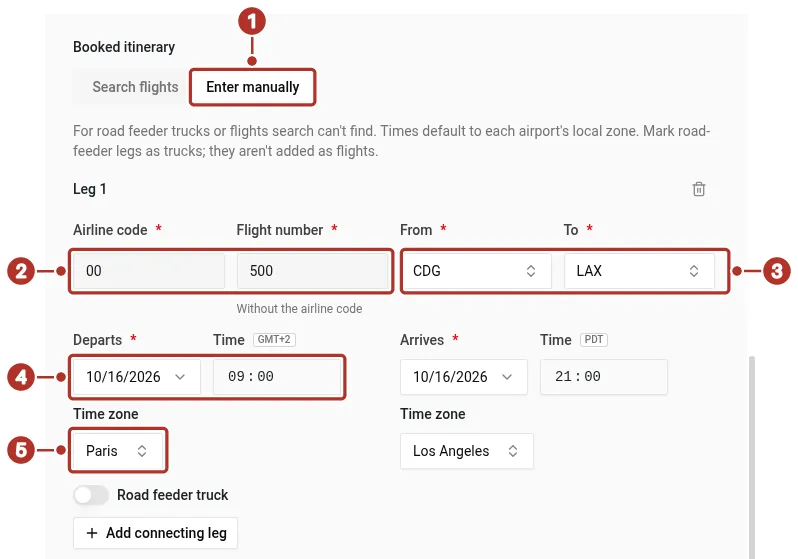
The Booked itinerary part of the Record a manual booking form. 1 Enter manually, 2 Airline code and Flight number, 3 From and To, 4 Departs date and Time, 5 Time zone.
-
Optionally add the quoted rate: total, currency and rate name.
-
Choose Record booking. chrt saves it as Confirmed and doesn’t contact an airline. The Booked itinerary shows each time in its airport’s local zone. The Booking details card shows Booked through: Manual 1 and the Master AWB 2, and shows the Booked rate 3 if you added the quoted rate. The Booked cargo 4 card shows the cargo as booked.
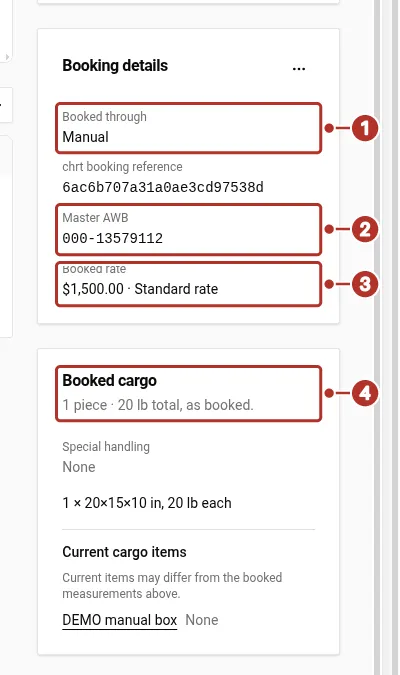
The Booking details card of a recorded booking. 1 Booked through: Manual, 2 Master AWB, 3 Booked rate (the quoted rate), 4 Booked cargo card (the cargo as booked).
To change a recorded booking later, cancel it and record a new one.
IATA CASS office
Booking directly with an airline requires an IATA CASS registration. Searching airlines for space and booking with Book use your organization’s IATA CASS office. Without an office, Book is unavailable and shows Contact chrt to set up an IATA CASS office. Find a flight to track and Record an existing booking don’t need an office.
Offices are set up by chrt. Contact hi@chrt.com to add one. Administrators can see your offices under Settings > IATA CASS Offices. The list shows each office’s Name 1 and IATA agent code 2.
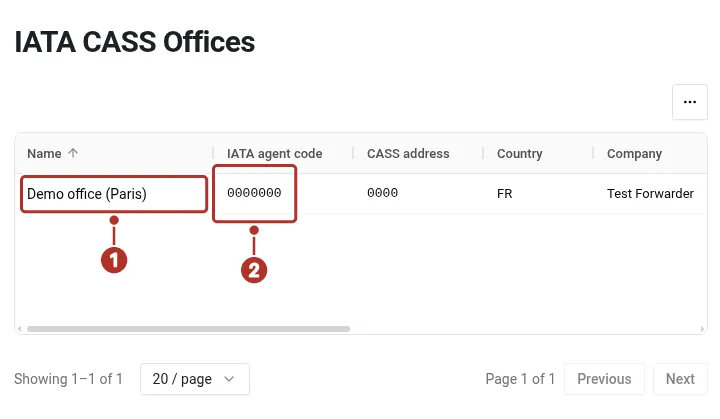
The IATA CASS Offices list under Settings. 1 office Name, 2 IATA agent code.
Open an office to see its IATA identity 1 and edit its name 2, company and contact. The IATA agent code, CASS address and country are set up by chrt and can’t be edited here. Contact chrt to change them. The name is what identifies the office when you search for flights.
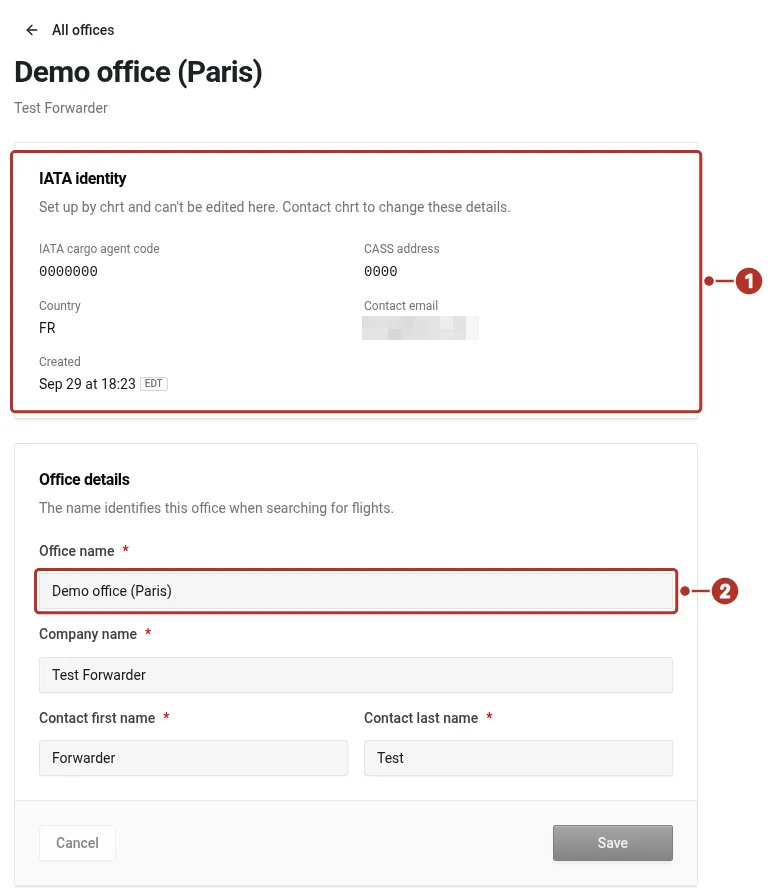
An office’s details under Settings > IATA CASS Offices. 1 IATA identity, 2 Office name.
Archiving an office can’t be undone. Bookings already made under it stay as they are.
AWB stock
Settings > AWB Stock lists the AWBs your organization holds, with counts by airline. Each AWB is Available, Reserved, Used or Void. Choose Add AWBs to add numbers. For a listed AWB, the row menu offers Mark used…, Mark available…, Void… and Delete…. Organization administrators can change stock.
When you book or record a booking, Use from stock beside the Air waybill (AWB) field lists the available AWBs for you to choose from.
Submit an e-AWB
You can create the e-AWB once the booking is Confirmed and has an AWB number, while the flight segment is draft, staged or in progress. Saving the e-AWB stores it in chrt. It reaches the airline only when you choose Send messages….
-
Open the booking and choose its e-AWB view, then Create e-AWB. For a booking you recorded outside chrt, also choose the IATA CASS office the e-AWB is issued under. A booking made in chrt uses the office it was booked under.
-
The editor is a page of five section cards: Parties, Cargo & rates, Charges, Compliance and Additional information. The Sections list 1 beside the page shows each section’s progress and carries Save e-AWB and Cancel.
-
Under Parties, start with the Shipper and Consignee cards. Under Select shipper 2 or Select consignee, choose an order participant, Choose an organization 3 to search for one, or Enter details manually 4. The shipper defaults to the order coordinator. The consignee defaults to the next task group’s recovering agent. If the fields already hold details, chrt asks Replace the shipper details? before it overwrites them. Suggestions come from each organization’s profile and may be incomplete. Verify the legal name and complete any missing address, city and 2-letter country code. Also notify is optional.
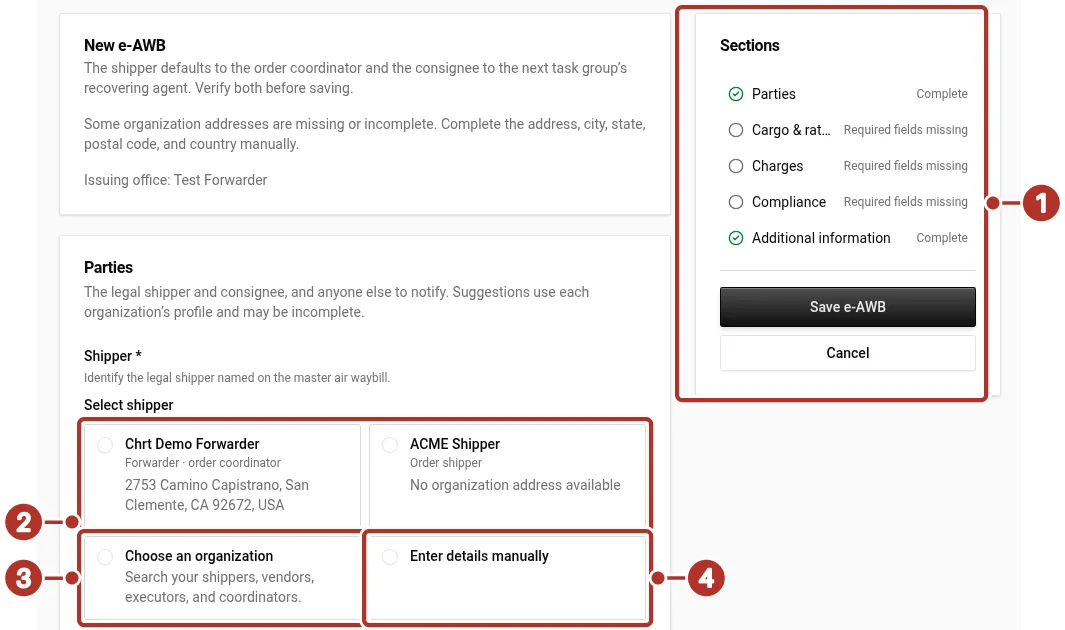
The top of the New e-AWB editor. 1 Sections list, 2 Select shipper options, 3 Choose an organization, 4 Enter details manually.
-
Under Cargo & rates, check what chrt filled in from the booking: Pieces, Gross weight, Chargeable weight and Volume 1, the rate and the dimensions. Choose a Rate class code 2 and confirm the Nature and quantity of goods 3.
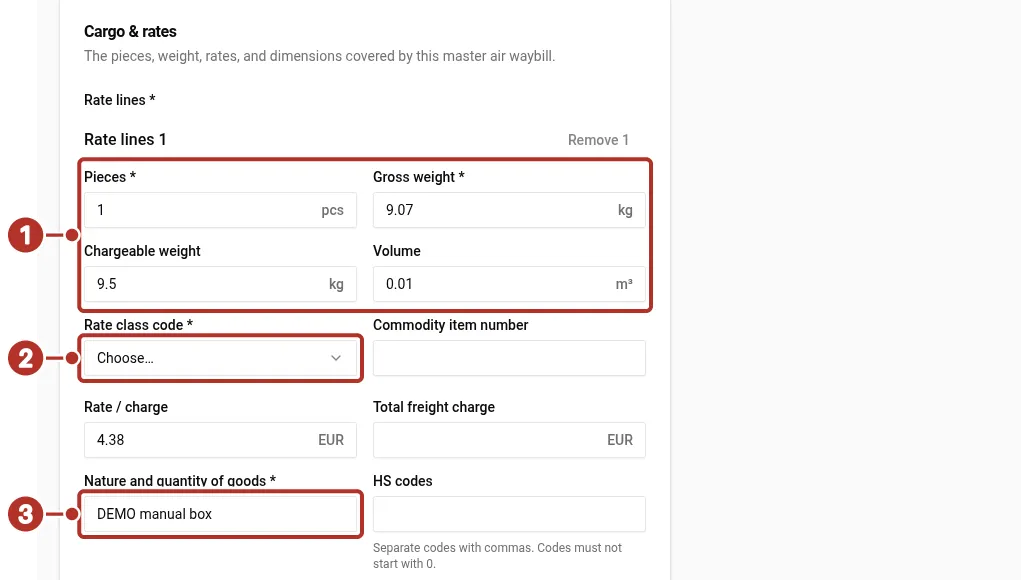
The Cargo & rates card of the editor. 1 Pieces, Gross weight, Chargeable weight and Volume, 2 Rate class code, 3 Nature and quantity of goods.
-
Under Charges, confirm the Currency code 1 and choose the Charge code 2, then set Weight / valuation payment and Other charges payment 3 to prepaid or collect. Other charges is optional: choose Add other charges 4 to record them.
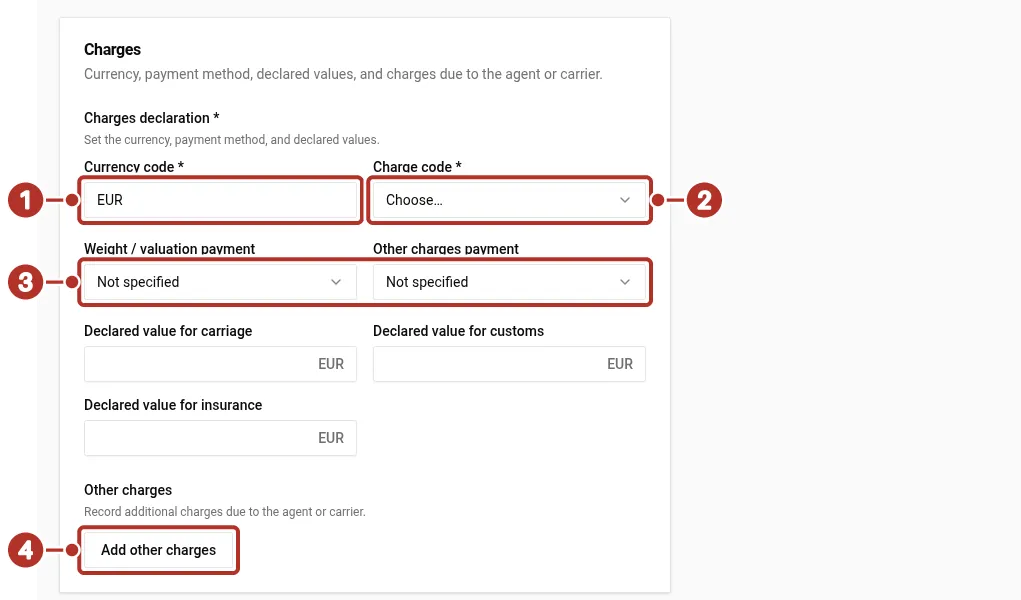
The Charges card of the editor. 1 Currency code, 2 Charge code, 3 Weight / valuation payment and Other charges payment, 4 Add other charges.
-
Under Compliance, enter the Shipper signature 1: the name of the person signing. A Security declaration 2 is optional. If you include one, its country, entity and status fields are required. Under Carrier execution, enter the Execution date 3, Place 4 and Authorization signature 5. These are required. Under Additional information, enter an Issuing agent name override only if the airline needs a different name. Names allow letters, numbers, dots and spaces, up to 35 characters.
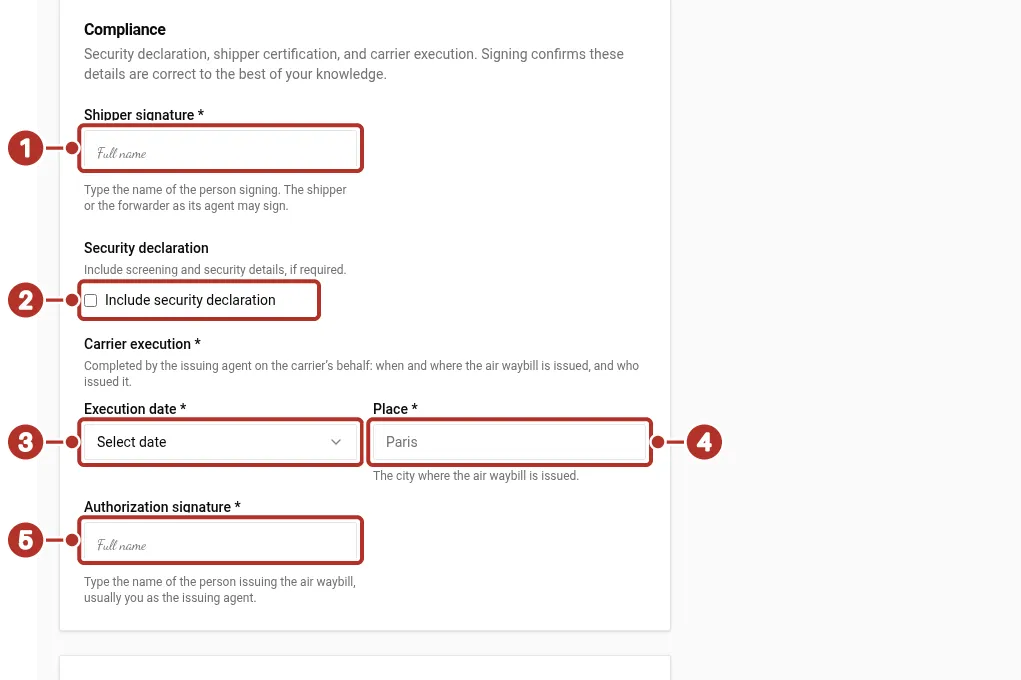
The Compliance card of the editor. 1 Shipper signature, 2 Security declaration, 3 Execution date, 4 Place, 5 Authorization signature.
-
Choose Save e-AWB 1 in the Sections list. If a required field is missing, chrt shows Review the highlighted fields., marks each field and counts them in the Sections list 2. Fix the field, here Execution date 3, and save again.
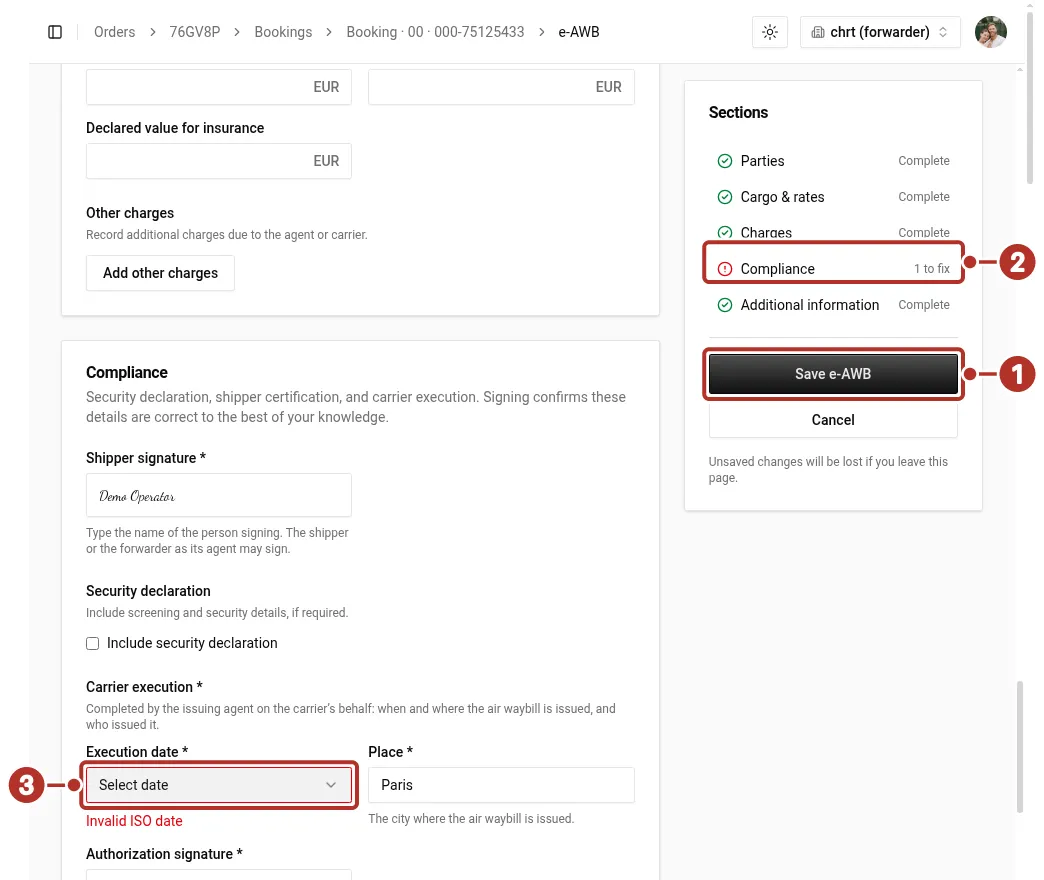
The editor after choosing Save e-AWB with the execution date empty. 1 Save e-AWB, 2 Sections list, 3 Execution date.
-
After saving, the editor closes. The header shows the e-AWB’s status 1 and when it was Last saved. Use Edit e-AWB 2, or Edit on a card, to change it. The e-AWB shows as cards: Parties, Cargo & rates and Charges, with Compliance, Additional information, Messages card 3 and From the booking beside them.
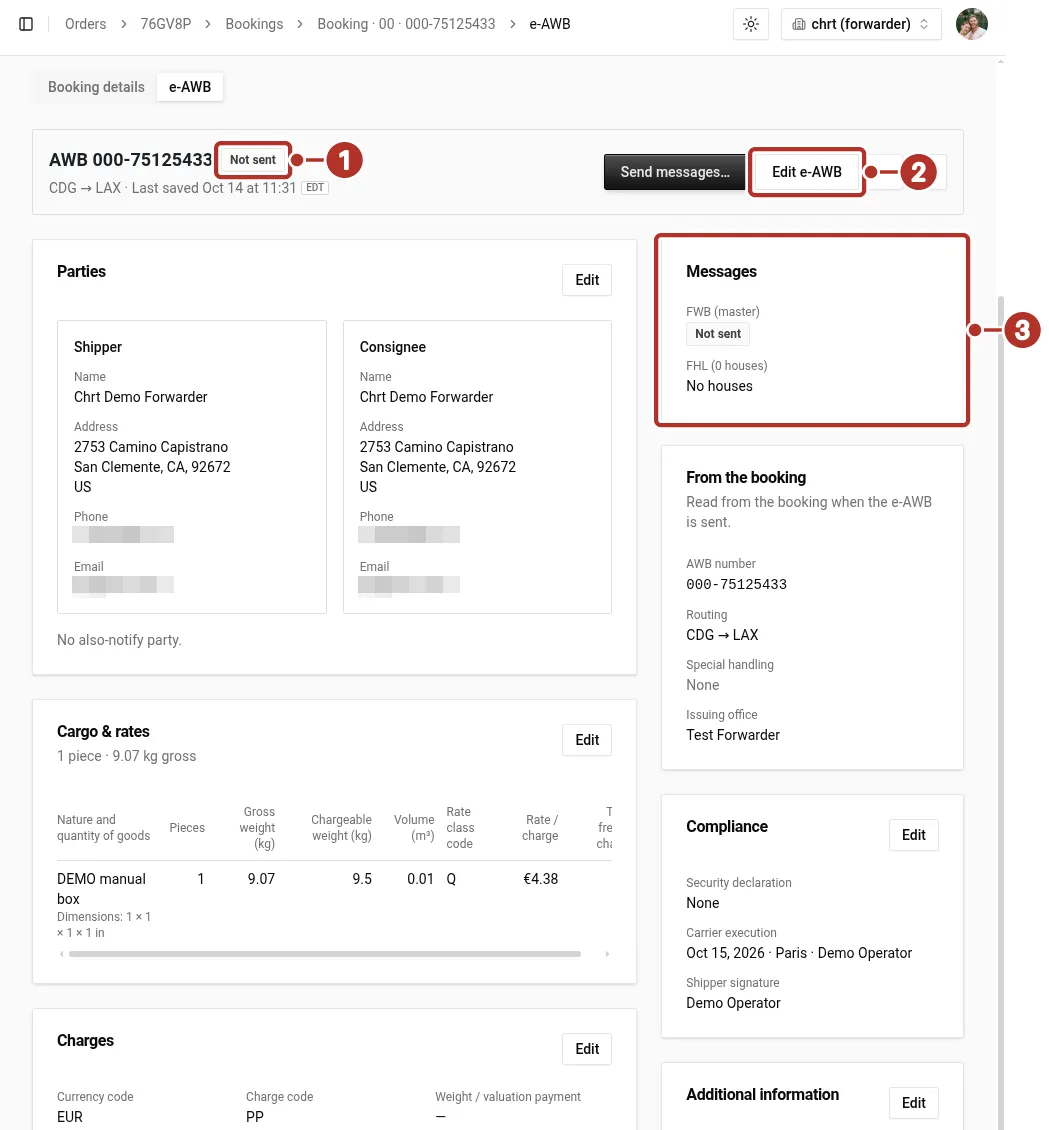
The saved e-AWB page. 1 status badge, 2 Edit e-AWB, 3 Messages card.
For a consolidation, choose Add house and enter each house AWB number 1, origin 2 and destination 3 airport codes, pieces 4, gross weight and a short goods description 5 (up to 15 characters). A house AWB number can’t be changed later.
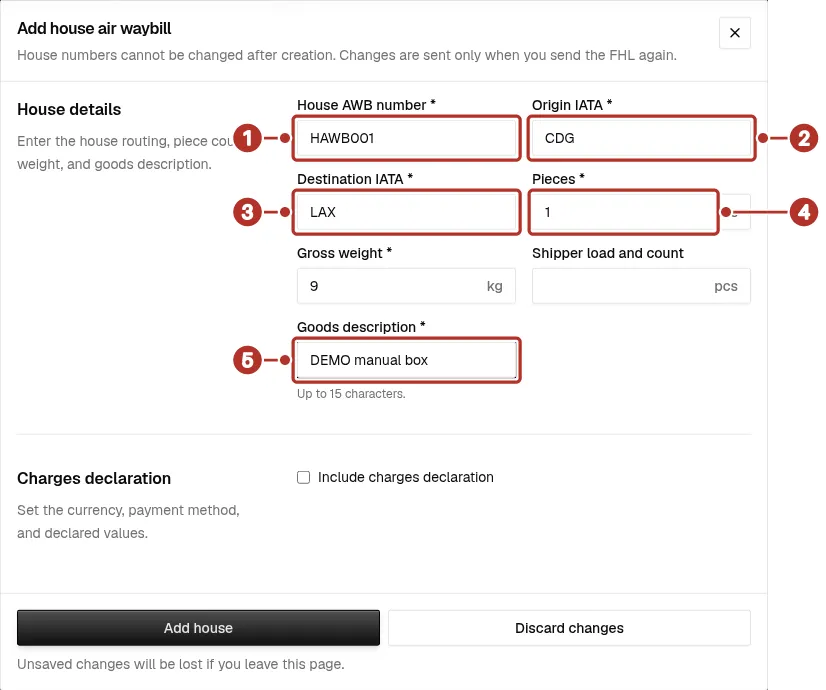
The Add house air waybill dialog, where the origin and destination default from the booking. 1 House AWB number, 2 Origin IATA, 3 Destination IATA, 4 Pieces, 5 Goods description.
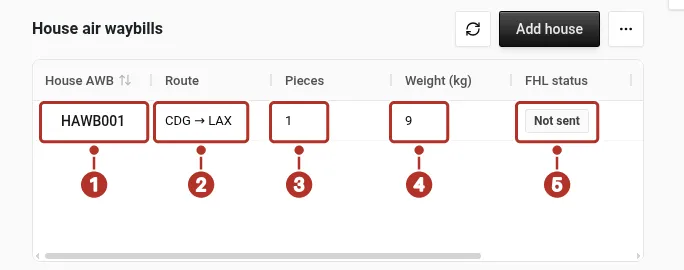
The house air waybills list after saving. 1 House AWB number, 2 Route, 3 Pieces, 4 Weight (kg), 5 FHL status.
After you save a house, the list of house air waybills shows its House AWB 1 number, Route 2, Pieces 3, Weight (kg) 4 and FHL status 5.
-
Choose Send messages… in the header. The Send to airline dialog lists the master message (Master FWB 1) and one message per house (House · FHL 2). Messages that are unsent, rejected or edited in this session are preselected. chrt warns you if you send a house before the master has been accepted 3. Choose Send 4.
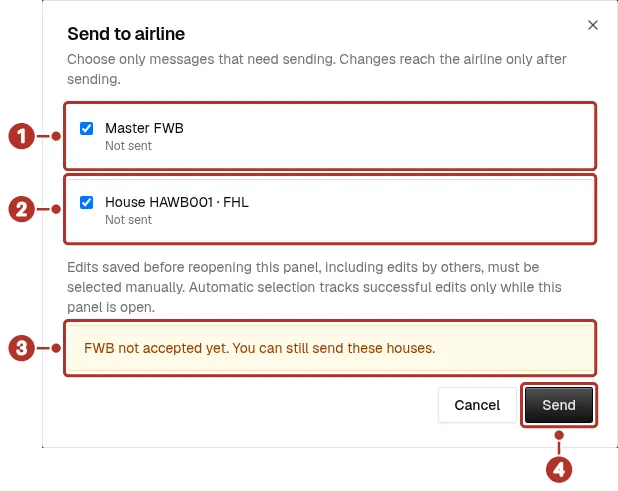
The Send to airline dialog, which notes when the master isn’t accepted yet. 1 Master FWB message, 2 House · FHL message, 3 FWB not accepted yet warning, 4 Send button.
-
Follow the status 1 at the top of the e-AWB. chrt refreshes it every 15 seconds for up to 10 minutes after a send.

The e-AWB header once the airline has accepted the master message. 1 status badge.
e-AWB message statuses
If a message is rejected
A rejected message shows Rejected on the master or on the house’s FHL status 1. The Messages card lists rejected houses. Open Send history > View to read the airline’s response, correct the document, save it, and send again.
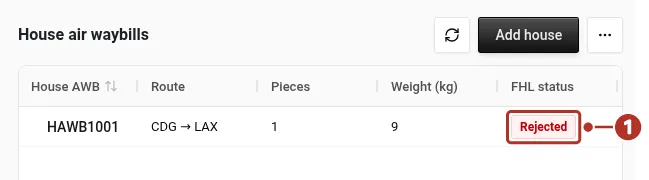
The House air waybills list of an e-AWB with a rejected house. 1 FHL status.
To send a rejected house again, choose Send messages…. In the Send to airline dialog, the rejected House · FHL 1 message is preselected. A warning 2 says the selection includes previously sent messages. Choose Send 3.
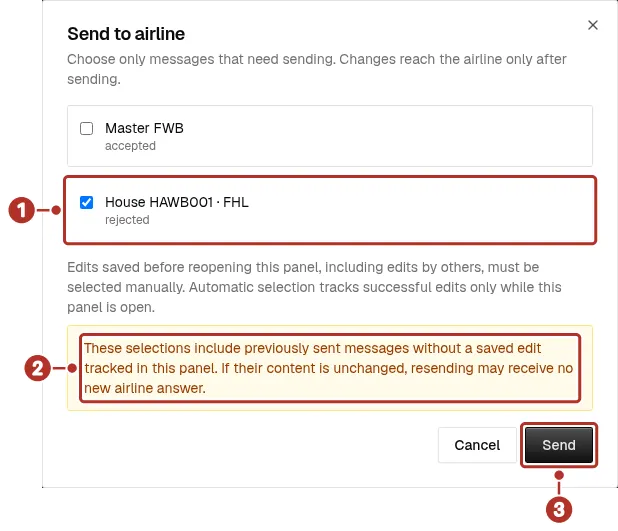
The Send to airline dialog with the rejected house message preselected. 1 House · FHL message, preselected and shown as rejected, 2 Warning that the selection includes previously sent messages, 3 Send button.
Send history lists every send with its status, message type and houses. Transmitted to airline means the message left chrt. It doesn’t mean the airline accepted it. Open View on a row to see the airline’s responses and exactly what was sent.
Mark a message accepted
If the airline hasn’t answered after 10 minutes, Mark accepted… becomes available. Use it when you have the airline’s acceptance by another route.
-
Open More e-AWB actions and choose Mark accepted…. Select the message 1. A message that has waited fewer than 10 minutes isn’t available 2.
-
Choose Confirm acceptance 3.
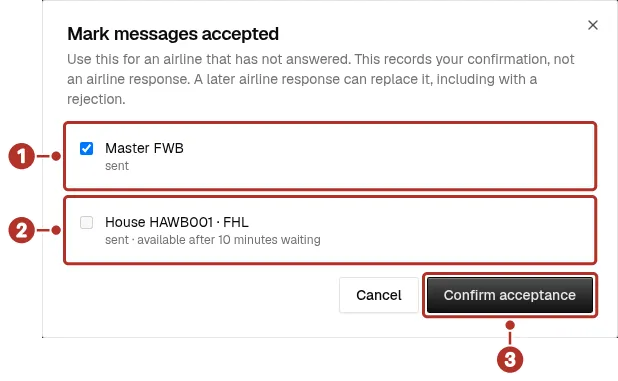
The dialog for marking messages accepted, which reminds you that this records your confirmation, not an airline response. 1 Master FWB message, selected, 2 House · FHL message, not available until it has waited 10 minutes, 3 Confirm acceptance button.
-
The status 1 reads Marked accepted by your name, with the time.

The e-AWB header after the master message was marked accepted. 1 status badge. A later airline response, including a rejection, can replace it.
Change, cancel or delete
- Edit and resend. Choose Edit e-AWB, change it, choose Save e-AWB, then Send messages… again. A send can’t be undone. Save or discard your edits before sending.
- Delete an e-AWB. Delete e-AWB, in More e-AWB actions, works only while nothing has been sent. Documents that reached the airline can’t be deleted. Houses follow the same rule.
- Cancel an airline booking. See the steps below.
- Cancel a recorded booking. See the steps below.
- Try again. After Rejected, Failed or Cancelled, use Book again.
Cancel an airline booking
-
On a confirmed booking, open Booking actions 1. It also has Refresh status 2.
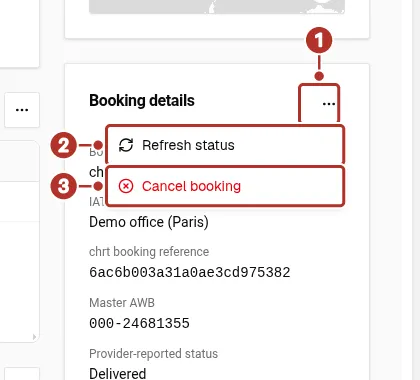
The Booking actions menu on a confirmed booking. 1 Booking actions button, 2 Refresh status, 3 Cancel booking.
-
Choose Cancel booking 3 and enter a Reason 1. It’s required and is sent to the airline with the cancellation. Choose Cancel booking 2 to send it, or Keep booking 3 to leave the booking as it is.
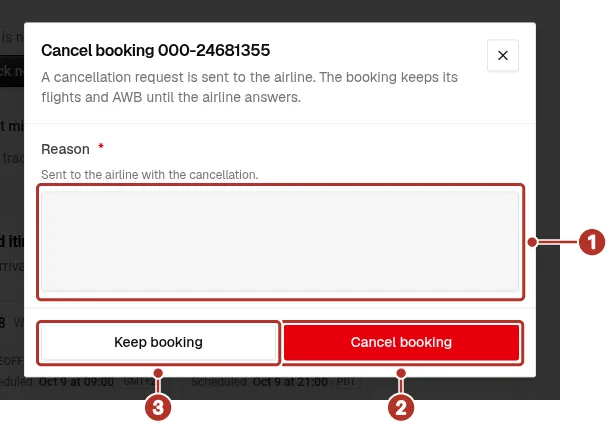
The Cancel booking dialog: a cancellation request goes to the airline, and the booking keeps its flights and AWB until the airline answers. 1 Reason field, 2 Cancel booking button, 3 Keep booking button.
The booking shows Cancelling until the airline answers. If you see an error, the airline may still have received the request, so check the status before trying again.
Cancel a recorded booking
Open Booking actions > Cancel booking, then choose Cancel booking 1 in the dialog, or Cancel 2 to close it without cancelling.
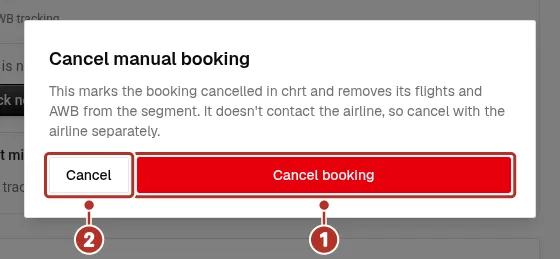
The confirmation dialog for cancelling a recorded booking, which says the airline isn’t contacted. 1 Cancel booking button, 2 Cancel button, which closes the dialog.
chrt moves the booking to the Past group 1 in the booking tabs, marks it cancelled 2 and removes its flights and AWB from the segment. It doesn’t contact the airline, so cancel with the airline separately. A recorded booking has no Refresh status.
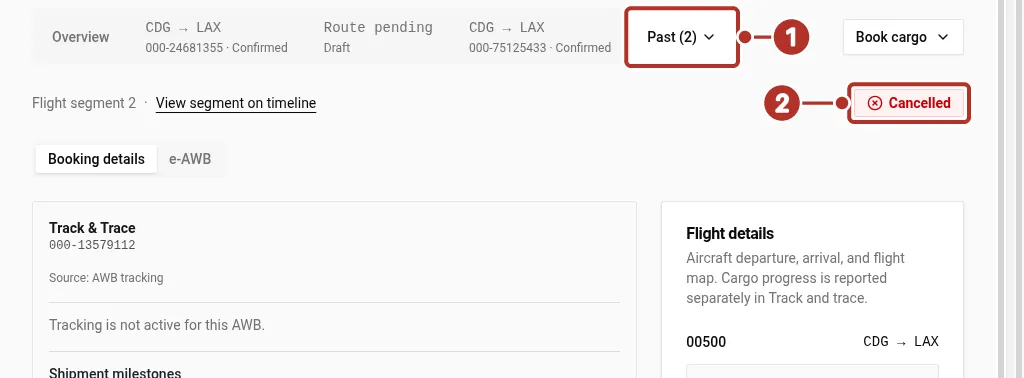
The Booking details view of a cancelled recorded booking on the order’s Bookings tab. 1 Past group in the booking tabs, where cancelled bookings move, 2 Cancelled status on the booking.
Follow the flight
Select the flight segment on the Timeline to open its Flight leg panel. It shows the flight’s status 1, here In Flight, the Takeoff 2 and Landing 3 cards with the actual or estimated time in each airport’s time zone and any delay, the departure gate 4 and a map with the aircraft 5.
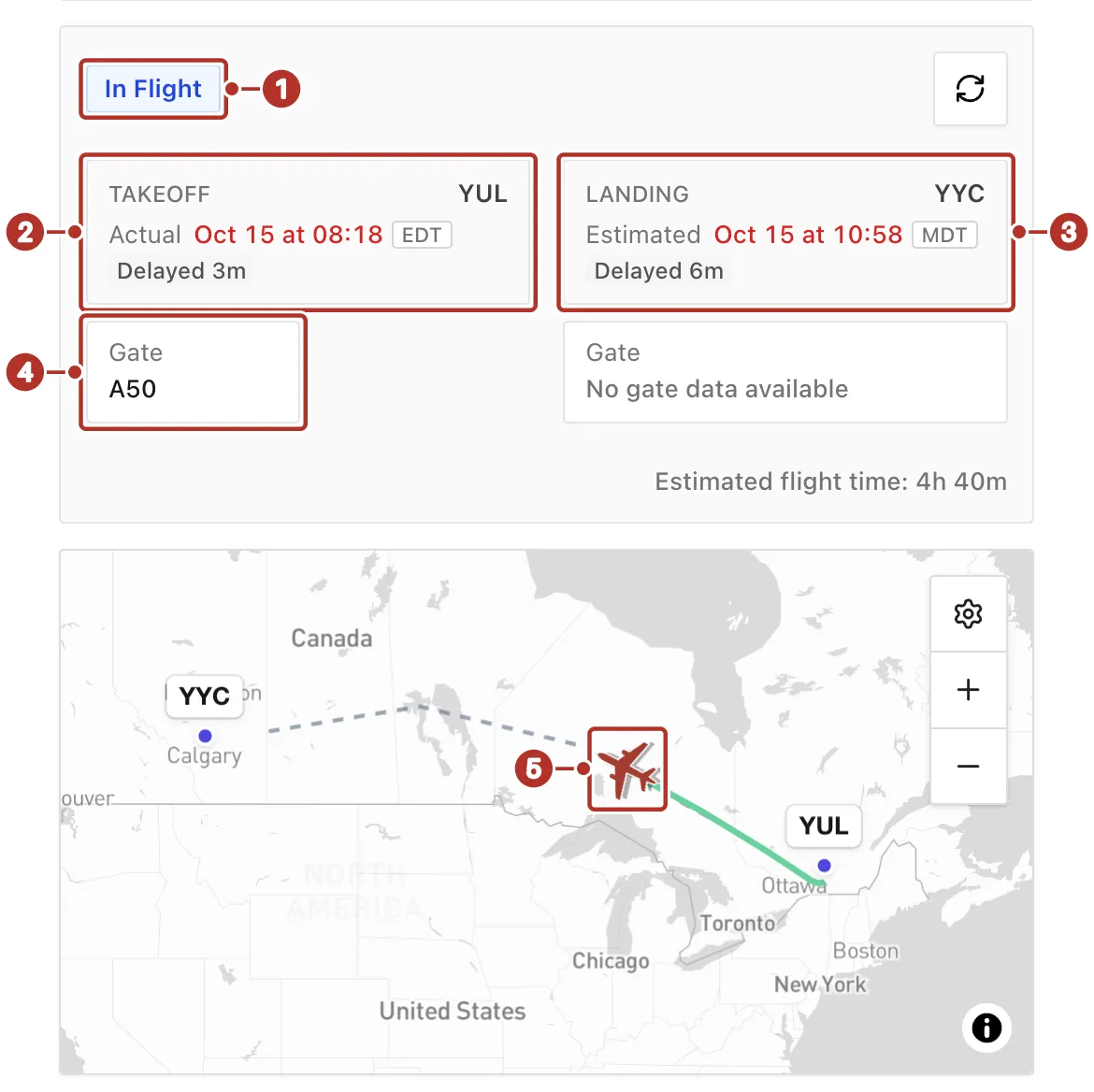
The Flight leg panel for a flight in progress, with its map. 1 In Flight status, 2 Takeoff card, 3 Landing card, 4 Gate card, 5 aircraft on the map.
Track and trace the AWB
A confirmed booking shows Track & Trace for its AWB, with the latest reported milestone, the source, the last update and how long tracking stays active. Use Track now when tracking isn’t active yet. Flight status, cargo-booking status and AWB events describe different parts of the shipment, so check the source and update time when you read a status.
If something looks different
If the option you need is unavailable, contact hi@chrt.com with the order reference and the action you need to complete.
Related guides
- Assign Cargo to Stops — link cargo to the flight segment before booking.
- Multi-leg orders — connect ground and air segments.
- Next Flight Out (NFO) — plan time-critical air shipments.
- Tracking shipments — review the shipment’s tracking information.
- Trackers for international cargo — attach trackers to cargo.